
Buy one product or the complete bundle
Use this setup when customers should be able to buy the product they are viewing on its own, or choose a discounted set with another product. Both choices appear in the same widget, so customers do not have to accept the complete set.
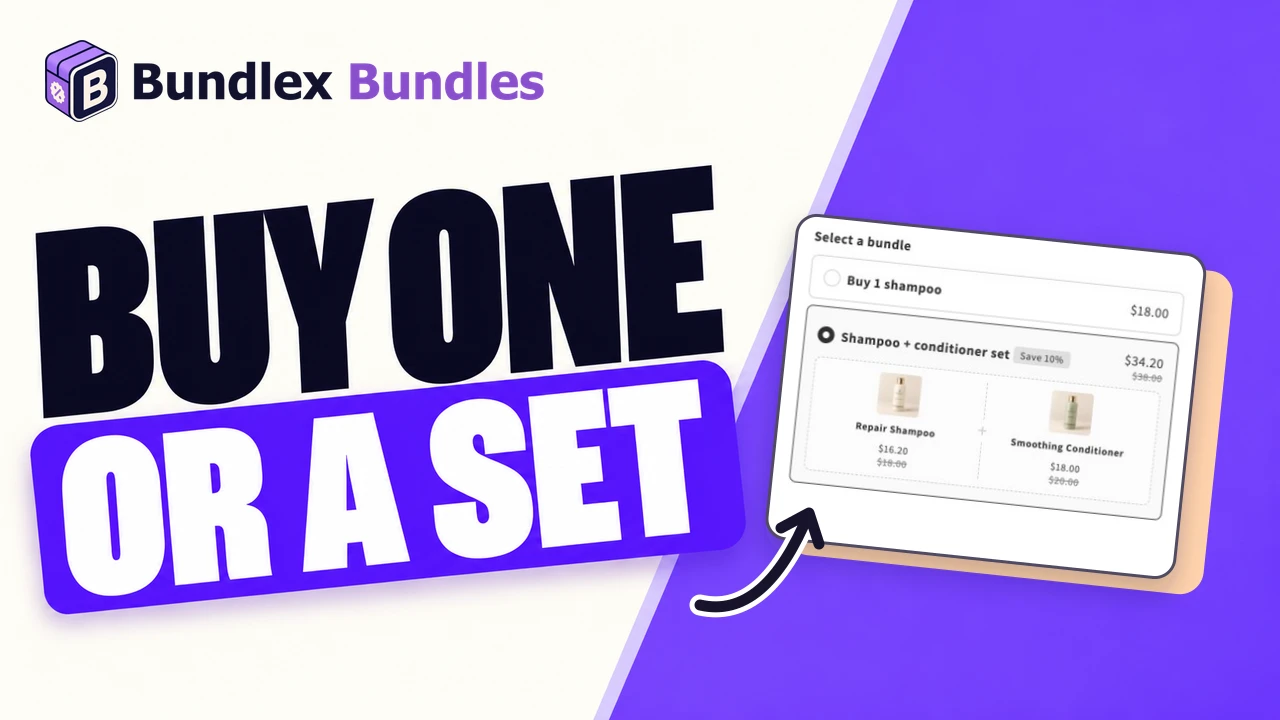
The example we will build
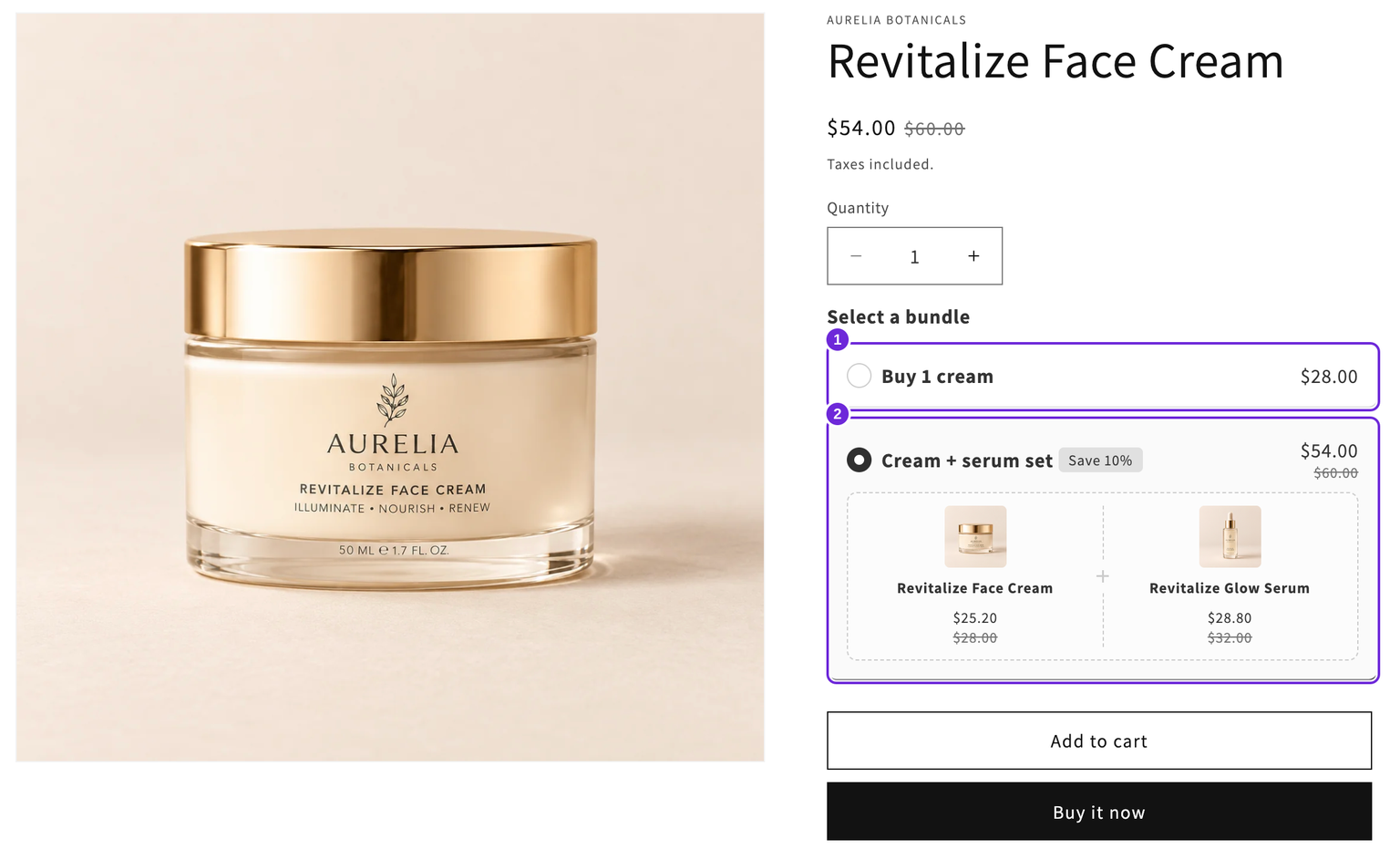
Our example uses a face cream priced at $28 and a serum priced at $32. These are example prices in USD; use your store currency and your own products.
| Offer | Products added | Discount | Product total |
|---|---|---|---|
| Buy 1 cream | 1 cream | None | $28 |
| Cream + serum set | 1 cream and 1 serum | 10% off both | $54 |
The totals assume those selling prices, no other discounts, and no added tax or shipping. The serum is a required part of the discounted set. If it should be optional, use an upsell instead.
1. Start a deal for the main product
- In Bundlex, click Create bundle and choose Start from scratch, or open the deal you want to edit.
- Under Show widget on, choose Selected products and select only the cream for this example.
- Check that the preview shows the cream. The product being viewed is the main product in the set.
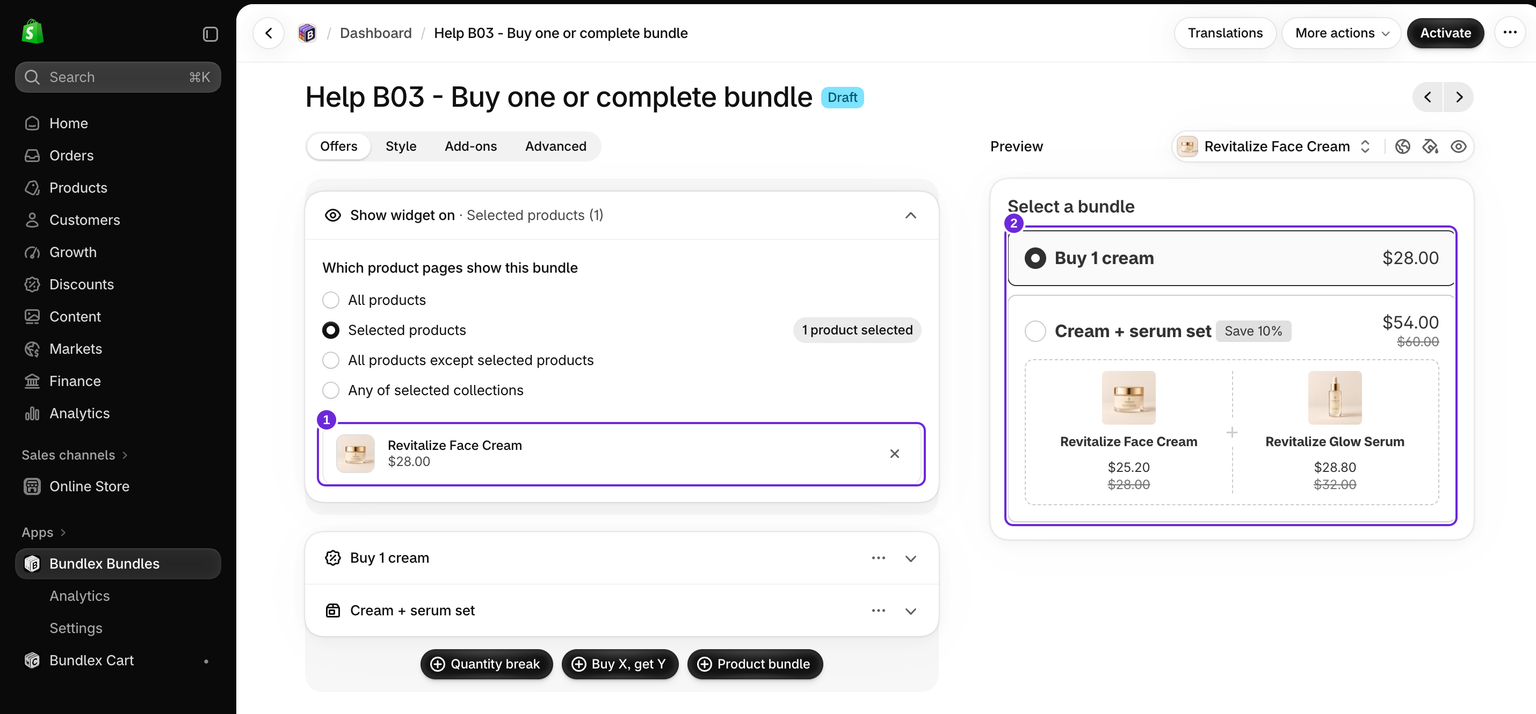
Selecting only the cream keeps this example on its product page. Showing the same fixed set from each component page is a different setup: see linked sets. Avoid another active deal targeting the same product while testing.
2. Add the single-product choice
- Open Offers and expand the existing Single offer. Starting from scratch already includes this quantity-break offer. If your deal has no single-item offer, click Quantity break to add one.
- Set Quantity to 1 and Discount to None.
- Give it a clear title, such as Buy 1 cream.
- Turn on Pre-selected offer for this offer if buying one cream should be the default.
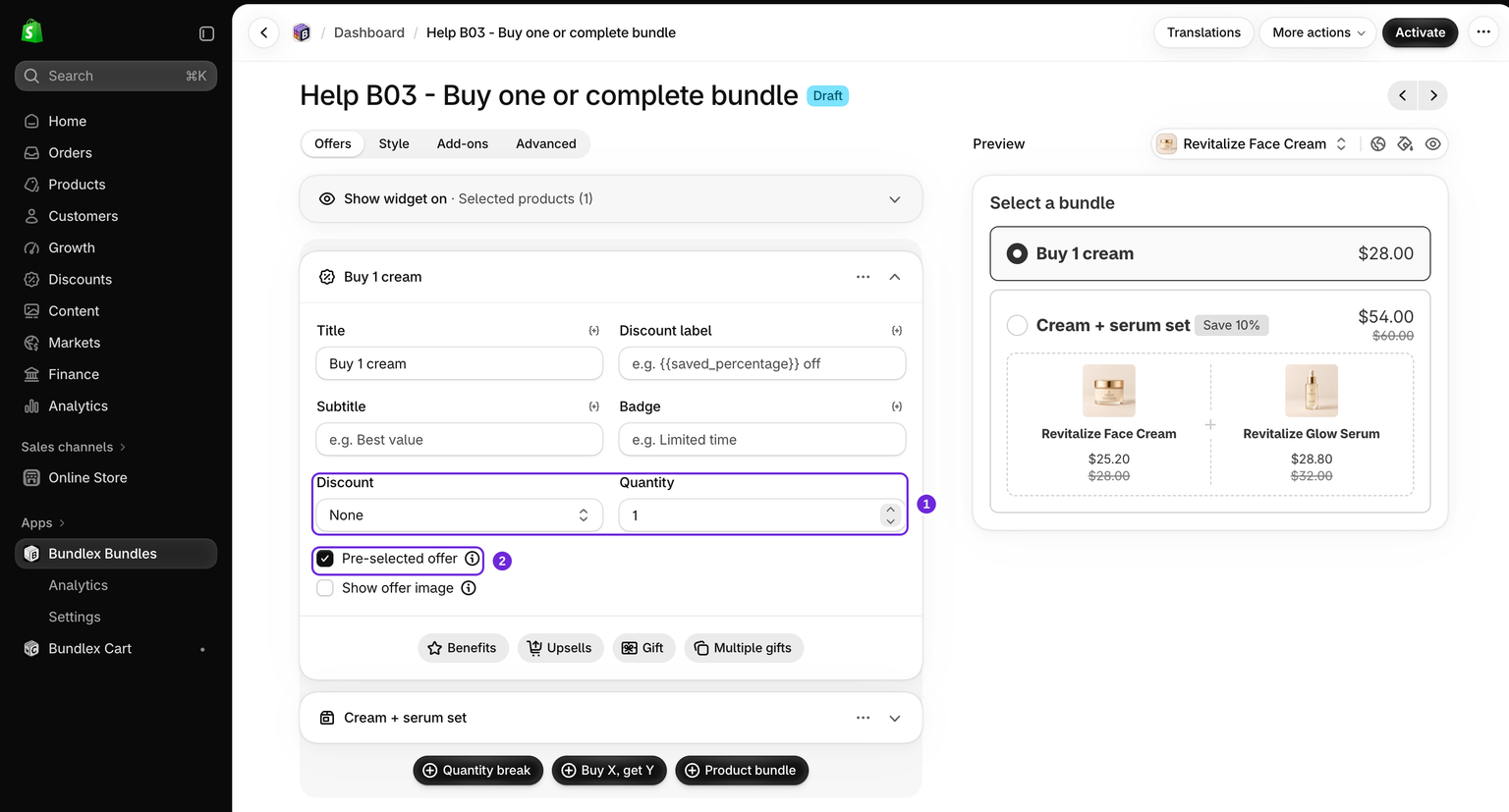
This is a separate offer in the same deal, not a second deal. It gives shoppers a visible one-item choice without adding the serum.
3. Add the complete-set choice
- In Offers, click Product bundle.
- In Bundle products, keep the cream as the product being viewed. Click Add products, then Pick products, and choose the serum and its allowed variants.
- Choose One discount for the whole bundle, set Bundle discount to Percentage, and enter 10.
- Name the offer Cream + serum set. Choose Grid under Bundle layout so the cream and serum appear side by side.
- Check the preview: one cream and one serum should cost $54 at the example prices.
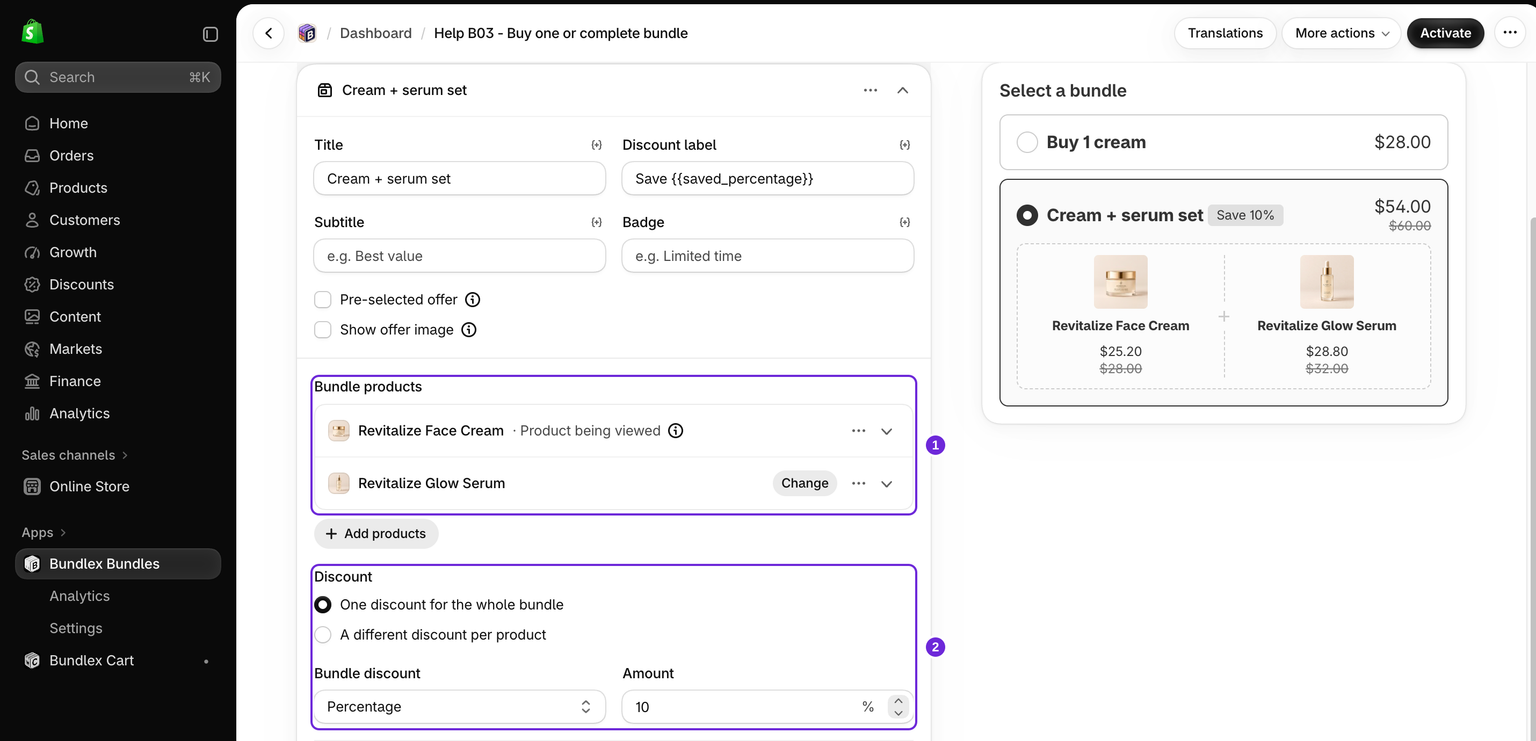
The shared-discount setup uses one unit of each product. For different quantities or discounts, choose A different discount per product and edit each row. Switching back to one shared discount can change those values, so read the confirmation before accepting it. See product bundle layouts for the other presentation choices.
4. Activate and test both choices
- Review the product targeting and click Save to keep a draft. When you are ready to test on the storefront, click Activate. If the deal is already active, save your changes.
- Make sure the widget is enabled in the theme your customers use.
- Open the cream's storefront page with an empty cart. Choose Buy 1 cream, add it, and check that only one cream arrives at its normal price.
- Empty the cart, choose Cream + serum set, and add it. Check both products, selected variants and the $54 product total at checkout.
- Remove a required item and check the result. The incomplete set no longer qualifies for its bundle discount; your theme may remove related lines together.
Keep gift promotions and other discounts out of the initial test. Once these two choices work, test any other promotions you plan to run alongside them.
Alternative: start with no offer selected
If you prefer the normal theme purchase flow until a shopper opts into the bundle, enable Advanced > Offers and stock > Offer selection is optional. Untick Pre-selected offer on every offer to start with none selected. The shopper can also click a selected offer to deselect it.
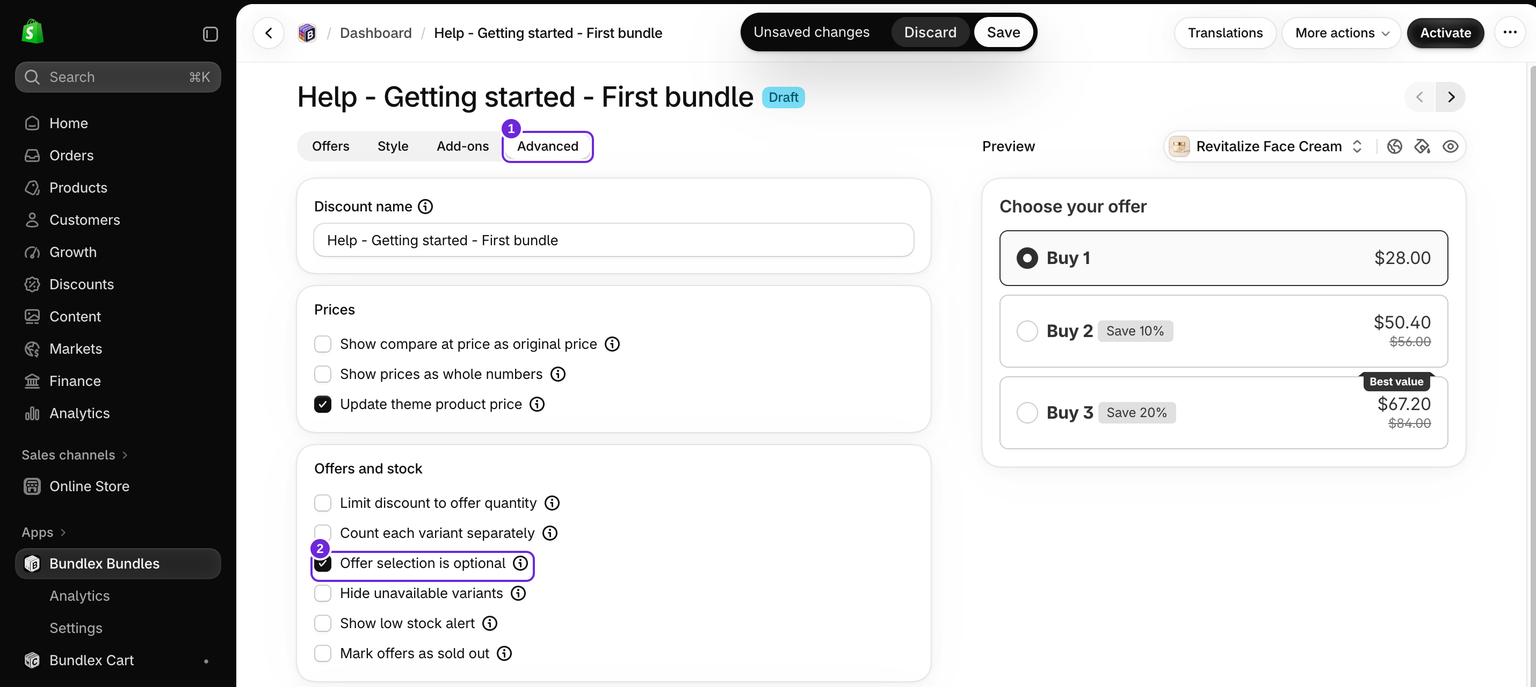
This is an alternative to showing a visible Buy 1 choice, not a requirement for the recipe above. With no offer selected, the theme controls the main product's purchase; any ticked shared add-ons can still be included.
If the result is not what you expected
- The serum is added when buying one: check that it is in the Product bundle offer, not a shared add-on left selected.
- The wrong product is the main item: check Show widget on and the actual storefront page, not just the preview.
- The widget does not appear: check activation, targeting and the theme with the widget visibility guide.
- The total differs: check real selling prices, variants, market currency and other discounts, then use the cart-price checklist.
Was this article helpful?
Your feedback helps us improve our docs.