
Letting customers subscribe and save on an offer
Subscriptions add a subscribe or one-time choice to the widget, built on the subscription plans your subscription app has already put on the product. The shopper picks an offer, chooses a plan, and checks out as usual. Bundlex Bundles applies your volume discount on top of the plan's own saving on the first order, and the subscription app takes it from there.
Bundlex Bundles never creates subscription plans or contracts. It shows the plans that already exist on the product and attaches the chosen one to the cart. Billing, renewals, pausing and cancelling all stay in your subscription app.
Before you start
You need a subscription app that creates selling plans on your products. Apps such as Shopify Subscriptions, Appstle, Seal and Recharge can supply these plans through Shopify. Check your exact products and plans before publishing. Set up the plan there first, with its delivery frequency and its own discount (for example "every 30 days, save 10%"), and assign the products you want to offer it on.
Only recurring plans are used. Prepaid plans, pre-order plans and try-before-you-buy plans are ignored and never appear in the widget.
Turn it on
- Open your bundle and go to the Add-ons tab.
- Open Subscriptions. Opening it switches the section on, and the toggle in its header turns it on or off.
- Pick a layout and position, adjust the texts, then save. Activate the bundle if it is Draft.
For a real product without a plan, the editor shows a disabled selector and an eligibility notice. The live storefront does not show a main subscribe selector for that product. If you see "This product isn't eligible for subscriptions", preview a product that has a plan, or assign one in your subscription app.
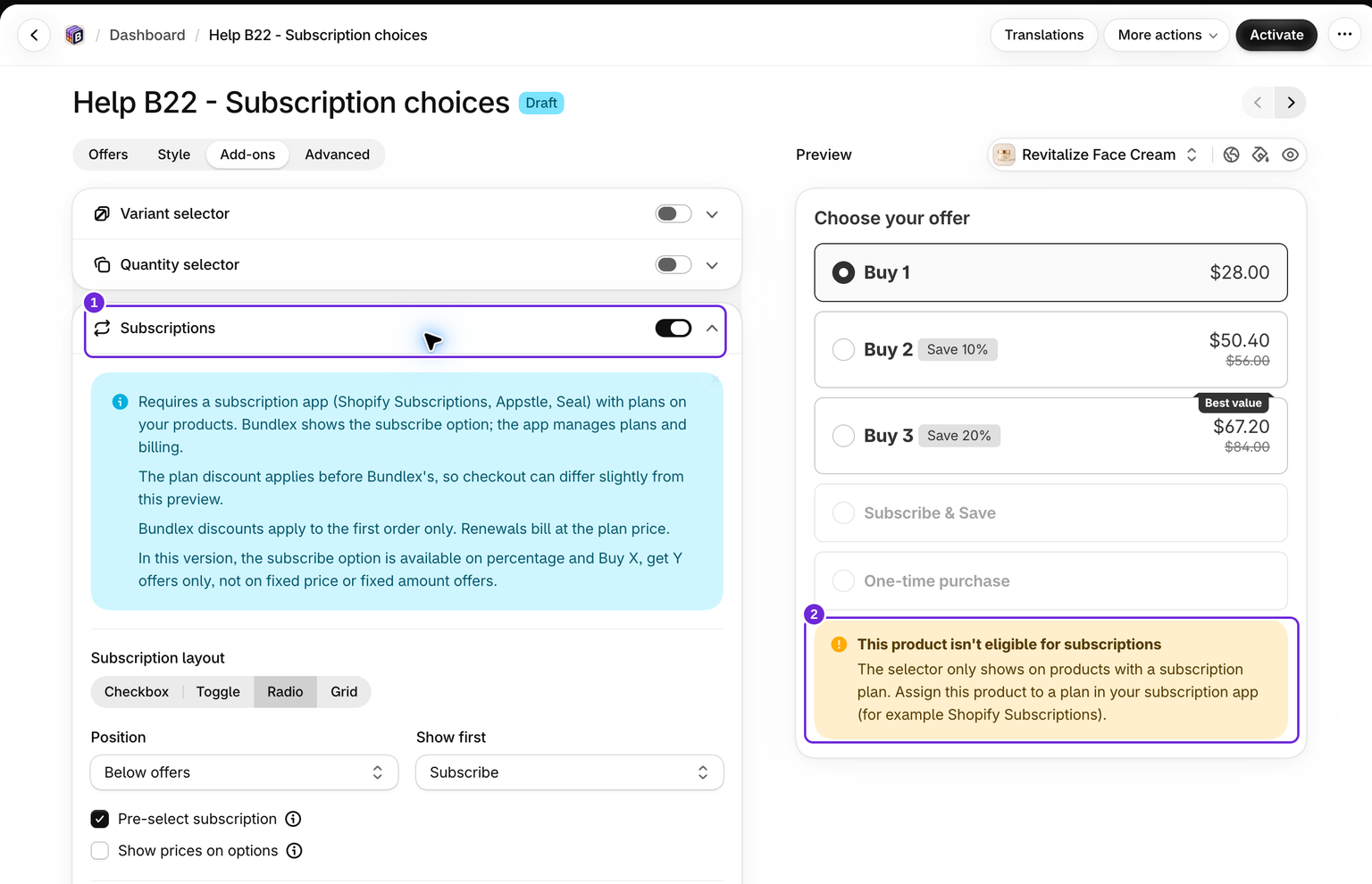
Layout and placement
Subscription layout has four options:
- Checkbox (the default) and Toggle show a single subscribe row. Ticking it subscribes, leaving it unticked buys one time.
- Radio and Grid show both subscribe and one-time options. Show first decides whether subscribe or one-time comes first.
Position places the block above or below the offers. Pre-select subscription makes subscribe the selected option when the page loads; it is on by default, so check that the initial choice matches your intended experience. Show prices on options adds the one-time and subscription prices next to each option, so the shopper sees both totals before choosing.
When the product has more than one plan, a dropdown under the subscribe option lists them, using the plan names from your subscription app.
Texts and benefits
Header text is an optional title above the block. The Subscribe title, Subscribe subtitle, One-time title and One-time subtitle are the option texts. The subscribe title and subtitle accept three saving variables from the {} picker: {{subscription_discount}} shows the plan's own saving, {{offer_discount}} shows the saving of the selected offer, and {{total_subscription_discount}} shows both combined. A variable shows nothing when there is no saving to show.
Subscribe benefits is a short list shown under the subscribe option only, for lines like "Cancel anytime" or "Free shipping". It can show all the time or only while subscribe is selected.
Font sizes and the block header colour are under Style inside the Subscriptions section. The option texts and benefits take their colours from the Style tab, and every text is translatable under Translations in the editor header. See translating a bundle.
How prices show
Under the subscribe option, prices start from the plan's own price, the one your subscription app charges, and Bundlex Bundles applies the selected offer's discount on top. The offer cards, the savings badges and the footer total all update when the shopper switches between subscribe and one-time, picks another plan or changes the offer, to reflect the selected purchase option. Check the exact product subtotal at checkout for your combination of quantities, variants and plans.
The two discounts compound rather than add up. A 10% plan and a 10% offer give about 19% off, not 20%. The editor notes this too: the plan discount applies before the Bundlex Bundles discount, so the checkout total can differ slightly from the preview.
For product bundles, the editor's subscription option-price cards can show only the main product even though the live widget includes the paid bundle rows. Treat the editor as a layout preview and verify the complete pack on the storefront. Mixed-variant rounding can also differ by a few cents.
The Bundlex Bundles discount applies to the first order only
Shopify applies discount functions like the one in Bundlex Bundles at checkout, when the first order is placed. Renewals are created later by your subscription app, and Bundlex Bundles is not part of that. So the first order gets the plan's saving plus your Bundlex Bundles discount, and every renewal bills at the plan price set in your subscription app.
The editor notes this in the info banner at the top of the Subscriptions section, until you close it. If your copy promises a saving, make clear which part repeats. A good habit is to use {{subscription_discount}} for the plan saving in the subscribe title and leave the offer saving on the offer card.
Add-ons
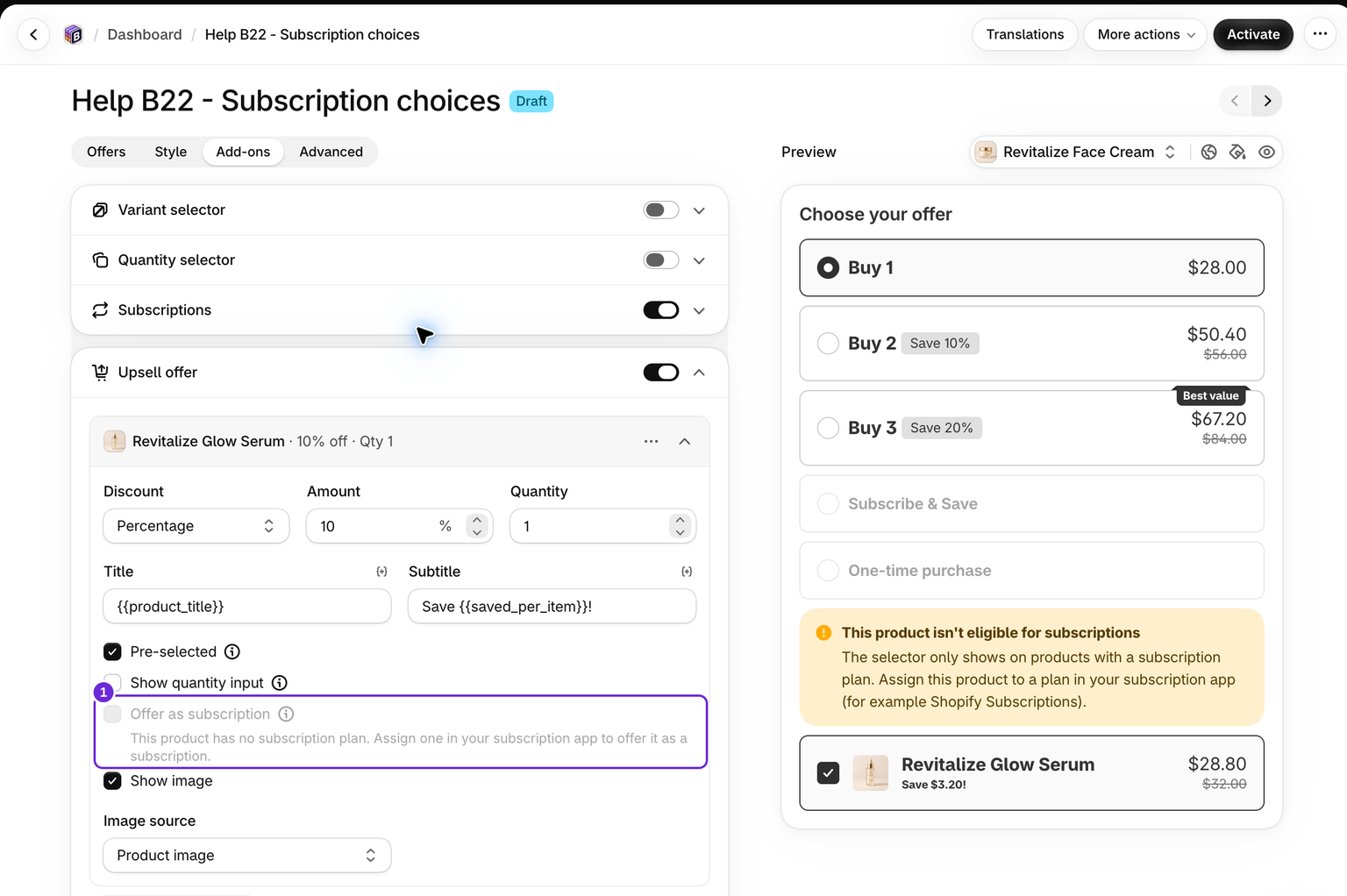
An add-on from the Upsell offer block can subscribe on its own, even when the shopper buys the main product once. This suits a "kit once, refills monthly" setup. The main product does not need a plan of its own: when it has none, the main subscribe block is not shown at all, but the add-on still offers its subscription.
- With subscriptions enabled, go to the Add-ons tab and open Upsell offer.
- Open the add-on item and tick Offer as subscription.
The checkbox stays disabled until the add-on product has a recurring plan in your subscription app. On the storefront the add-on gets its own subscribe checkbox under its row, and a plan dropdown when the product has several plans. It is ticked by default when the shopper has chosen subscribe in the main block and the add-on carries a plan with the same name; otherwise it starts one-time. The add-on discount applies to the first order only, then the add-on renews at its plan price.
Bundles
A bundle (a pack of products) can be subscribed as a whole when the main product and every paid product in it carry a plan with the same name as the plan the shopper selected, and every paid product uses a percentage discount or no discount. The simplest way to meet this is to add all of the bundle's products to the same plan in your subscription app. The match is by plan name, so two plans that both deliver weekly but are named differently do not count as the same plan.
When the bundle subscribes, each product goes on its own product's plan. The subscription contract holds them as separate lines, so each renews at its own plan price, and the bundle discount applies to the first order only. The plan dropdown offers only the plans every product in the bundle has.
If any paid product lacks the plan, uses a fixed price or fixed amount discount, or a mix and match slot is still empty, the block is greyed out on that offer and the bundle is added one-time. Mix and match slots are checked again every time the shopper picks or changes a product.
Free gifts in a bundle never subscribe; they are added one-time, free on the first order. Upsells attached to the offer are not part of the pack, so they neither block the subscription nor join it.
Buy X Get Y
A Buy X Get Y offer can subscribe too. Bundlex Bundles puts the paid units on the plan and adds the free units as a separate one-time line of the same product. The subscription contract carries the paid units only, so a free unit is never billed on a renewal. The free unit is a first-order benefit, like the rest of the app's discount.
This does not work on a product that can only be bought with a subscription, because the free units need a one-time line. On such a product the offer cannot be added at all, and the widget disables the add-to-cart button rather than letting checkout fail.
What stays one-time
- Fixed total price and Amount off per item offers. Only percentage, Buy X Get Y and no-discount offers can subscribe. On other offers the block is greyed out and the shopper buys one-time.
- Free gifts of every kind: fixed gifts, gift selectors and progressive gifts.
- Upsells attached to an offer, and add-ons without Offer as subscription.
- Prepaid, pre-order and try-before-you-buy plans are never offered. A product whose only plan is prepaid shows no block.
Two more things to know. The quantity selector works with subscriptions: the Subscribe and One-time prices follow the quantity the shopper picks. If that quantity reaches a Fixed total price or Amount off per item tier, the subscribe option turns off until the shopper steps back down. And while subscribe is selected, the theme's express checkout buttons (Buy it now, Shop Pay) are hidden, because they bypass the widget and would add the product without its plan. They come back as soon as the shopper picks one-time.
Troubleshooting
The block is greyed out
The selected offer cannot subscribe. Either it uses a fixed price or fixed amount discount, or it is a bundle where at least one paid product lacks a plan with the selected plan's name, uses a fixed price or fixed amount discount, or has an empty mix and match slot. Switch the offer to a percentage discount, or add the missing product to the plan in your subscription app.
The block is missing
The product, or the selected variant, has no recurring plan. Assign the product to a plan in your subscription app. If the block shows for some variants only, the plan covers some variants and not others.
A plan does not show
Prepaid plans, pre-order plans and try-before-you-buy plans are ignored. Only recurring plans appear in the widget. For a mixed-variant offer, every selected variant must support the chosen plan. Plans with a fixed amount or fixed price adjustment are also excluded from mixed-variant selections; use an eligible percentage plan or check a single-variant offer.
The renewal did not get the Bundlex Bundles discount
That is expected. The Bundlex Bundles discount applies to the first order only, and renewals bill at the plan price. See above.
Measure subscription orders
Open Analytics to see Subscribed, the share of orders that were subscribed, and Renewals for your selected date range. The first subscription order counts in the ordinary order and revenue metrics. Renewals are counted separately and do not increase Orders, Added revenue, Total revenue, or the subscription rate.
For definitions and historical coverage, see understanding your bundle metrics. Billing and contract management stay in your subscription app.
Before you turn it on
- Before placing a test order, check the chosen plan, delivery frequency and exact product subtotal at checkout. Test one-time and subscribe, each relevant variant, and any quantity tier that changes eligibility.
- If you place a test order, open the resulting contract in your subscription app and check the lines and renewal price. On a bundle, expect one line per paid product, with no one-time gifts in the renewal.
Was this article helpful?
Your feedback helps us improve our docs.