
Create Buy 1, Buy 2 and Buy 3 quantity breaks
Quantity breaks give shoppers a better price when they buy more units of the same product. This guide creates three offers, publishes them and checks the price customers receive in the cart.
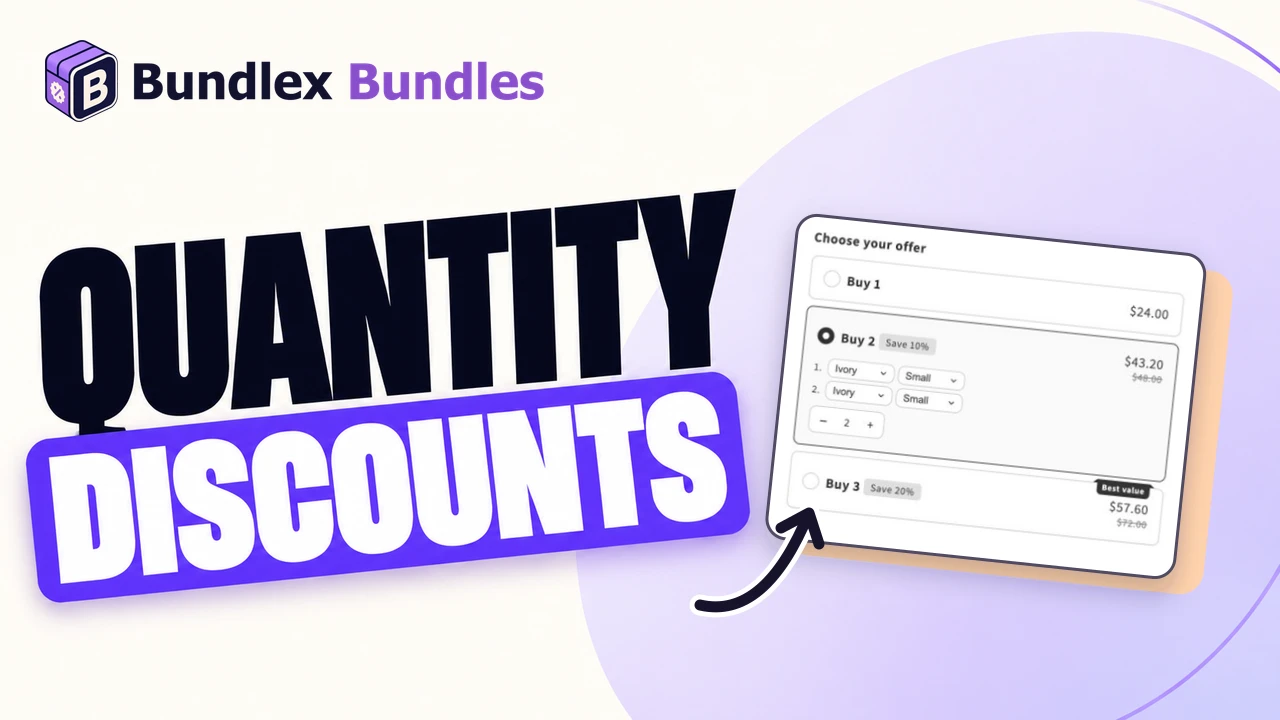
The example we will build
Use a product with a selling price of $28. Our example is a face cream, with no gifts, subscriptions or quantity caps. USD is the example currency; enter amounts in your store's currency.
| Offer | Quantity | Discount | Total at $28 each |
|---|---|---|---|
| Buy 1 | 1 | None | $28 |
| Buy 2 | 2 | Percentage: 10 | $50.40 |
| Buy 3 | 3 | Percentage: 20 | $67.20 |
These totals exclude other discounts and any added tax or shipping. For a set containing different products, use a Product bundle offer instead.
1. Create the deal and choose its product
- From the Bundlex dashboard, click Create bundle.
- Choose a quantity-break template or click Start from scratch.
- Under Show widget on, choose Selected products and select your example product. Check that it appears in the preview.
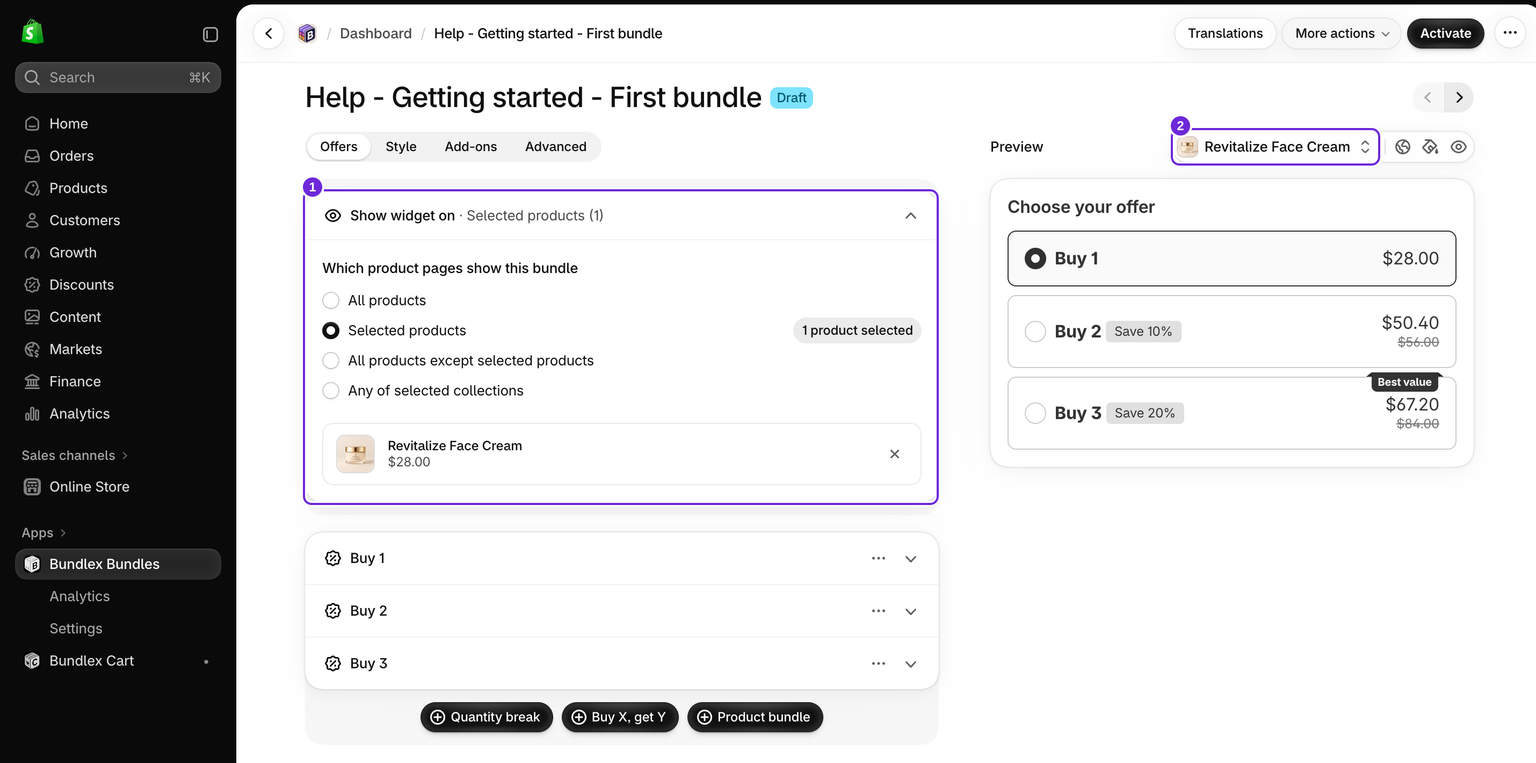
A template supplies starting settings. Review its existing offers and extras rather than assuming it already matches this example. Keep one active deal on the test product so overlapping targeting does not confuse the result.
2. Configure the three quantity offers
- Open Offers. Add offers with Quantity break, or edit the quantity offers supplied by the template.
- Set each offer's Quantity, Discount and title using the table above. For a percentage, select Percentage first, then enter the number in the amount field.
- Review the discount label and subtitle too, so no template text promises different savings.
- Turn on Pre-selected offer for the choice you want selected when the page opens. Use Buy 1 for this example.
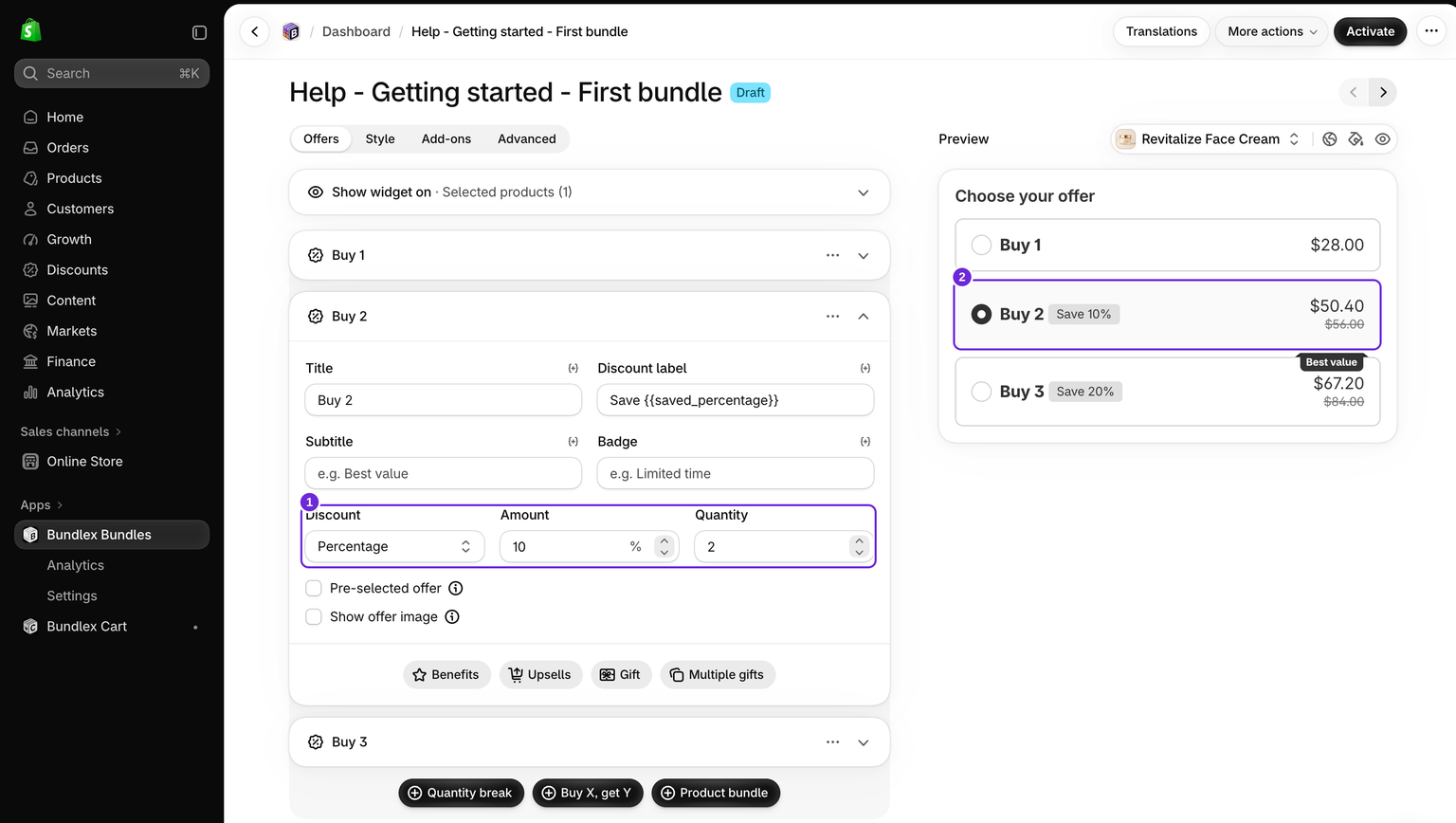
Amount off per item means money subtracted from each unit, not its final selling price. Fixed total price is a different pricing method for a complete pack. See discount types explained before changing methods.
3. Decide how shoppers choose variants and quantities
If the product has options such as Color and Size, turn on Add-ons > Variant selector to let shoppers choose a variant for each unit. Use real available combinations and check any price differences between variants. Without this selector, a regular quantity offer uses the theme's main variant choice. See variant settings.
The cream example needs no variant selector. For a separate variant example, add a product with options to the same deal and select it in the preview. Our cosmetic bag has a $24 Small variant and a $30 Large variant. Choosing Ivory / Small and Blush / Large gives a $54 base total, or $48.60 after the 10% discount.
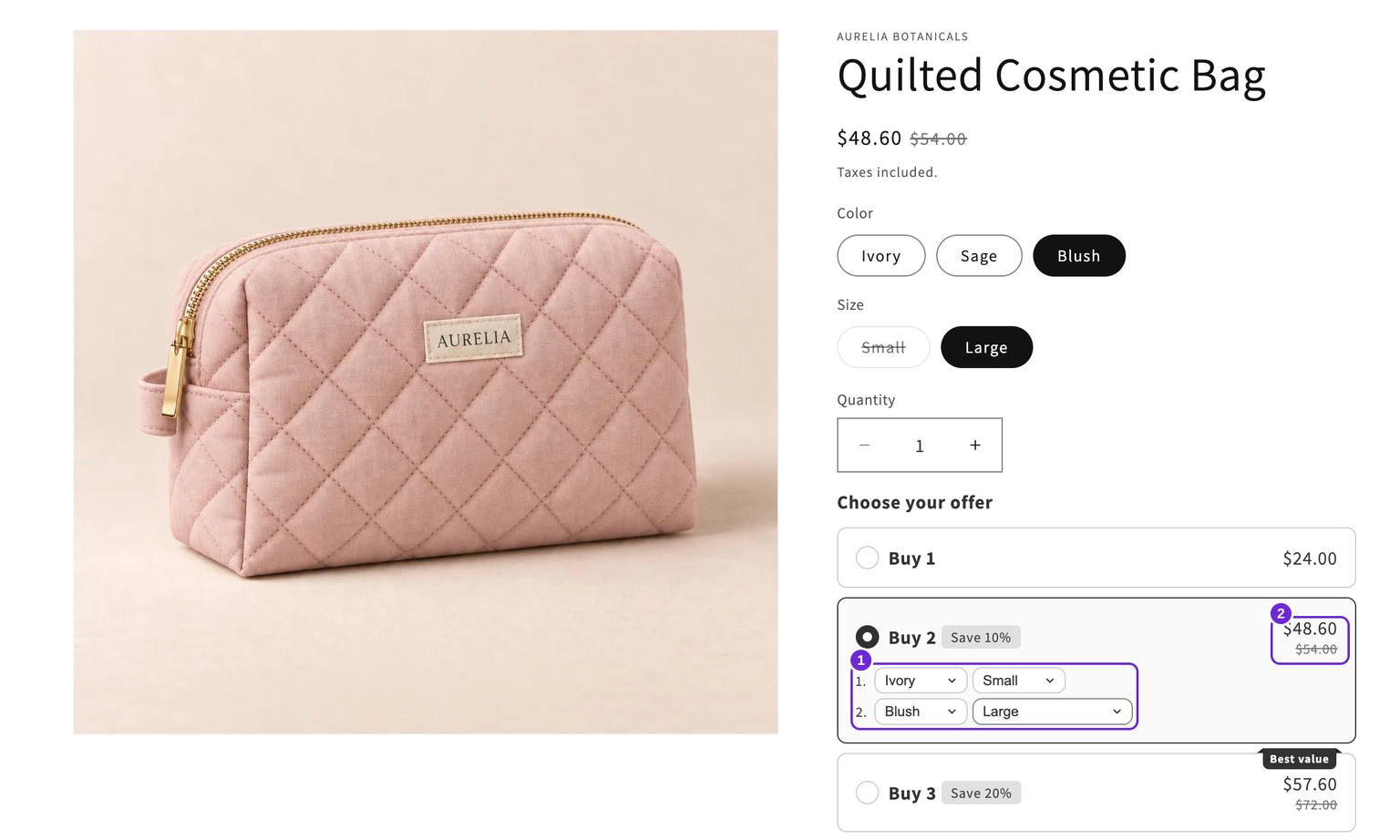
The three cards work without a stepper. If shoppers should also adjust the number directly, turn on Add-ons > Quantity selector and check its Show on: offers. On these ordinary percentage tiers, the selector counts individual units. Follow the quantity-selector guide for positions and incompatible settings.
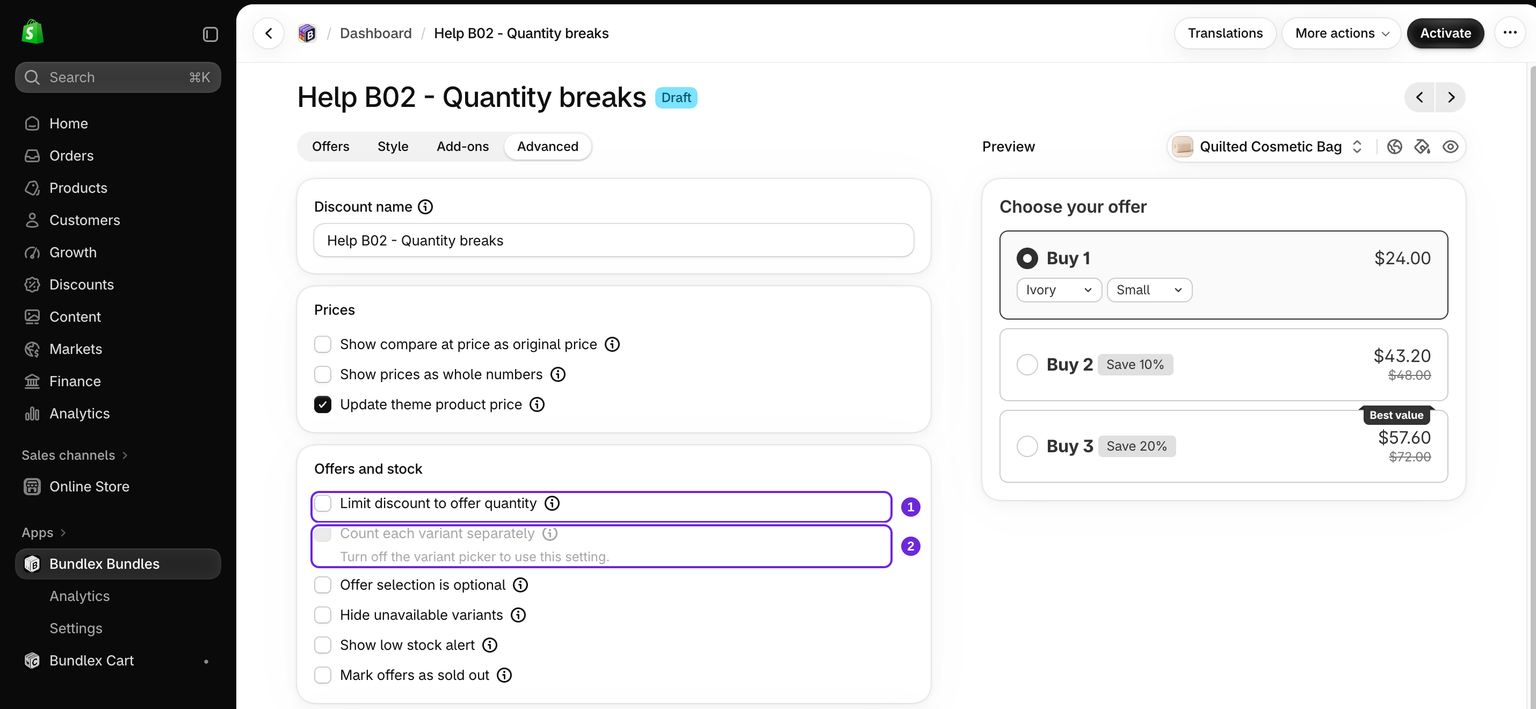
For this first example, leave Limit discount to offer quantity and Count each variant separately off. Those settings change how quantities qualify and should be tested separately.
4. Activate and check the storefront
- Review the preview and click Save to keep a draft. Click Activate when you are ready to test on the storefront. Saving a new draft without activating it does not publish the deal.
- Enable the widget in your theme, then open the actual targeted product page.
- Starting with an empty cart each time, test Buy 1, Buy 2 and Buy 3. Confirm the quantities, chosen variants and product totals from the table at checkout.
- Test four units as well. With these ordinary percentage tiers and no cap, all four qualify for 20% off: $89.60 at the example price.
- Reduce the cart to two units and check that the price returns to the 10% tier. Remove other promotions from the test if they change the result.
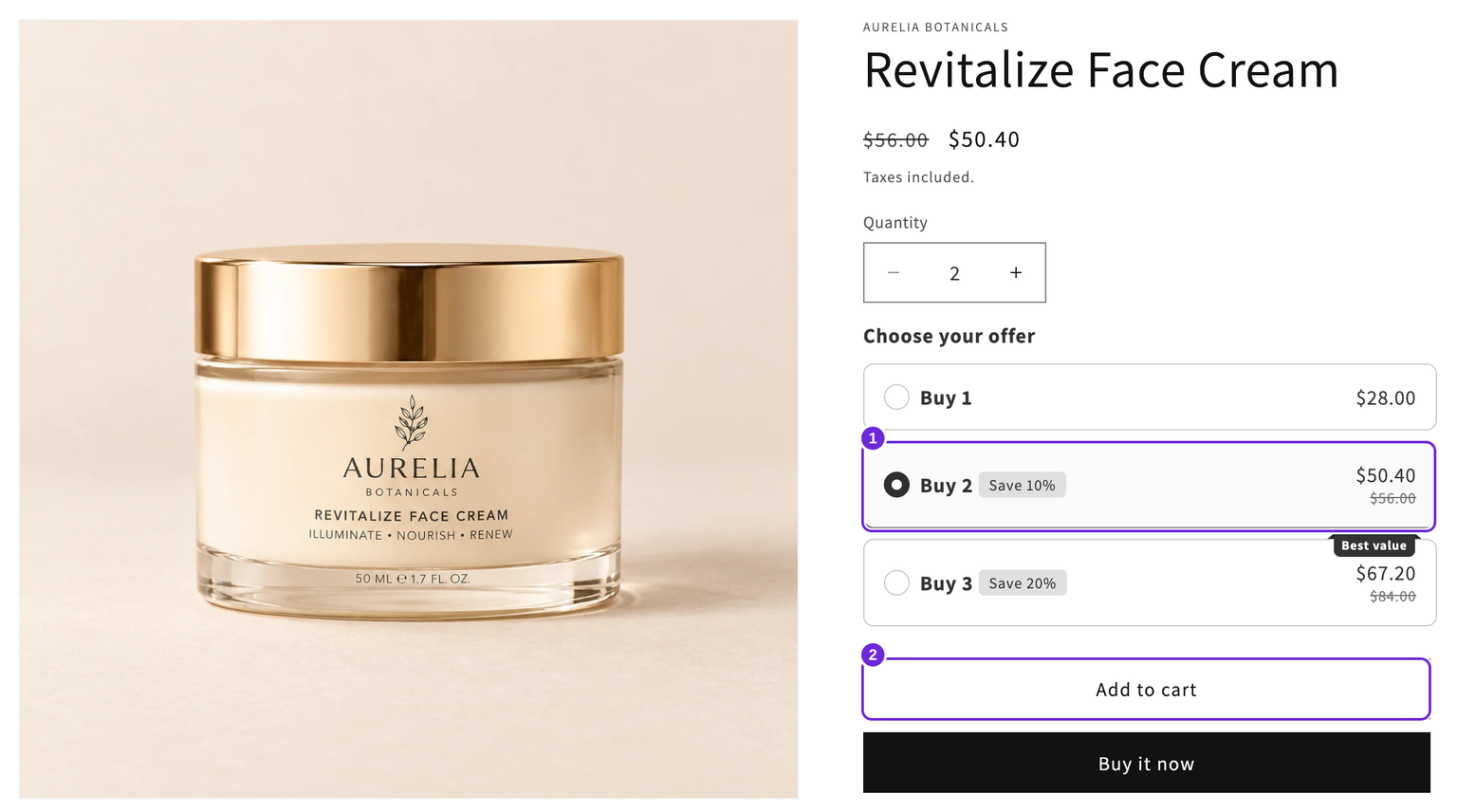
If the selected offer looks right but the cart price does not, use the cart-price checklist. For a publishing limit, follow automatic-discount limit guidance.
Next steps
Add a gift, customize the widget's appearance, or return to the setup guide to choose another promotion. Recheck the cart after adding a new feature.
Was this article helpful?
Your feedback helps us improve our docs.