
Find settings and use the cart preview
Open Bundlex Cart and edit a cart design. The settings sit beside a live preview of the drawer. On a narrow screen the preview moves to the end of the page.
The four tabs
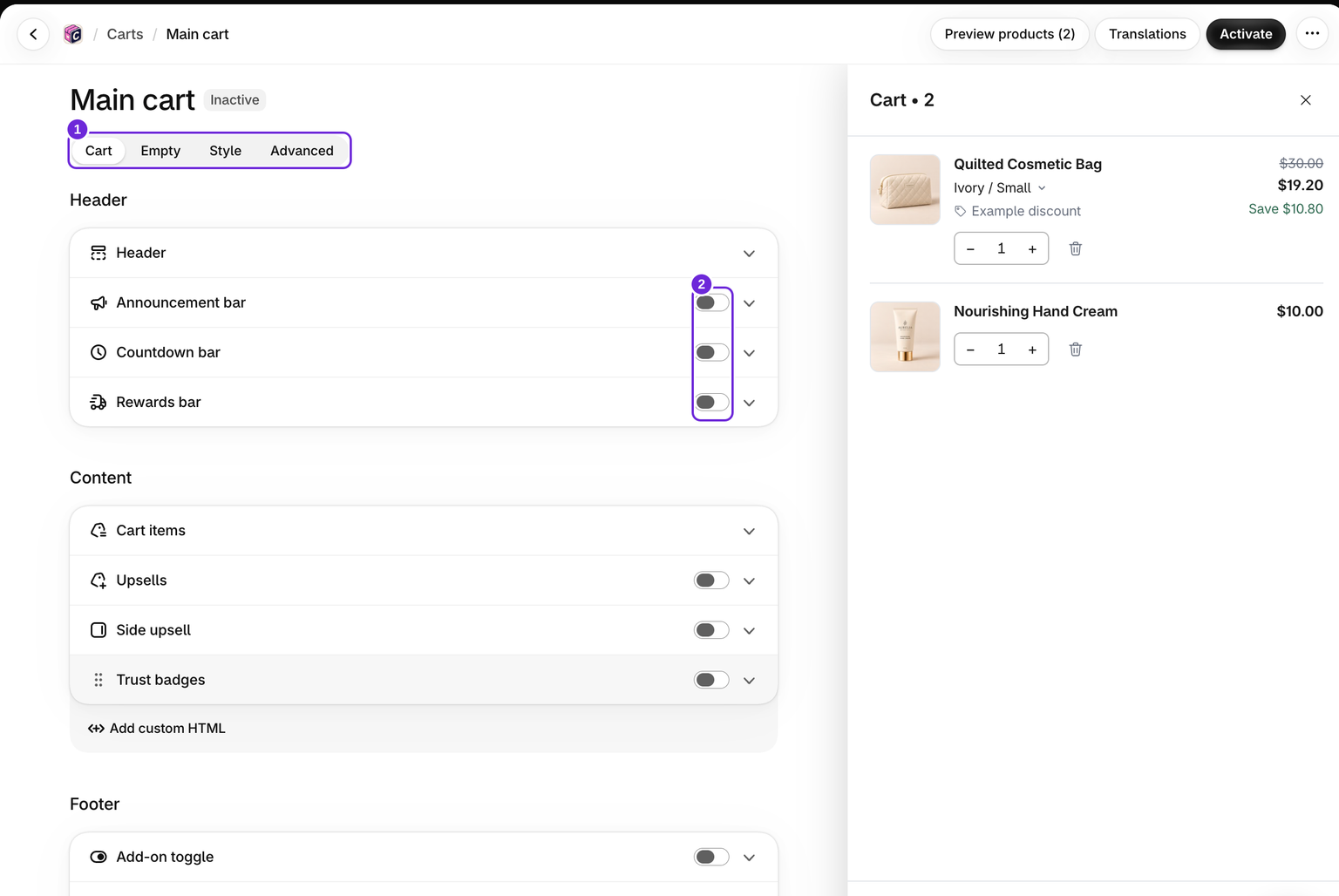
- Cart: header, announcements, rewards, cart items, upsells, and checkout blocks. On the page holds the sticky cart button, which sits outside the drawer.
- Empty: the message, image, button, and product suggestions shown when no items are in the cart.
- Style: colours for the drawer and each block, drawer position, width, header height, text size, image sizes, and custom CSS.
- Advanced: the cart name, Who sees this cart, and Messages for screen reader texts and error messages. See who sees the cart.
Open a block to edit it. Opening a switched-off optional block turns it on, and the preview shows it at once; folding it closed does not turn it off. Use the switch beside its name to turn it off again. Most customer-facing text is edited next to the feature it belongs to. For example, the drawer title is under Cart > Header > Drawer title. Screen reader texts and error messages are under Advanced > Messages.
Reorder and preview
Use the available drag handles to move blocks within their area. Header, content, and footer areas keep their own order; blocks cannot all be moved freely between them. Side upsell has a fixed position beside the drawer.
Preview products changes the sample products in the preview. Opening the Empty tab switches to the empty-cart view. These preview interactions do not add products to a shopper's cart.
What to check on the storefront
The preview shows layout and copy. Test real discount codes, gift qualification, checkout discounts, translated copy, and payment wallets on your storefront. Customer-tag visibility rules are not enforced in the preview, and wallet buttons there are placeholders.
Click Save to keep your edits or Discard to return to the saved version. Saving the active cart makes changes live; see how publishing works.
Was this article helpful?
Your feedback helps us improve our docs.