
Install Bundlex Cart and activate your drawer
Bundlex Cart needs its app embed enabled in your theme and an active cart design for your configured drawer to appear.
1. Enable the app embed
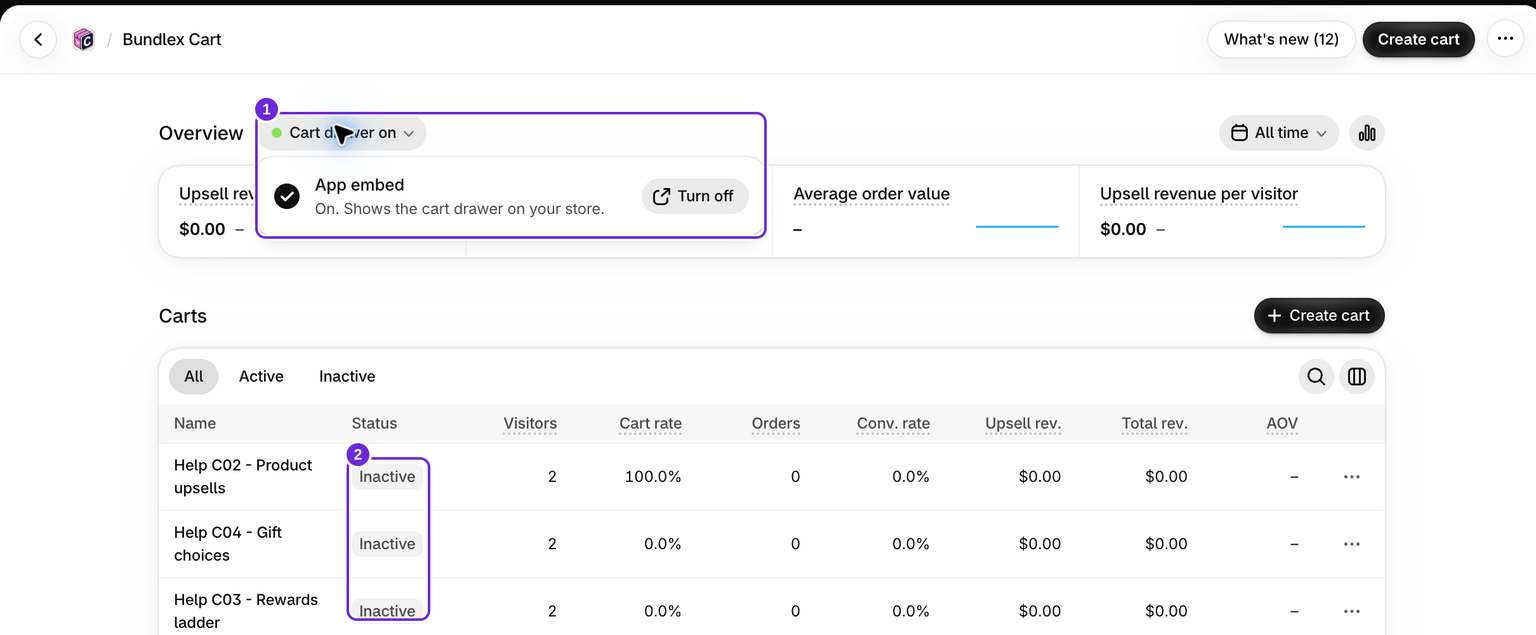
- Install Bundlex Cart from the Shopify App Store, then open the app in Shopify admin.
- On the dashboard, open Turn on the app embed under Get started with Bundlex Cart and click Activate. This opens your theme editor. While the embed is off, the dashboard also shows Cart drawer off next to Overview, with a Turn on button beside it that does the same.
- Check that the Bundlex Cart app embed is switched on, then click Save in the theme editor.
You can also open your theme editor from Online Store with Edit theme, choose App embeds, and enable Bundlex Cart. The theme editor only turns the embed on or off; drawer features are configured inside the app. See Shopify's app embed guide if you cannot find the panel.
Before activating your design, turn off any other app that replaces the cart drawer and save the theme. Two drawer apps can respond to the same click. This check is about competing drawer apps; you can still use Bundlex Bundles for product-page offers.
2. Create and activate a cart
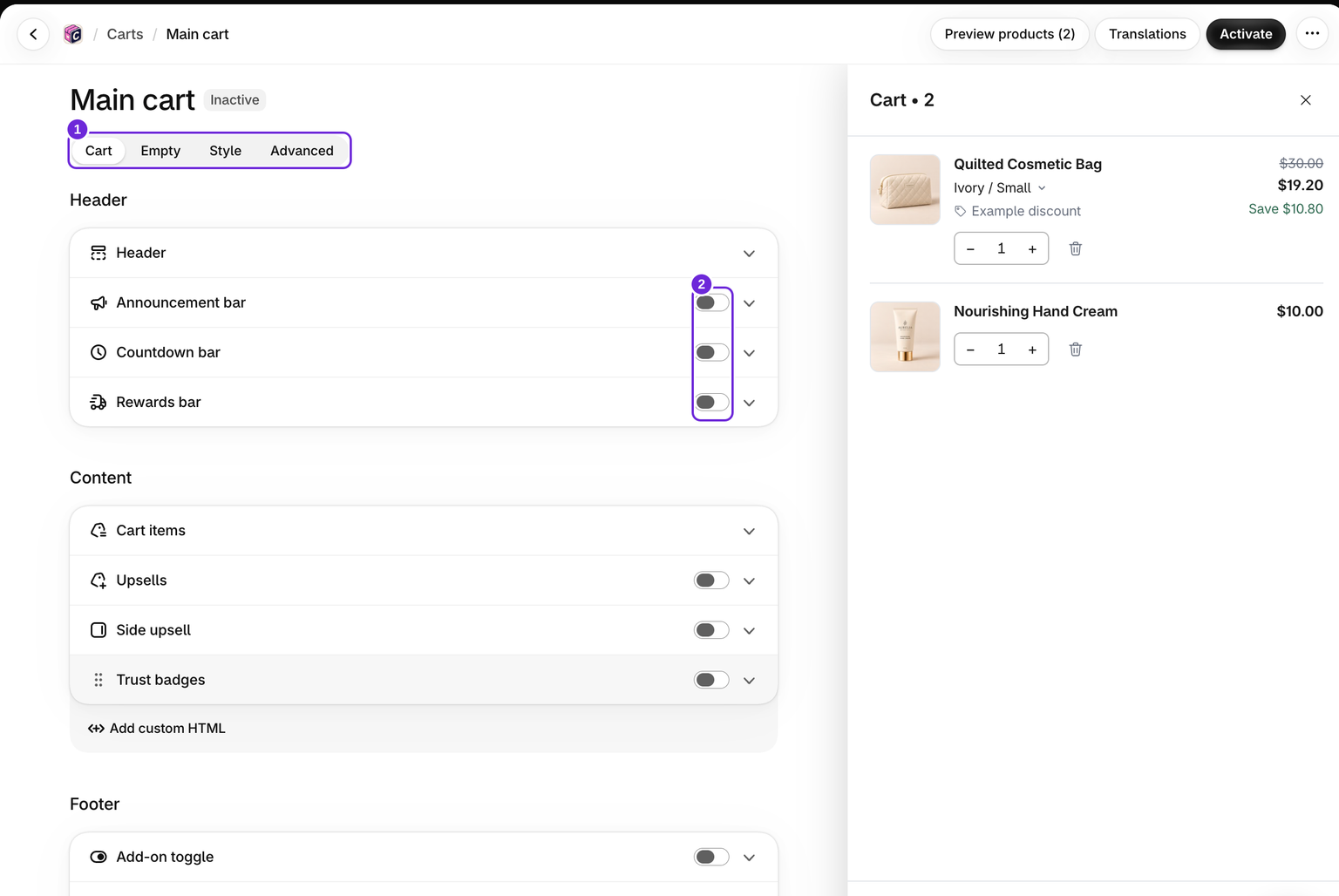
- Return to Bundlex Cart and click Create cart.
- Use the Cart, Empty, Style, and Advanced tabs to configure your design.
- Click Activate to save the new design and make it live. If you want to keep it inactive while you prepare it, click Save first and activate it later.
When another design is already active, Activate replaces it, unless you choose Keep them active too in the dialog that asks. To run a second design for some customers only, see Manage cart designs.
Wait for the activation confirmation. If saving or publishing shows an error, resolve it before checking the storefront; the editor preview alone does not confirm that the design is live. Turning on the theme embed does not reactivate a design you previously deactivated.
3. Check the storefront
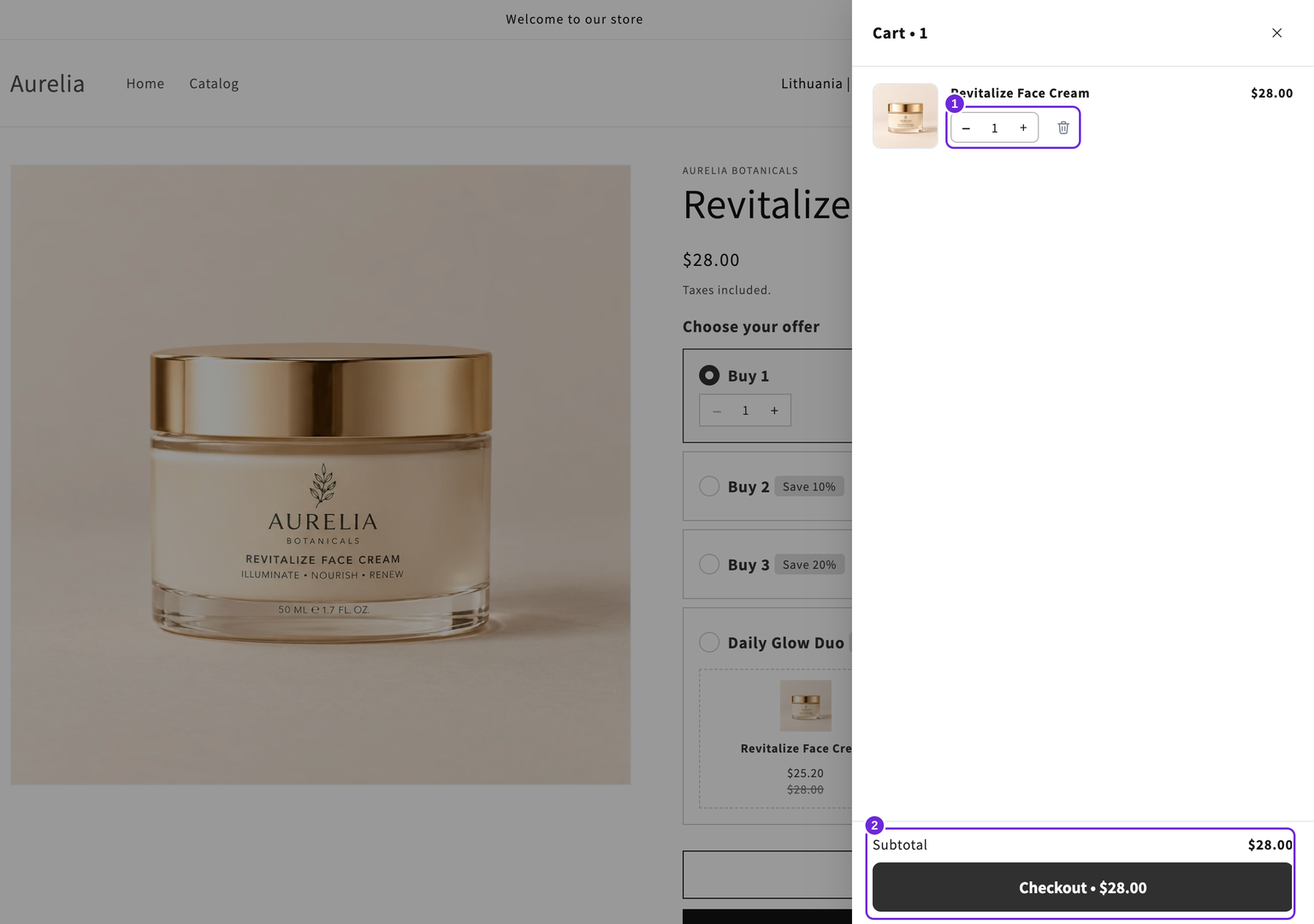
Open a product page on the theme you enabled, add a product, and click the cart icon. Confirm the drawer, subtotal, and checkout button work. If you switch themes later, check the embed in that theme too.
If nothing opens, follow the drawer troubleshooting guide.
Was this article helpful?
Your feedback helps us improve our docs.