
Set up a rewards bar with multiple tiers
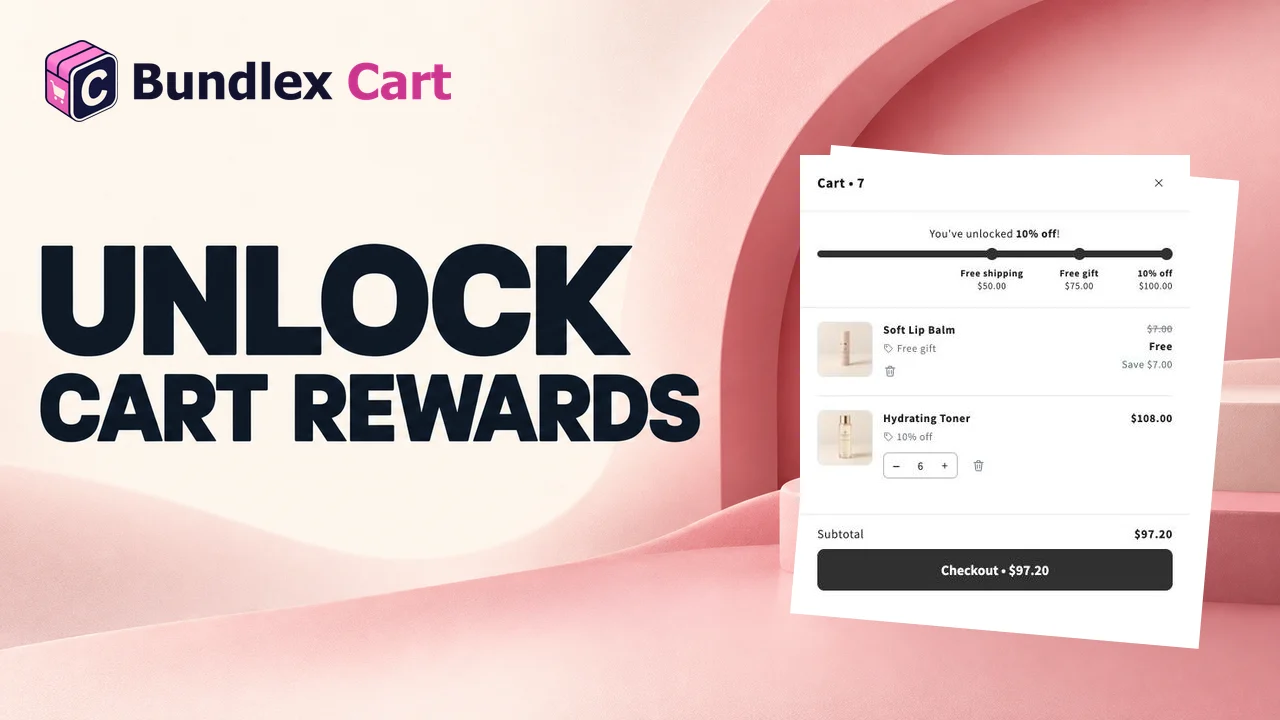
The rewards bar in Bundlex Cart shows shoppers how close they are to earning free shipping, an order discount, or a free gift.
Build your reward ladder
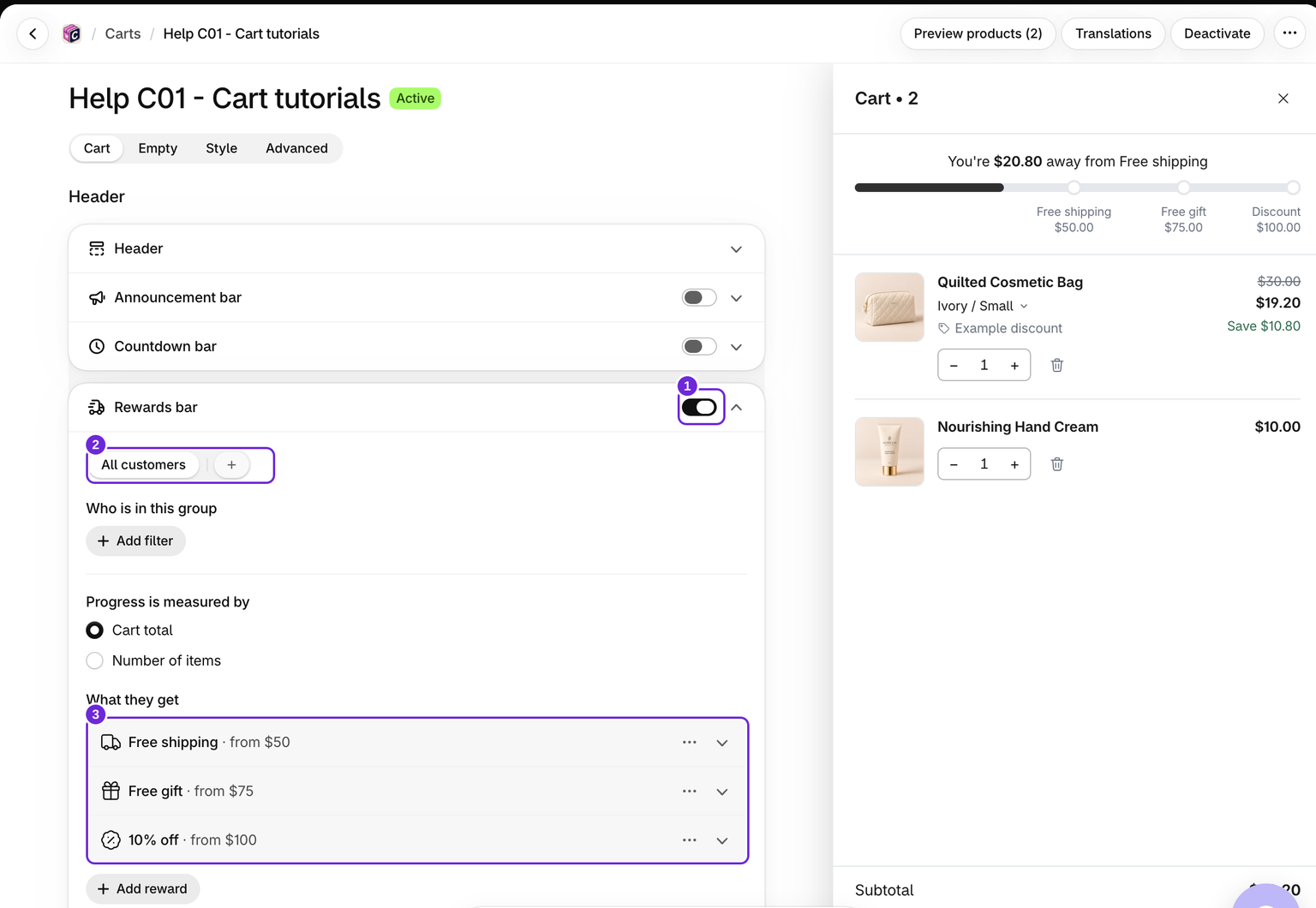
- Edit your cart and turn on Cart > Rewards bar.
- Choose the customer-group tab you want to edit. For an unrestricted first example, use All customers; when extra groups exist, the fallback tab is Everyone else.
- Choose Progress is measured by: Cart total or Number of items. This choice applies to every reward in the customer group.
- Click Add reward, choose the reward, and set its minimum cart value or number of items.
- Fill in that reward's details. Add more tiers with higher thresholds if needed.
- Choose Minimal, With icon, Milestones, or Tags under Rewards bar layout, then save.
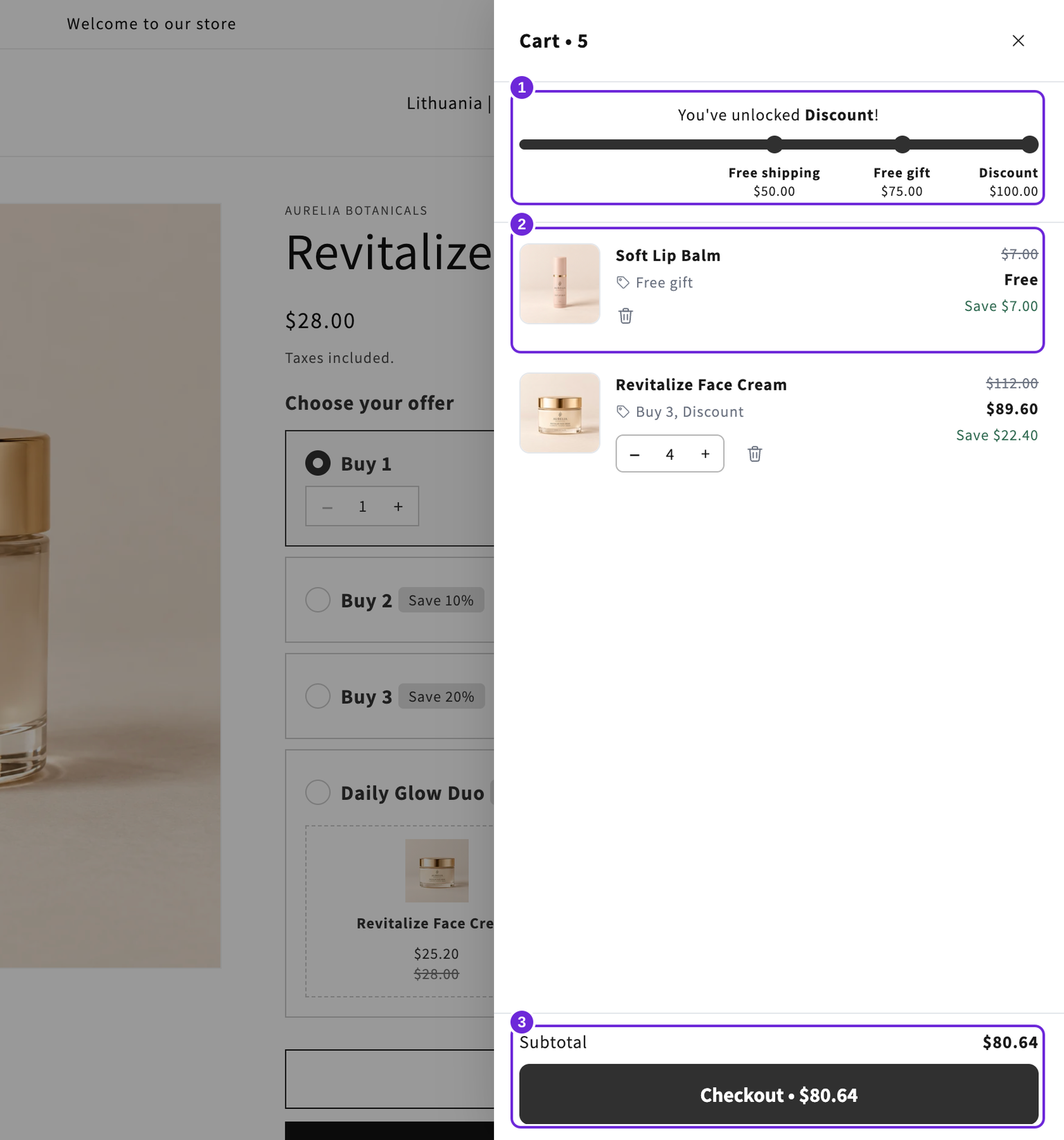
For example, offer free shipping at 50, a gift at 75, and 10% off at 100 in your store currency. Choose thresholds that make sense for your products and margins.
Worked example: shipping, a gift, then a discount
For a USD store, build this ladder using Cart total. The prices below are examples; use thresholds that suit your margins.
| Minimum cart value | Reward | Details |
|---|---|---|
| $50 | Free shipping | Give it a clear Reward name and review Exclude shipping rates over a limit. An eligible shipping rate must already exist. |
| $75 | Free gift | Select one purchasable gift product, set Qty to 1 and use Added automatically for the first test. |
| $100 | Discount | Choose Percentage and enter 10. |
Keep other discounts and audience filters out of the initial test. Use regular products with known prices, then test eligible totals of $49, $50, $74, $75, $99 and $100. At $75 the gift unlocks; at $100 the 10% order reward also applies. The bar's own order reward does not take away the earlier rewards. Check shipping with an eligible delivery address at checkout.
New free-shipping tiers in USD start with a rate limit of $20. This limits the price of a shipping rate that can become free, not the cart-spend threshold. Review it rather than assuming every rate will be discounted. See free-shipping setup.
How progress is counted
Free shipping and free gift tiers count what the shopper pays after discounts. A product another app discounted counts at its lower price, and discount codes and other order discounts come off the total. The bar's own order discount is not taken off, so reaching it never removes free shipping or a gift.
An order discount tier counts prices before discount codes and other apps' discounts, but after Bundlex Cart's own upsell discounts. It can therefore unlock at a different displayed subtotal from a shipping or gift tier.
With Number of items, progress counts qualifying units instead of money. A voucher normally does not lower that count. Bundlex Cart's own reward gifts never count; for free shipping, a paid Bundlex Bundles extra stops counting if discounts make it free. Turn on Count items from bundle offers and gifts, shown under Number of items, to count every item a bundle offer or gift put in the cart, free or not.
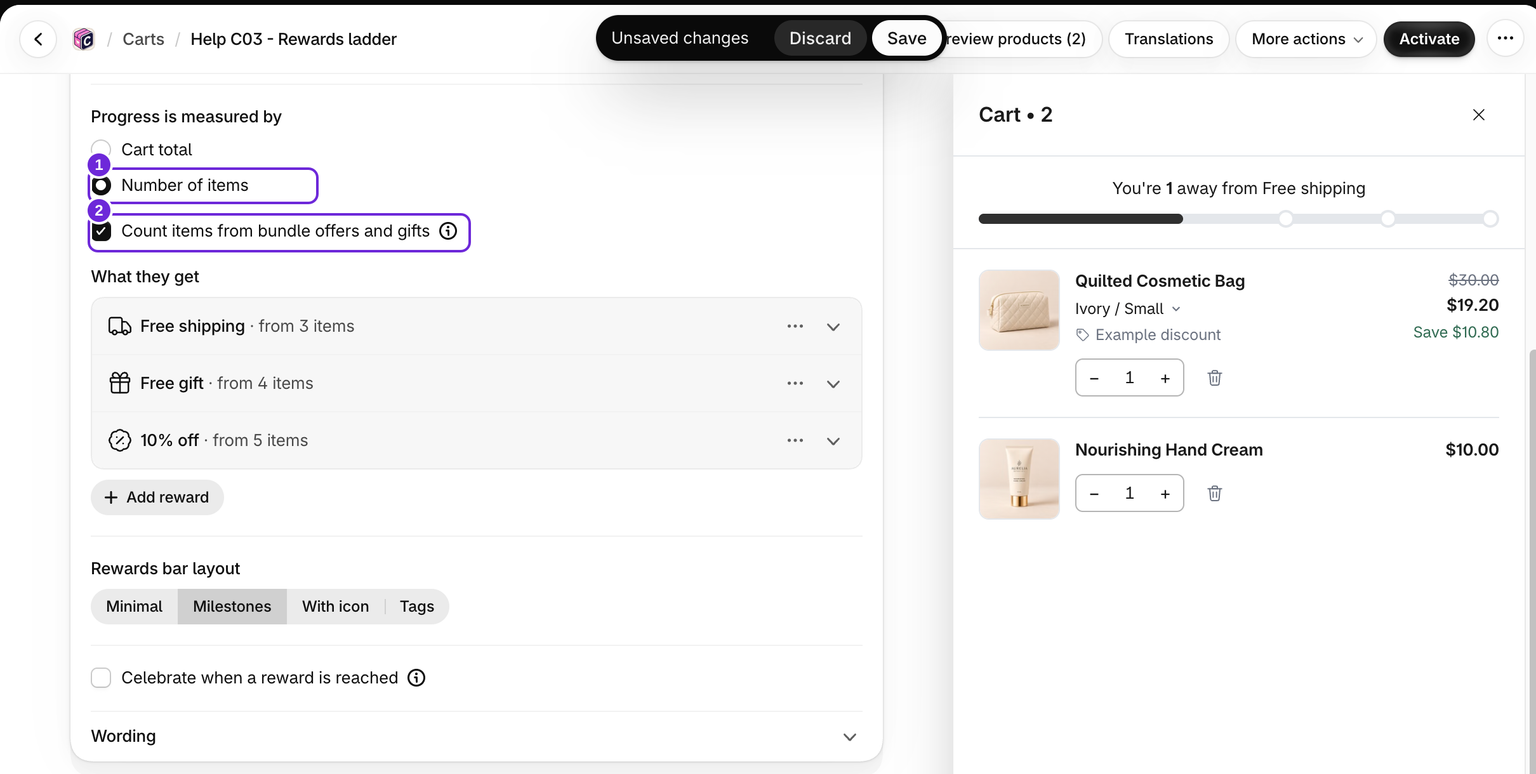
Bundlex Cart's own reward gifts do not count toward the thresholds. A paid extra from Bundlex Bundles counts at the price the shopper pays for it. A free one does not count, except as an item when that checkbox is on.
Amount thresholds are entered in the store currency and converted for the shopper's currency. To give a market, wholesale customers or Shopify B2B buyers their own tiers, add a customer group.
Celebrate a reached reward
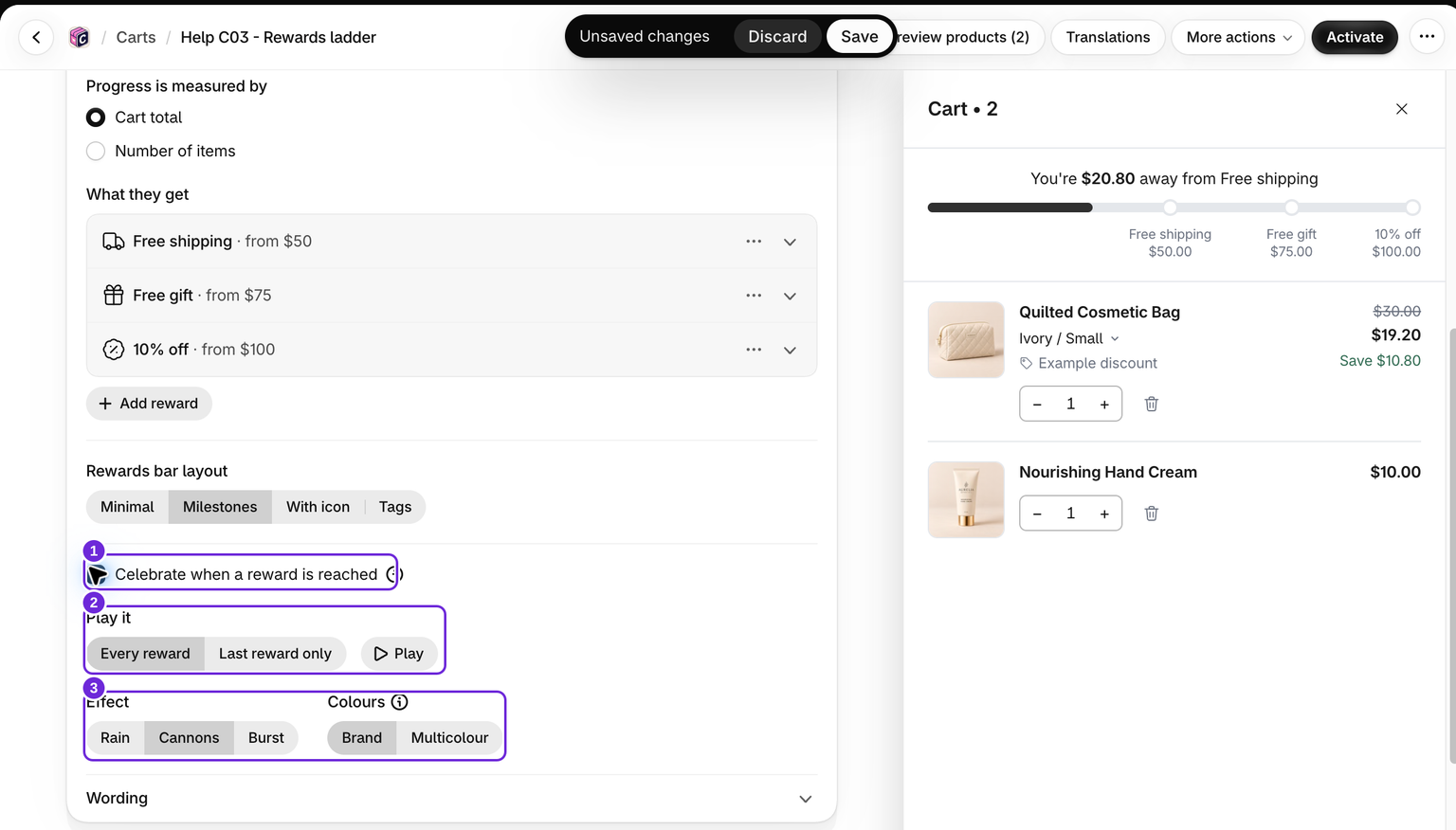
Under the customer groups, tick Celebrate when a reward is reached to play a short confetti effect over the drawer. It is off until you tick it, and it covers every customer group of the cart.
Choose Play it: Every reward or Last reward only. Pick an Effect (Rain, Cannons or Burst) and Colours: Brand uses the accent colour from Style, and Multicolour mixes many colours. Click Play to see it in the preview.
The effect plays when a reward goes from not reached to reached. A cart that loads with the reward already reached does not play it. A reward reached while the drawer is closed plays the next time the drawer opens. Shoppers who turn on reduced motion on their device don't see it.
Which customer gets the rewards?
With multiple customer groups, a shopper gets the first group whose filters match, otherwise Everyone else. Filters can use customer tags, Shopify B2B company status and markets. Check the fallback rewards too: creating a new group starts by copying rewards, so adding a restricted group does not automatically remove rewards from everyone else.
Reward groups do not decide who gets the whole drawer. That is a separate setting. See customer-group rewards before adding audience conditions.
Publish and test
Activating the cart, or saving it while active, publishes its automatic reward discount. Saving an inactive design alone does not make it the live cart. When several designs are active, each has its own rewards, and a customer gets the rewards of the design they see. Preview alone does not prove a checkout discount or gift will apply. Test below, at and above each threshold on your storefront, then remove products to cross back below it. Verify the actual shipping rate, gift price and order discount at checkout.
The Tags layout shows a row of tags beneath the bar, one per reward, with its icon and name and a check once unlocked. Customer tags on the Rewards bar decide who sees the bar and who gets its rewards at checkout; see visibility rules.
Continue with free shipping, order discounts, or free gifts.
Test discount codes both in the drawer and when first entered at checkout. A code entered only at checkout can leave an already-added gift free even if the final total falls below its threshold; see the gift guide. For unexpected results, use rewards troubleshooting.
Was this article helpful?
Your feedback helps us improve our docs.