
Add free gifts and let shoppers choose a gift
A free-gift tier in Bundlex Cart rewards shoppers when they reach a cart value or item count. You choose the gift products, which of their variants can be free, and how many free units each shopper gets.
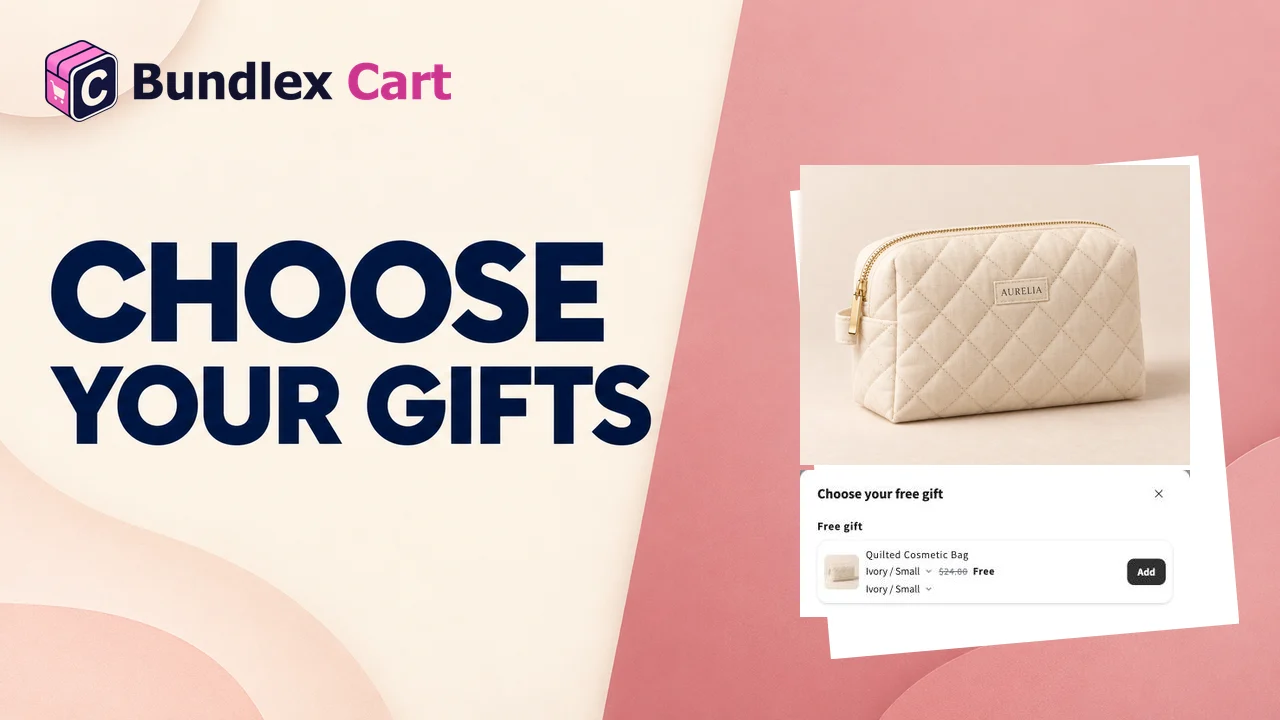
Create the gift tier
- Edit your cart, enable Cart > Rewards bar, and open the intended customer-group tab. For a first unrestricted example, use All customers with no filters.
- Set Progress is measured by to Cart total or Number of items. Click Add reward, choose Free gift, then enter the threshold.
- Under Gifts, click Select gift, pick the product and tick the variants that can be free. Add more products with Select another gift.
- Set Qty on each gift: the free units of that gift per shopper, from 1 to 10, in any mix of its ticked variants.
- Choose How gifts are added: Added automatically or Shopper chooses.
- Save and activate the cart, or save the active design.
Only the variants you ticked can be free. A variant added to the product later is not a gift until you open the gift again and tick it.
Worked example: spend $75 and choose two lip balms
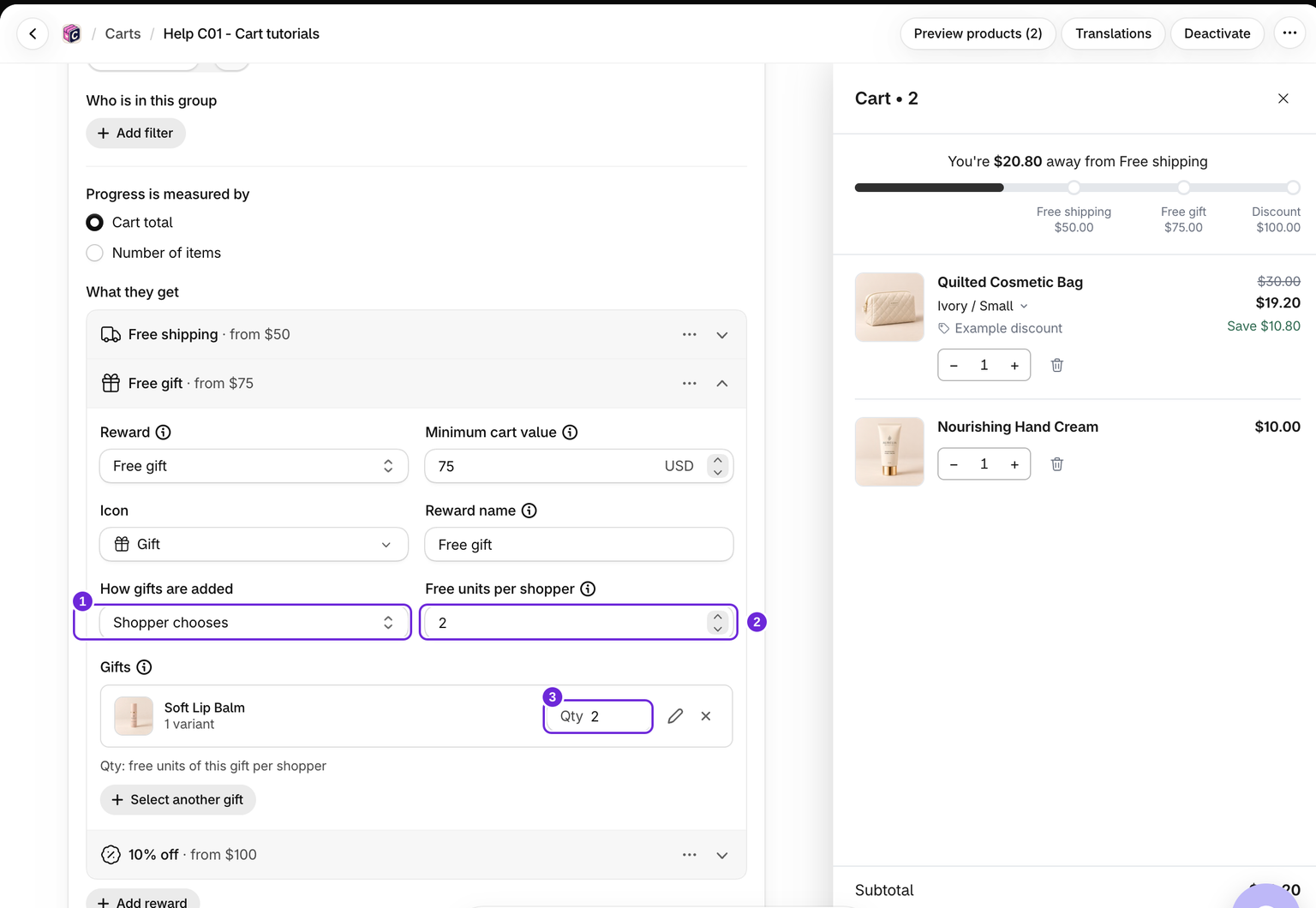
This USD example uses Soft Lip Balm with one available variant. Keep its normal Shopify price; the published reward makes eligible units free.
- Choose Cart total and set Minimum cart value to 75 in a USD store.
- Select Soft Lip Balm and tick its available variant.
- Set its Qty to 2 and choose Shopper chooses.
- Set Free units per shopper to 2. This caps total free units across the tier, not the number of different products.
- Activate the cart, or save it if already active. On the storefront, reach $75 of eligible regular products and open the gift picker.
- Click Add for Soft Lip Balm. The single-variant gift adds its two free units together. Check that both units are free at checkout.
If you later add a second gift product, its own Qty limits that product while Free units per shopper still caps the combined total at two. With one product and Qty 2, leaving the tier limit empty also allows at most two units of that product.
Added automatically
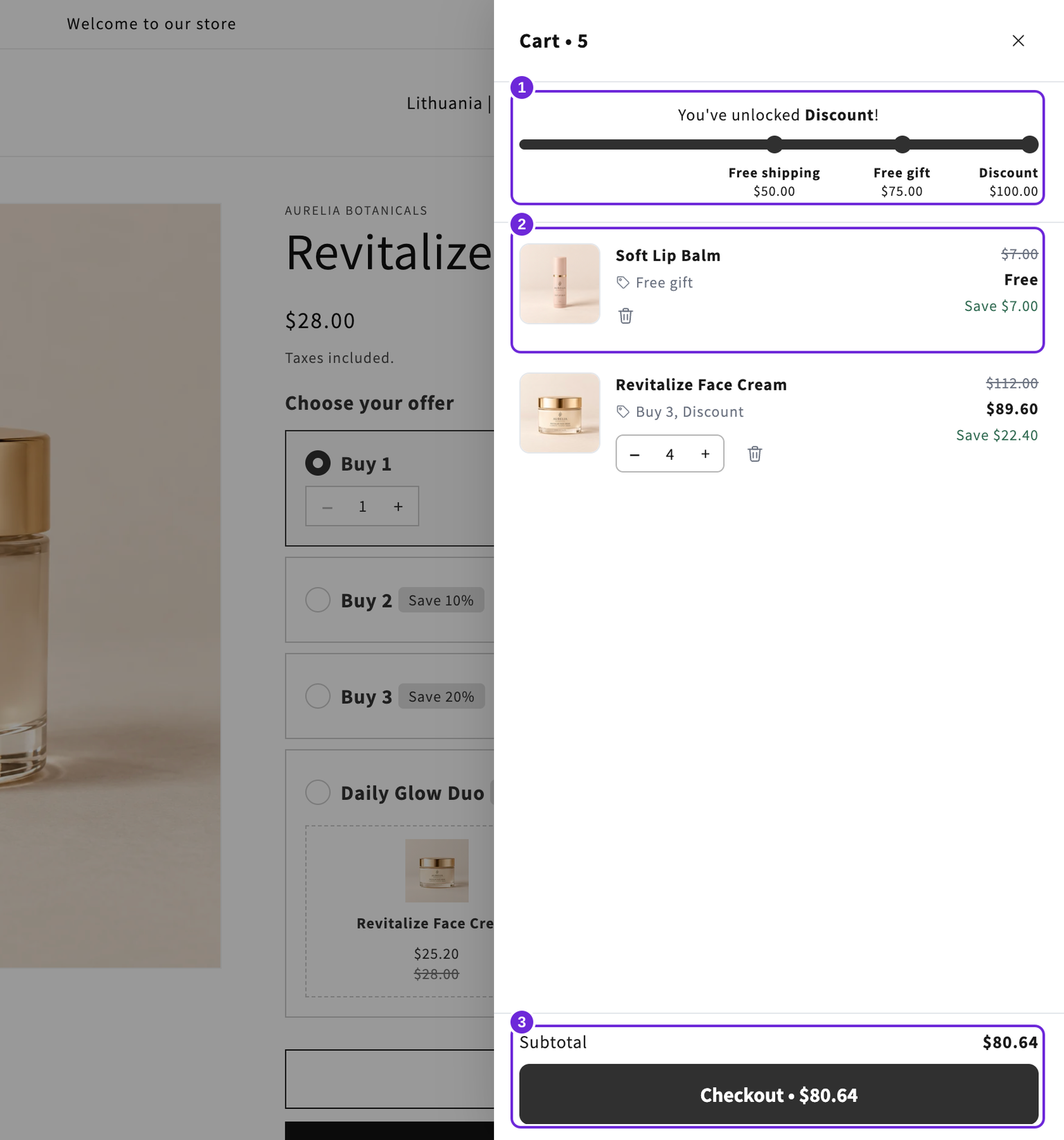
When the tier unlocks, Bundlex Cart adds every gift with its Qty, in the first available variant. A gift with several ticked variants gets a variant dropdown on its cart line, so the shopper can switch to another free variant.
If the shopper removes a gift, it is not added again by itself. A row under the rewards bar opens the gift picker, where the shopper can add it again. Falling below the threshold resets that choice; earning the automatic tier again can add its gifts again.
Shopper chooses
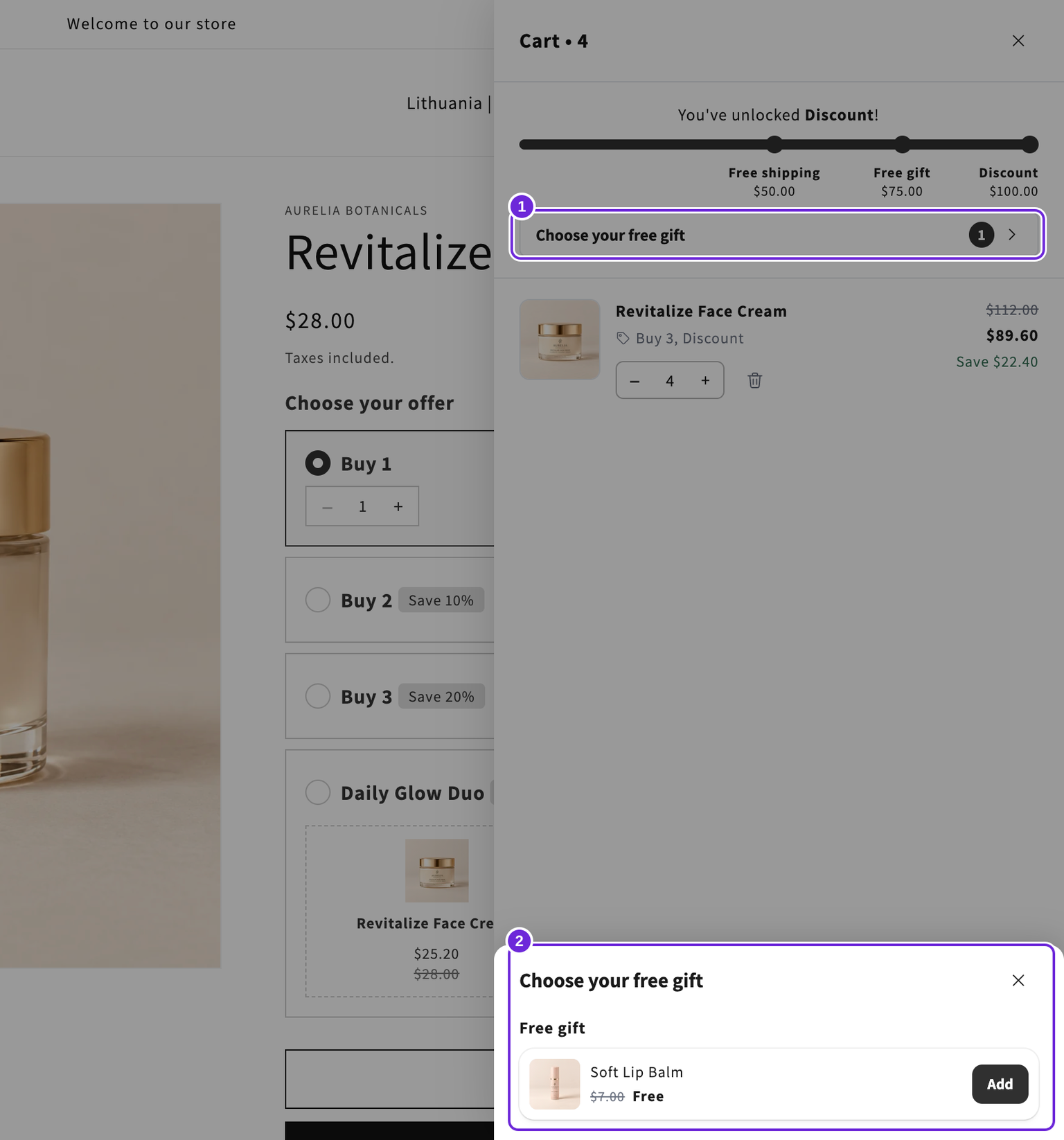
A row under the rewards bar opens the gift picker in a sheet over the cart. The picker lists each unlocked gift tier with its gifts and an Add button. Gifts with several available variants show one variant dropdown per free unit. The shopper picks and adds the gifts themselves. The picker never opens by itself.
The row and the picker are titled "Choose your free gift". Change that text under Cart > Rewards bar > Wording > Gift picker.
Use Free units per shopper to limit the total free units across all gifts of the tier, in any mix. Each gift still stops at its own Qty. Leave it empty for no limit.
For example, with two flavours, Qty 2 on the gift and no limit, a shopper can take 2 of one flavour or 1 of each.
When the cart drops below the threshold
Bundlex Cart removes the reward gifts when the cart falls below the tier's threshold. Gifts do not count toward unlocking themselves.
A gift tier counts what the shopper pays after discounts. If a discount code or another app's discount takes the cart below the threshold, the gift is removed. The rewards bar's own order discount is not taken off, so reaching it never removes a gift.
Discount codes and customer changes
A code applied in the drawer can lower the qualifying total and remove the gift there. A code first entered later at checkout can leave an already-added gift free even when the final amount is below the threshold. Do not rely on a gift tier to enforce a strict after-code spend in every checkout path; test the ways your customers apply codes.
If rewards are restricted by customer group, test the intended login and market states as well. Checkout can identify a different customer or eligible group from the storefront. A gift that no longer qualifies for that audience can be charged.
Gift names and images
A gift arrives as a normal cart line with the product's own Shopify title and image, in the shopper's storefront language.
Check the gift's price
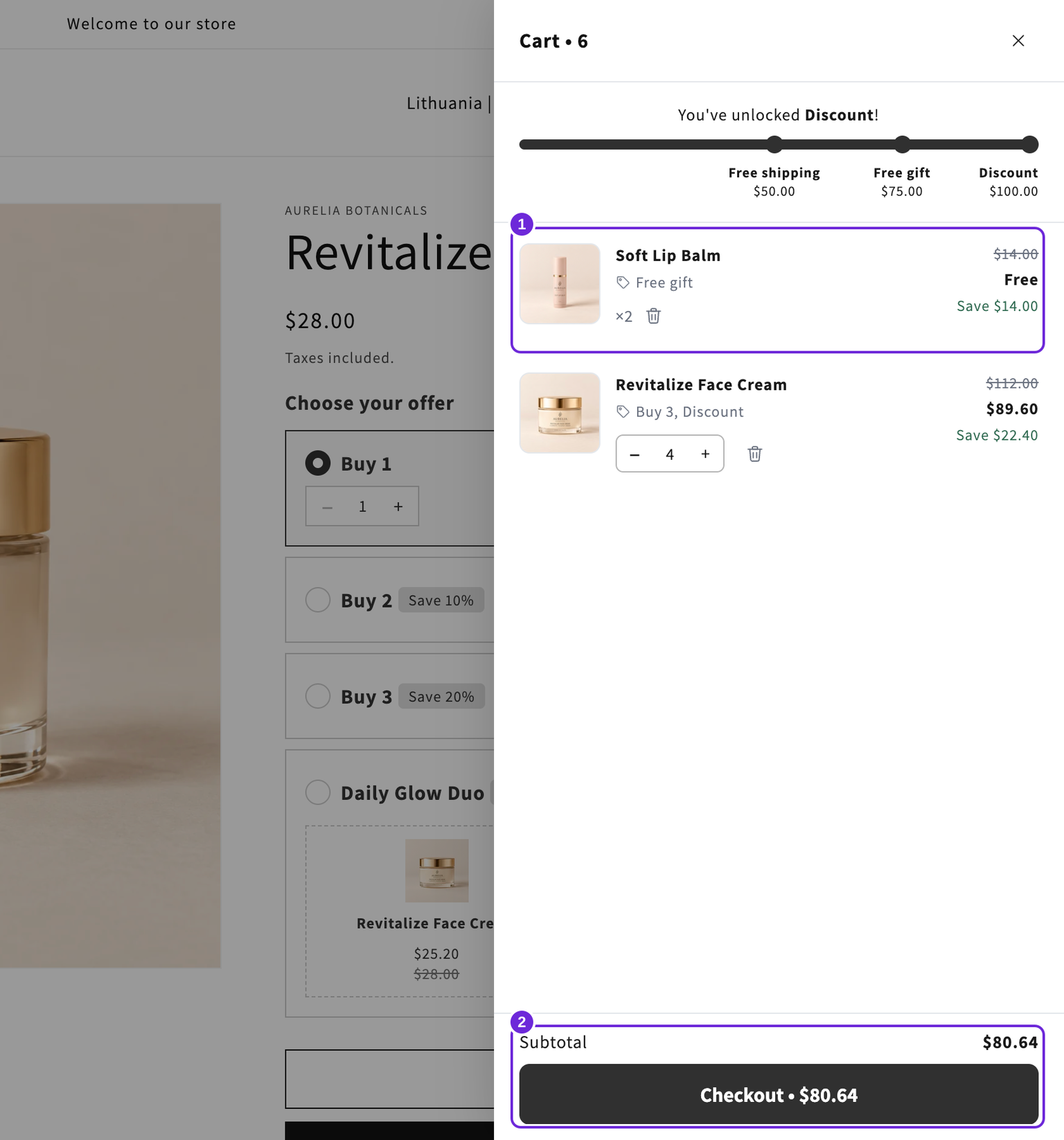
The gift is made free by the published automatic discount. The drawer displays the real charged price; changing a title to say "free" does not change the product's price.
On your storefront, cross the threshold, add or choose the gift, and check the gift and total at checkout. Then remove enough regular products to fall below the threshold and confirm the gift is removed.
Gift products need to be available for purchase. If a gift does not appear, is removed unexpectedly, or carries a price, follow rewards and gifts troubleshooting.
Was this article helpful?
Your feedback helps us improve our docs.