
Set up a paid add-on with the Add-on toggle
The Add-on toggle in Bundlex Cart is an optional checkbox offer near checkout. It can represent something your store provides, such as gift wrapping or your own delivery protection service.
This creates a real Shopify product that shoppers pay for. Bundlex Cart does not provide insurance, shipping protection, or fulfil the service described by your offer. Your store is responsible for delivering what the text promises.
Create the offer
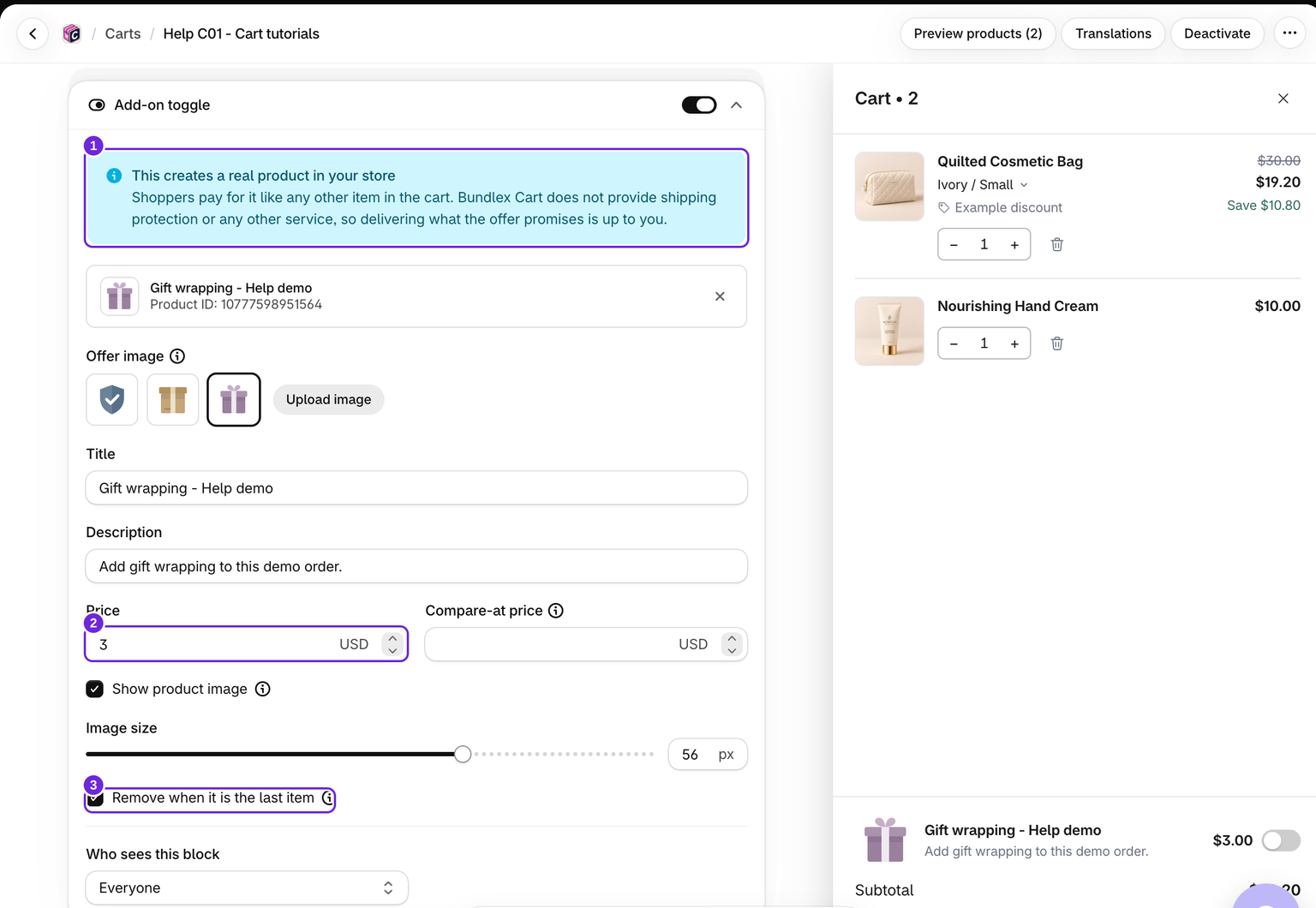
- Edit your cart, open Cart > Add-on toggle, and turn it on.
- Enter a clear Title, a Price above zero, and an optional description.
- If needed, add a Compare-at price higher than the selling price.
- Choose an Offer image preset or upload your own. Use Show product image to show or hide it, and set its size with Add-on image size in Style > Images.
- Click Save. This creates or updates the offer product in Shopify, including when the cart design is inactive.
New offers use a product managed by Bundlex Cart. The current editor does not offer an existing-product picker. Older carts that already sell a hand-picked product keep it. For those, the editor hides the price and image fields, so change them on the product in Shopify admin.
What the shopper sees
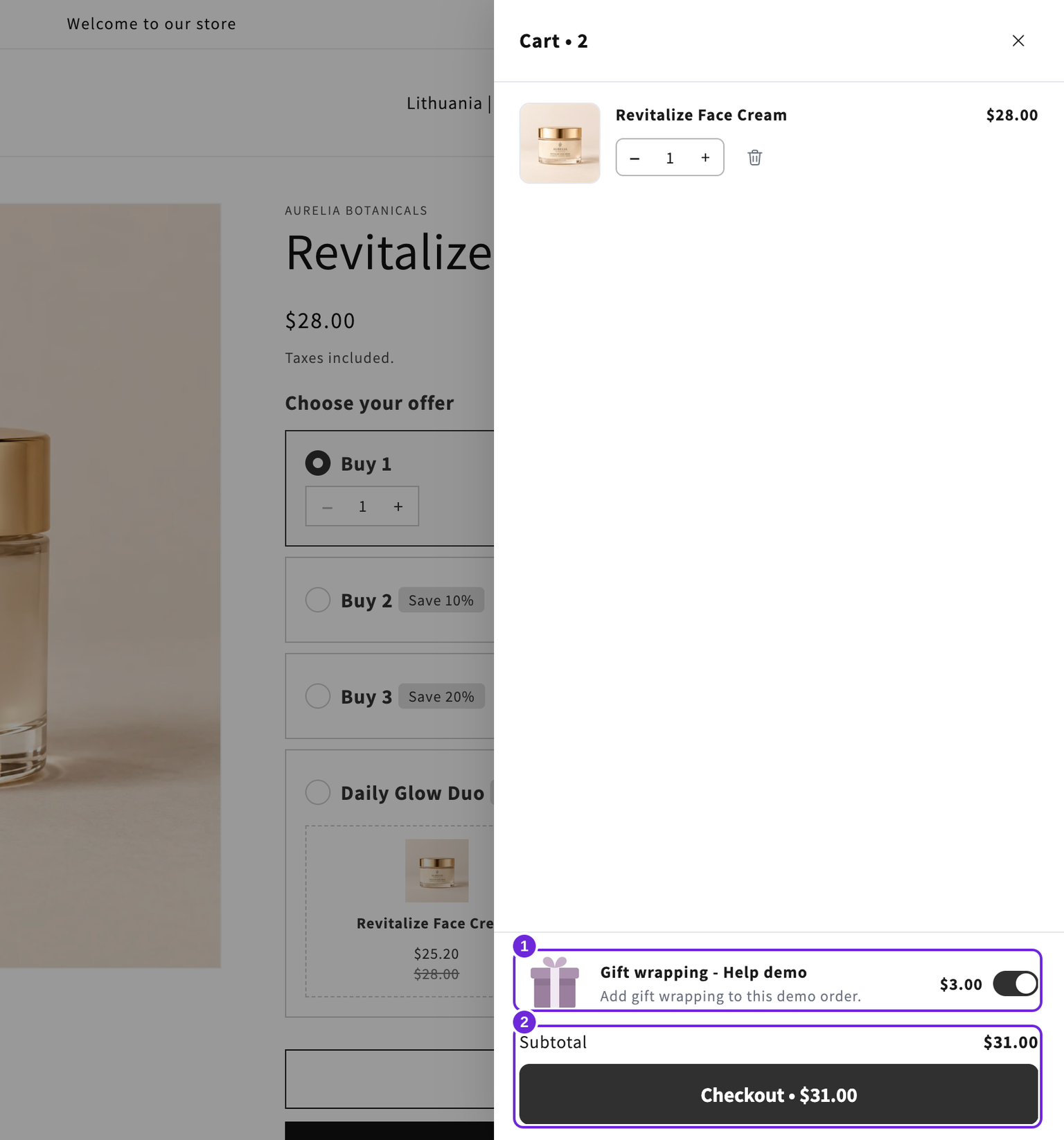
Checking the offer adds the paid item; unchecking it removes it. While the toggle represents the item, it is not repeated as a normal cart row, but its price still counts in the subtotal. Remove when it is the last item removes the add-on when nothing else remains.
If the block is disabled or hidden from a shopper after the add-on was added, the paid item becomes a normal cart row so they can still remove it. Before it is added, the offer shows the product's price and eligible compare-at price. Once selected, it shows the amount charged for the cart line.
Turn it off or delete its product
Turning the block off hides the offer without deleting the product. To delete it, click the X on the offer's product row and confirm with Remove product. This deletes the managed product from Shopify right away and turns the block off. Save the cart to keep the block off. Use that action only when you want the product removed, not just hidden from this cart.
A duplicated cart does not share the original design's managed add-on product. Open the copied Add-on toggle, review its title, price and image, then save to create its own product.
If the product was changed or deleted in Shopify
Manage the offer's title, price, compare-at price, and image in Cart > Add-on toggle. Editing these in two places can leave the saved drawer copy and the Shopify product out of step. Keep the product's bundlex-cart-addon tag so Bundlex Cart can recognise it.
If you deleted the managed product in Shopify and want the offer back, reopen the cart editor and the Add-on toggle block. Check the title, enter the intended price again, and review the image and compare-at price before saving. The editor can fall back to default values after a deletion. With the block enabled, saving recreates the missing managed product. Check the offer on your storefront afterwards.
If you only want to keep the product out of shopping collections, follow hide an add-on product from collections.
Was this article helpful?
Your feedback helps us improve our docs.