
Add an order note and make it required
An order note in Bundlex Cart lets shoppers leave a message with their cart, such as packing instructions or information you need to fulfil the order.
Enable the field
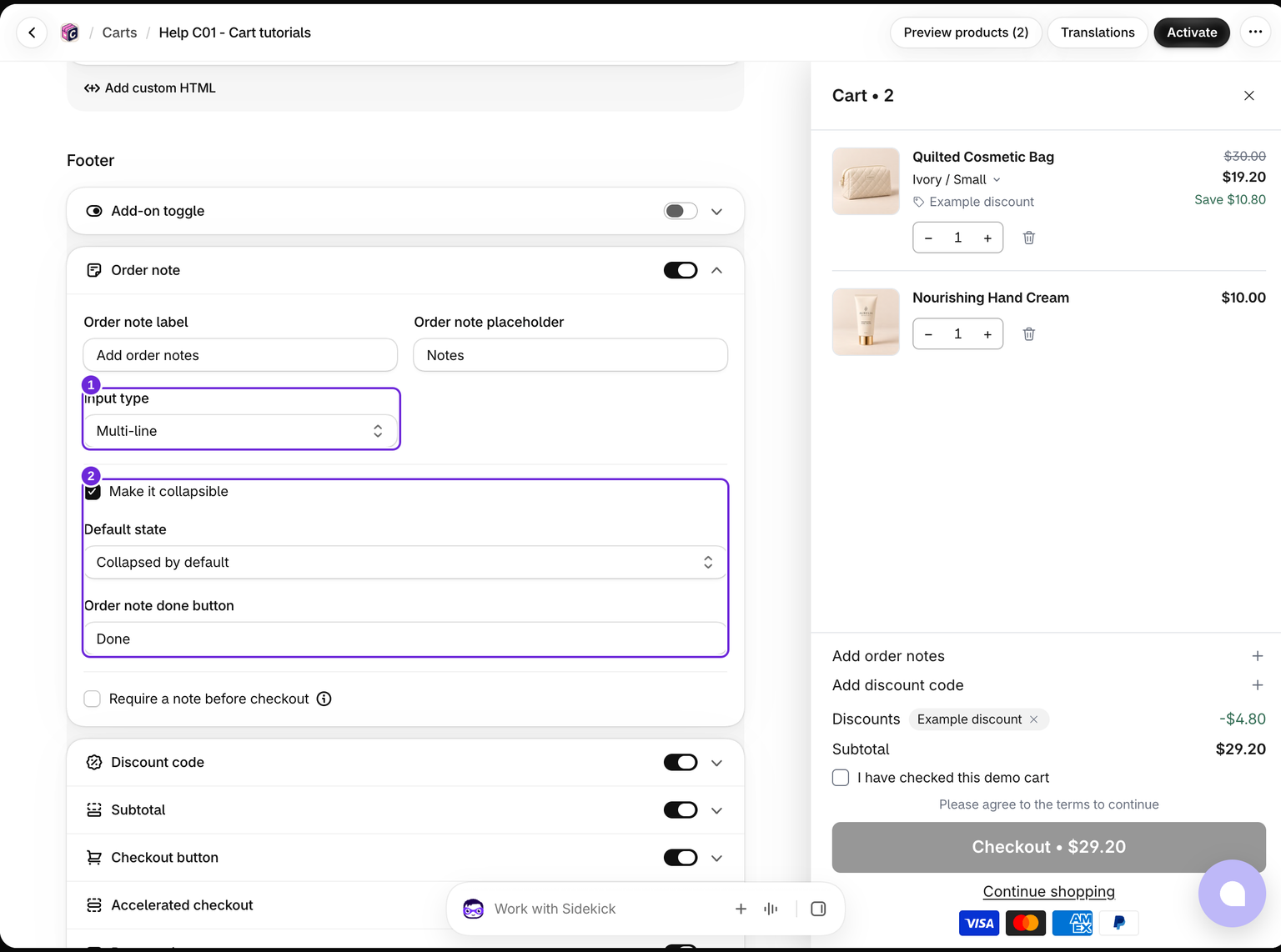
- Edit your cart and enable Cart > Order note.
- Choose Single line or Multi-line under Input type.
- Edit the label and placeholder so shoppers know what to enter.
- Save the cart.
Single-line notes have a clear button that empties and saves the note. Multi-line notes do not have that button.
Keep an optional note compact
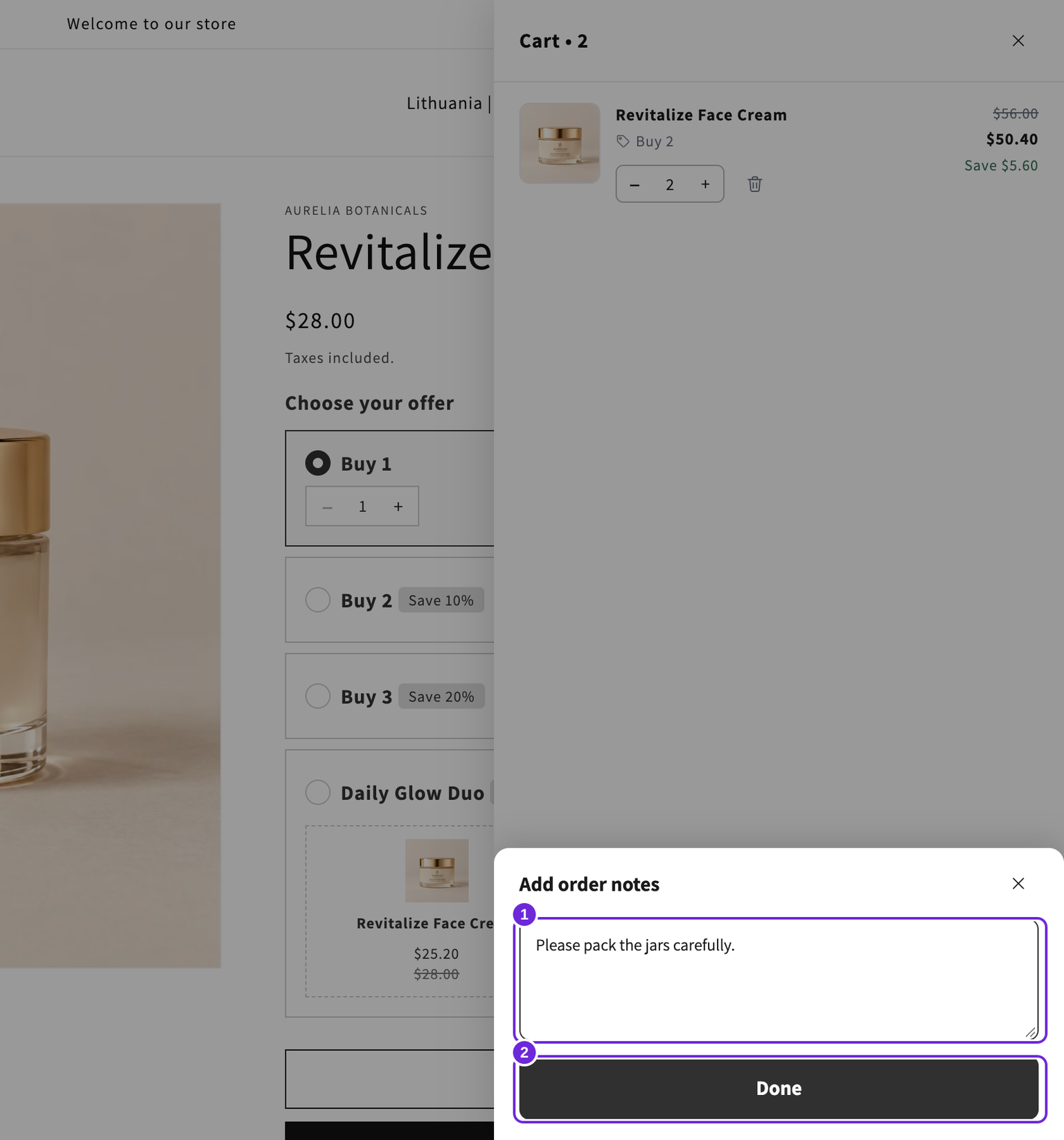
Turn on Make it collapsible and choose Collapsed by default or Expanded by default. Keep a label so shoppers have a visible row to open the field.
- Collapsed by default: the row opens the note in a sheet over the cart, with a Done button. The footer stays the same height. The row shows a check when the cart already has a note.
- Expanded by default: the field starts open in the footer, and the row folds it in place.
Edit Order note done button to rename Done. Closing the sheet saves any pending note. For example, enter "Please pack the jars carefully.", close the sheet, and reopen the cart after refreshing the page to check that the message remains.
Require a note
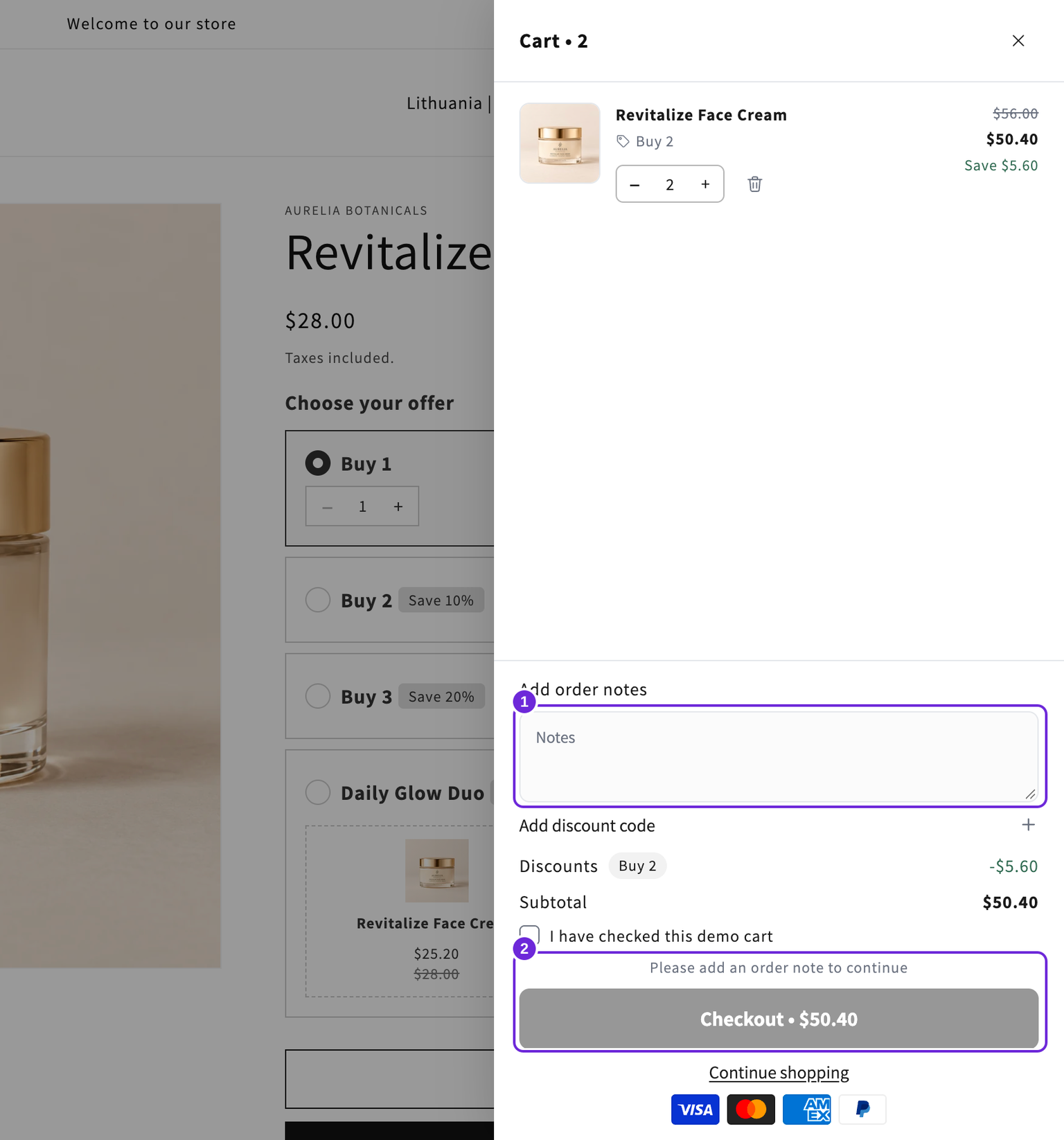
Enable Require a note before checkout. The note stays open and the drawer's checkout button remains disabled until the shopper enters it. A required note cannot be collapsed.
The note saves as the shopper types. Accelerated checkout buttons stay hidden until the required note is saved and the cart is ready. If saving fails, the drawer shows an error rather than silently letting the required message be lost.
The Note required message and Note save failed message are under Advanced > Messages > Error messages. A failed optional note shows its error but does not make the note required.
Check the checkout path
Test an empty note, a completed note, and reopening the cart. The requirement is enforced by this drawer; it does not create a store-wide checkout validation rule for other routes to checkout.
If checkout remains disabled, also check the terms checkbox.
Was this article helpful?
Your feedback helps us improve our docs.