
Customize the empty cart and its product suggestions
The Empty tab in Bundlex Cart controls what shoppers see when their cart has no items. You can show a useful message and a way to keep shopping.
Edit the empty-cart screen
- Open your cart design and select Empty.
- Choose an Icon, upload an Image, or choose None.
- Edit the Empty cart title and Subheading. Drawer title when the cart is empty sets the drawer's header; leave it blank to show the drawer title without its number.
- Enable Show the button if wanted. Set the button text and link.
- Save the cart.
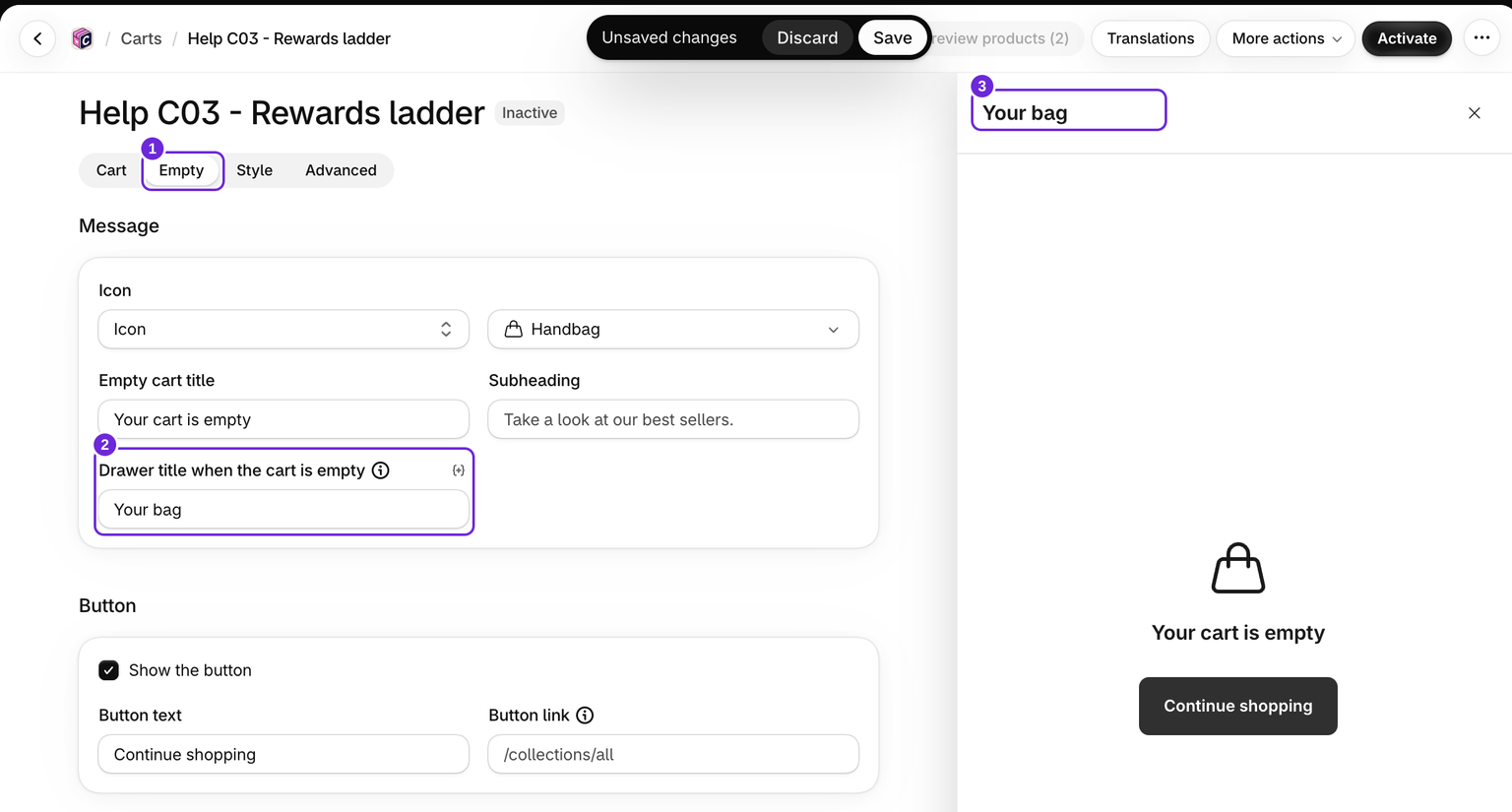
A blank button link closes the drawer. A link such as /collections/all takes the shopper to your products.
Add product suggestions
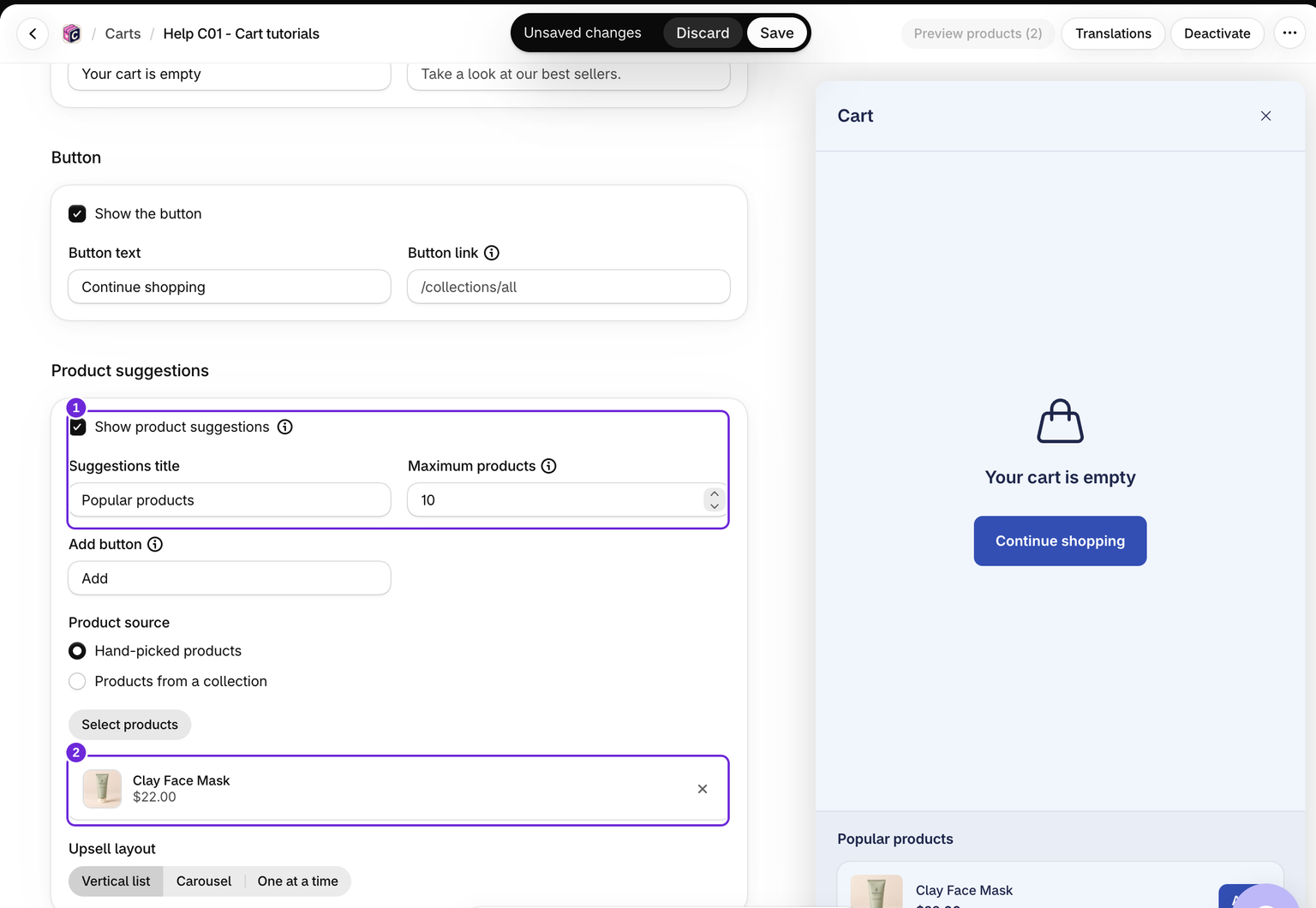
Turn on Show product suggestions. Set the Suggestions title, choose Hand-picked products or Products from a collection, and select the source products or collections.
Choose Vertical list, Carousel, or One at a time, and set Maximum products from 1 to 12. Empty-cart suggestions have their own product pool. They do not use recommendations from cart contents because the cart is empty.
Products added from this screen stay in the cart; they are not removed by the regular Upsells block's empty-cart cleanup option.
Test the empty state
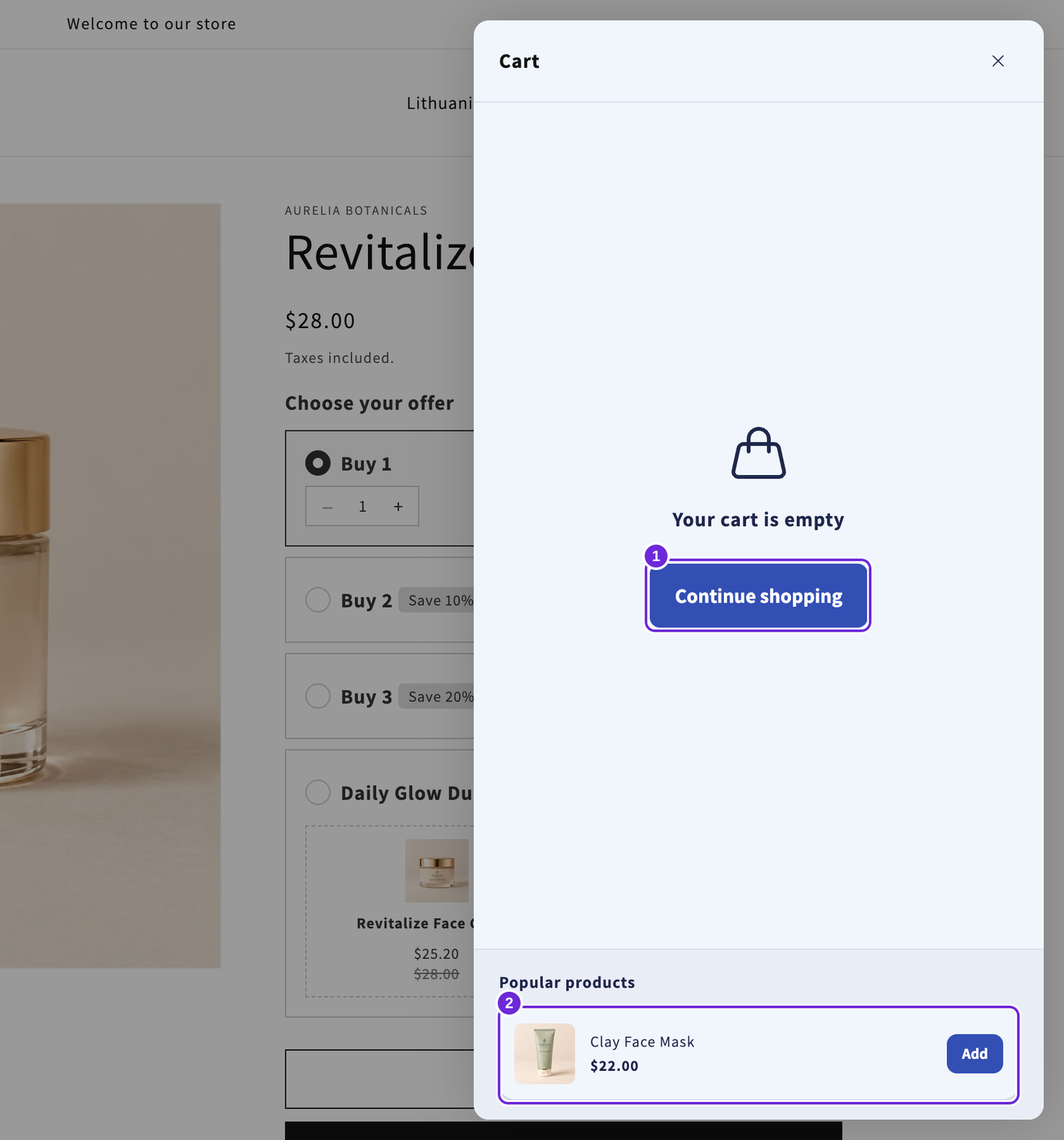
Empty your storefront cart and open the drawer. In this example, Clay Face Mask appears below the message with its own Add button. Adding it switches to the normal cart view. With the button link left blank, Continue shopping closes the drawer.
If suggestions are missing
Check product availability and the customer-tag rule on Cart > Upsells. Empty-cart suggestions share that rule even though their product choices are separate. Test while logged out as well as logged in.
For more checks, see upsells not showing.
Was this article helpful?
Your feedback helps us improve our docs.