
Add product upsells to the cart
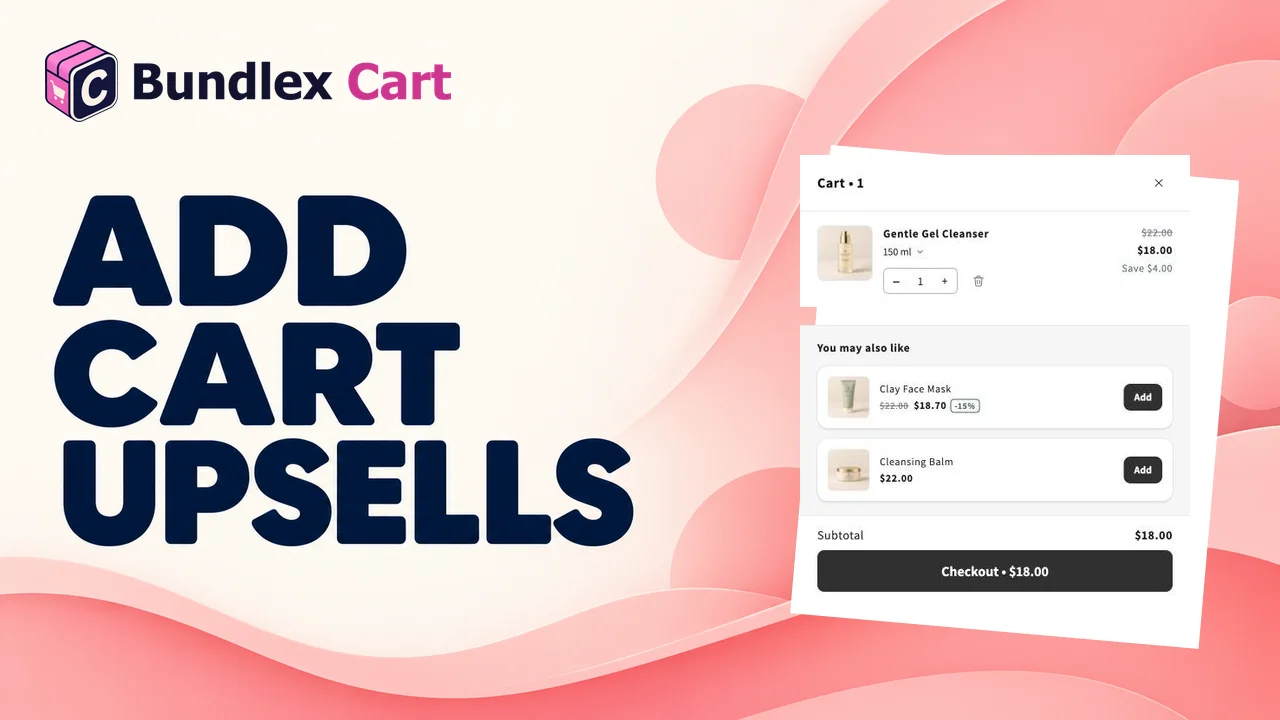
Upsells in Bundlex Cart let shoppers add another product without leaving the cart drawer.
Set up the block
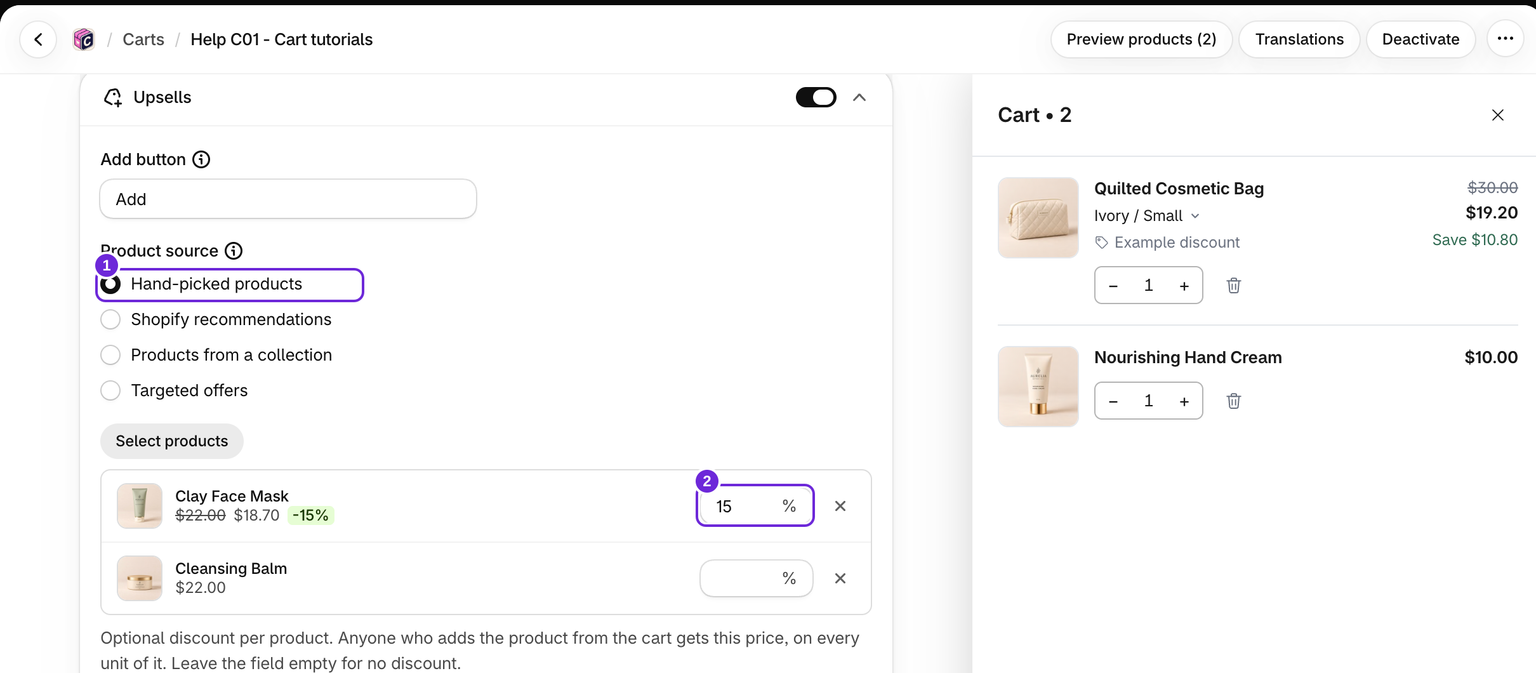
- Edit your cart, open the Cart tab, and turn on Upsells.
- Open the block and choose a Product source.
- Set the heading, choose an Upsell layout, and set Maximum products.
- Save the cart. If it is inactive, activate it when ready.
Choose a product source
- Hand-picked products: use Select products to choose the pool yourself.
- Products from a collection: use Select collections. Products follow the collection's sort order in Shopify.
- Targeted offers: suggest chosen products when cart-value, product, or collection conditions match. Available in the main Upsells block. Follow the targeted offers guide.
- Shopify recommendations: choose Related products or Complementary products. Recommendations depend on products in the cart.
Complementary products need pairings in Shopify Search & Discovery. When no complementary products are returned, Bundlex Cart tries related products instead.
For a complete example, follow recommend products based on what's in the cart.
Are products already in the cart hidden?
Yes. Main and side upsells automatically exclude products already in the cart, across all product sources. This works at product level, so another variant of the same product is also excluded. There is no separate switch to enable this behaviour.
Layout and product limits
Choose Vertical list, Carousel, or One at a time. Maximum products accepts 1 to 12; recommendations return at most 6 candidates. The actual list can be shorter because unavailable products are filtered out.
Product cards use the selected variant's price. A crossed-out compare-at price comes from the product's pricing.
Discount a hand-picked product
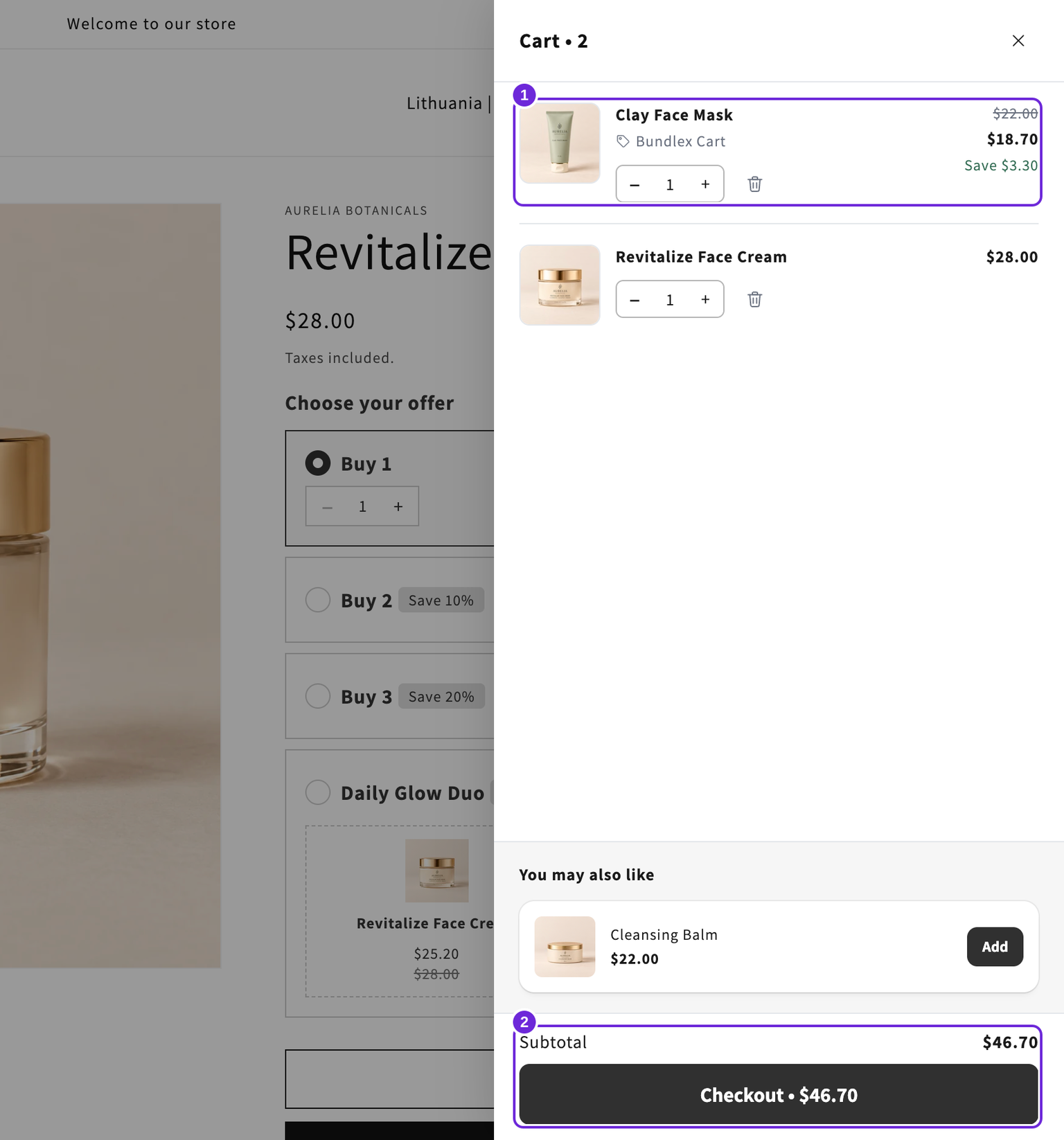
With Hand-picked products as the source, each product row has an optional % field. Enter a percentage and shoppers who add that product from the cart pay the discounted price on every unit. The card shows the new price with the original crossed out. Leave the field empty for full price.
- Save the active cart, or save and activate an inactive design, to publish the discount. Wait for confirmation and check the storefront and checkout; a preview price is not proof that publishing succeeded.
- If the same product is hand-picked in both enabled Upsells and Side upsell blocks with different percentages, the higher one applies everywhere, empty-cart suggestions included.
- The price applies only when the product is added from the cart. Adding it from its product page costs full price.
- Collections, Shopify recommendations and targeted offers have no discount field.
- Discount codes and other app discounts follow Shopify's combination rules. When discounts cannot combine, Shopify chooses the best eligible discount or combination; a code can be refused or replaced. Do not promise that every discount adds together.
A product with a published hand-picked percentage can keep that percentage when suggested by another source. The block's customer-tag rule controls card visibility; the cart's own audience rule also controls whether its checkout discounts apply.
Shopify Plus has an additional setup for combining product discounts on the same line. That requires compatible discount settings; it is not automatically enabled by an upsell percentage. See Shopify's discount combination guide and test your intended cart at checkout.
Remove extras when the cart empties
With Remove upsells when the cart empties enabled, products added from this block are removed after the last regular product is removed. This runs on the storefront, not in the preview. Products added from empty-cart suggestions stay in the cart.
For missing products, see upsells not showing.
Was this article helpful?
Your feedback helps us improve our docs.