
The cart drawer is not opening or two carts appear
First check whether the drawer from Bundlex Cart is missing entirely, only fails to open automatically, or opens alongside another cart. These usually have different causes.
Nothing opens
First check Advanced > Who sees this cart. A rule that excludes the current visitor leaves the theme's own cart available instead. Test as a shopper who matches the saved rule; the editor preview does not validate customer eligibility.
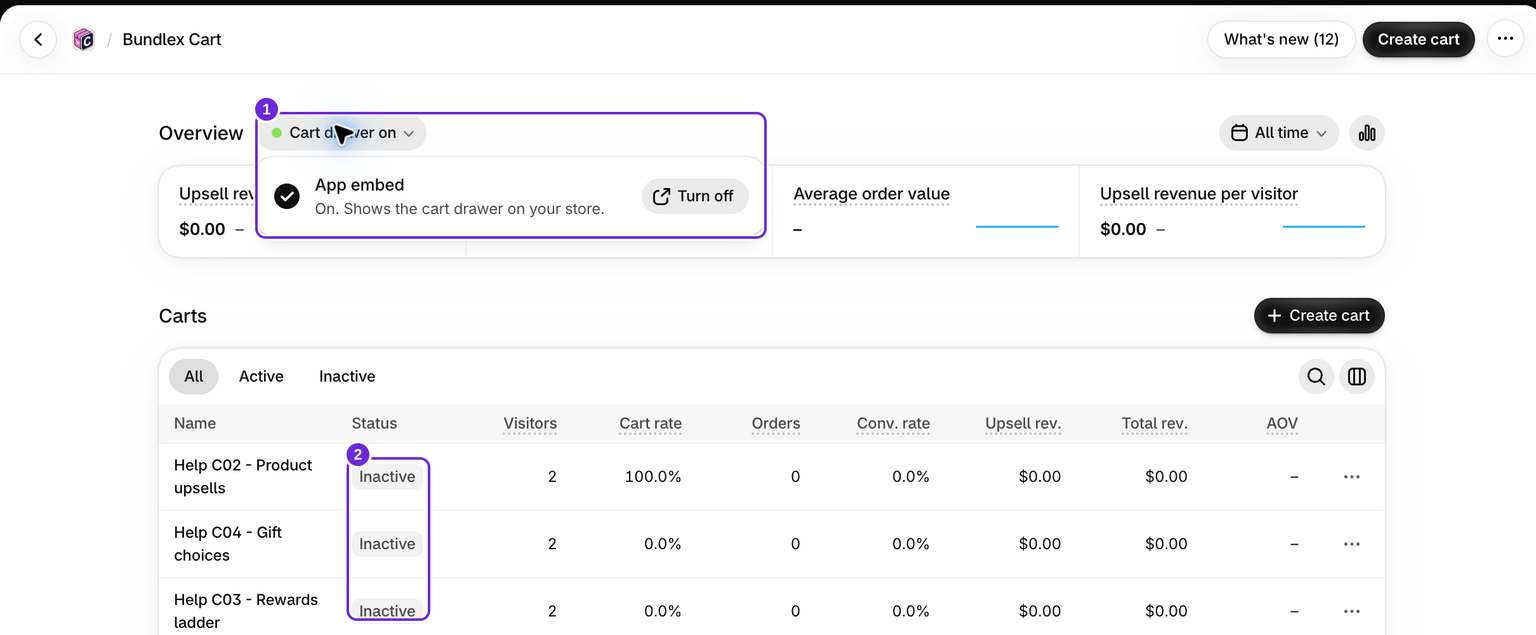
- In your theme editor, open App embeds and confirm Bundlex Cart is enabled. Click Save if you change it.
- In Bundlex Cart, confirm the design you want has the Active badge.
- Reload a product page on that same theme and try its cart icon.
- If the URL contains
?bxc=off, remove that parameter. It is a support switch that disables the drawer for that page.
After changing or publishing a theme, check the embed on the new theme rather than relying on the old theme's setting.
The cart works for some shoppers only
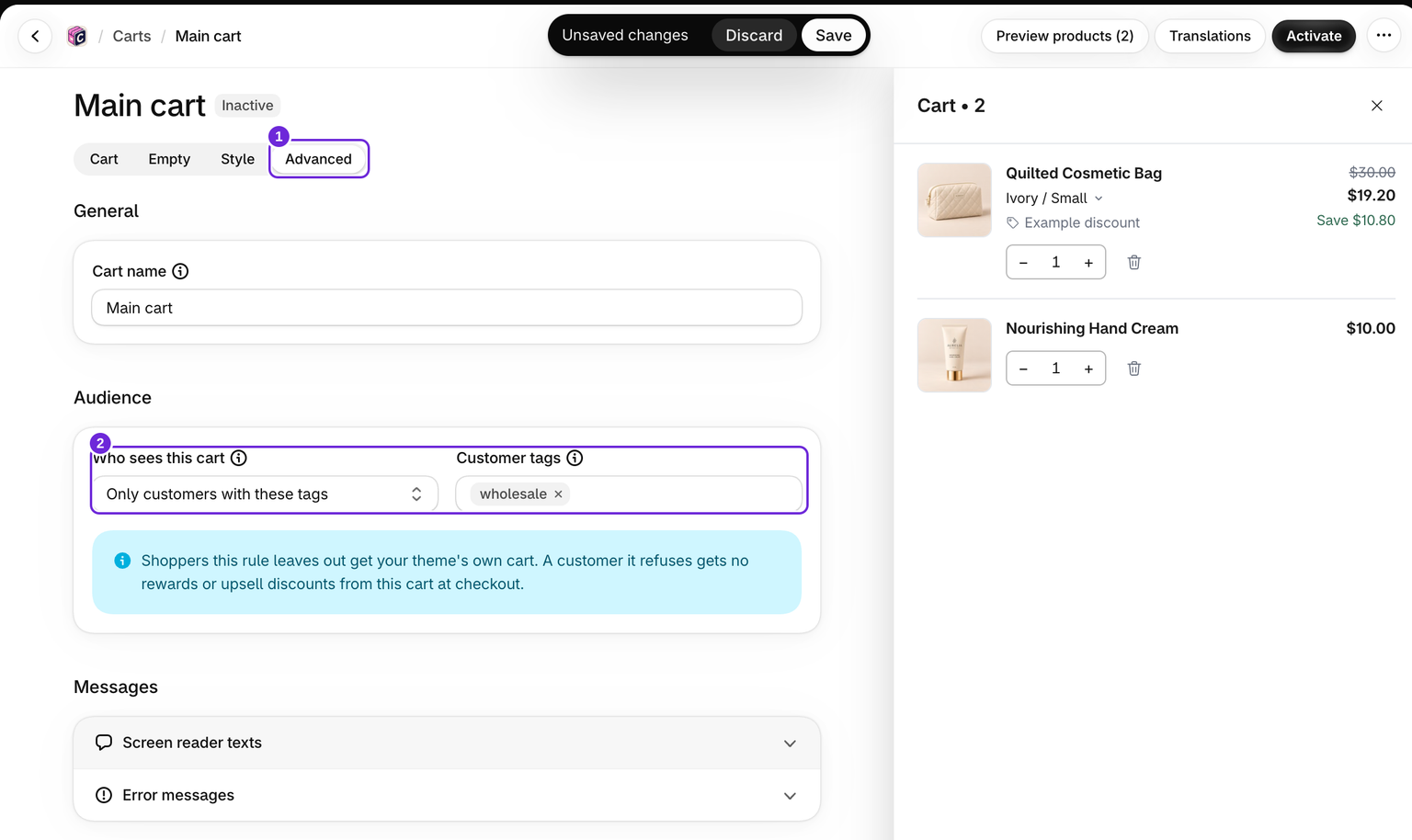
The whole-cart audience rule is separate from the rules on upsells and rewards. A guest does not match an Only customers with these tags rule. Check the shopper's storefront login and tags, then reload the page after saving any audience change. See Choose who sees the cart.
The cart icon works, but adding a product does not open it
Edit the active cart and check Style > Open the cart when a product is added. Save and test again.
A Buy it now button or a page-builder button that sends shoppers straight to checkout can bypass the cart. Test the ordinary Add to cart button separately.
Two drawers appear, or the icon opens the wrong one
Another cart-drawer app can compete for the same click. Keep one cart-drawer app enabled. If the second drawer belongs to your theme, contact us rather than deleting theme code or guessing selectors.
What to send support
Send your storefront product URL, theme name, and which action fails: adding a product, clicking the cart icon, or both. Tell us whether the problem started after a theme change. Our team can check the theme-specific cart connection.
Was this article helpful?
Your feedback helps us improve our docs.