
Hide an add-on product from your store's collections
The Add-on toggle in Bundlex Cart creates a real Shopify product. An offer such as gift wrapping can therefore appear in a collection alongside your regular products.
Use Shopify's collection controls to remove it from those lists. Keep the product available on the Online Store so the cart can still add it.
Find the managed add-on product
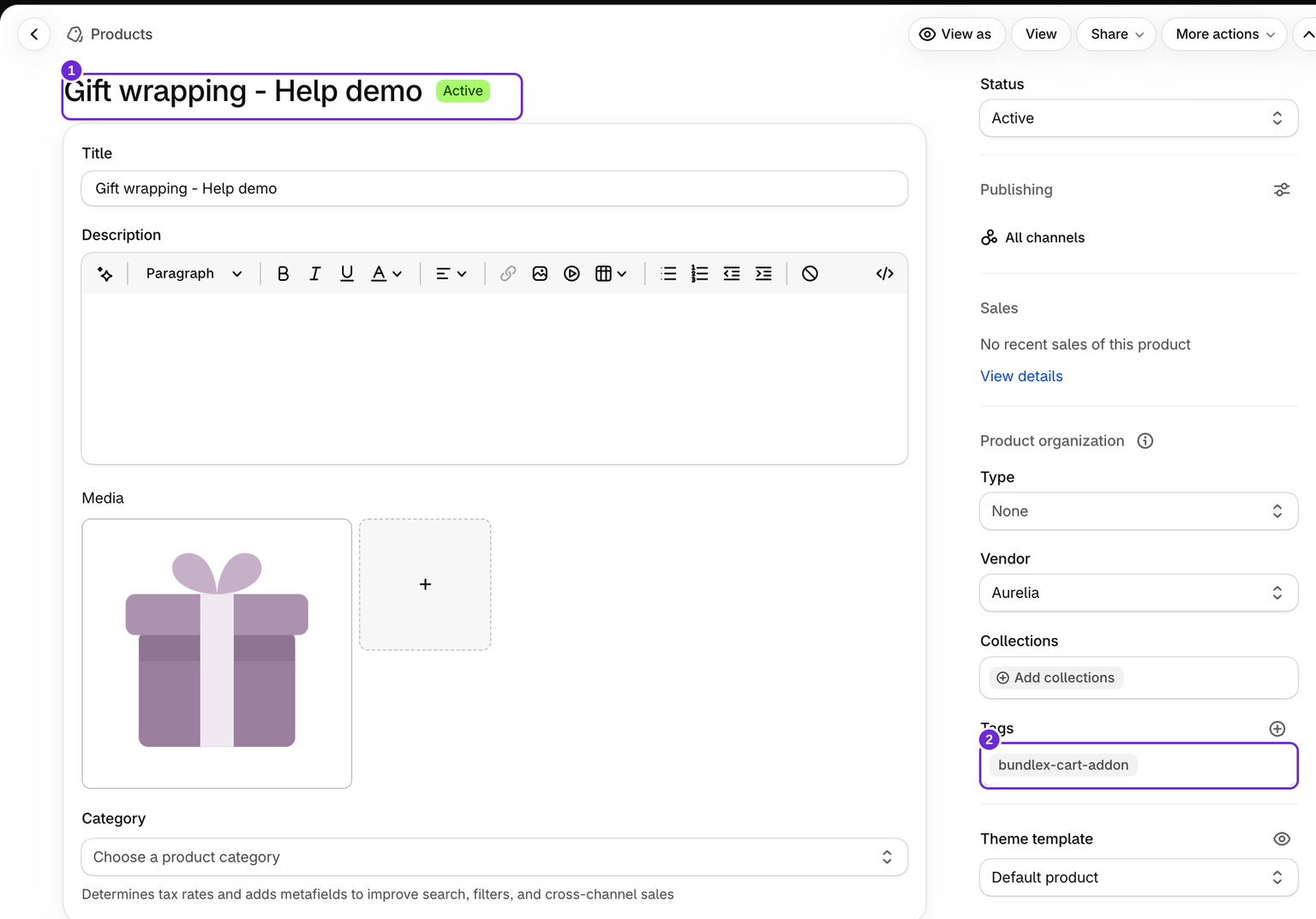
In Shopify admin, open Products and find the product matching your add-on title. Add-ons managed by Bundlex Cart carry the tag bundlex-cart-addon. Keep that tag: it identifies the product managed by the app.
Remove it from a collection
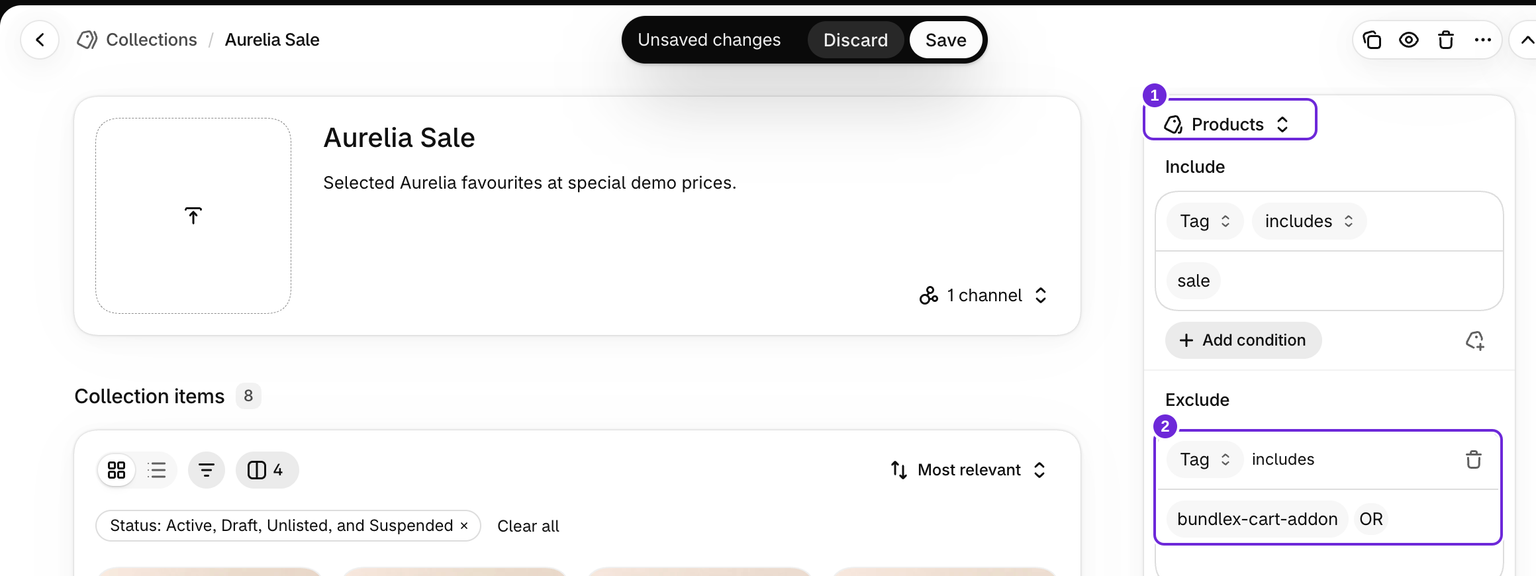
- Open Products > Collections and select the collection where the add-on appears.
- If the product was added manually, remove it from the collection's product list and save.
- If your collection uses Shopify's newer source controls, use the Products source's exclusion options to exclude products tagged
bundlex-cart-addon. Check other sources in the same collection if they also include it. - Save and open the collection on your storefront to confirm the result.
Shopify is rolling out new collection controls, so the screen can differ between stores. See collection conditions and managing collection sources for the controls available in your admin.
If you still use legacy smart collections
These collections select products using conditions. Give the add-on a distinct product type in Shopify, such as Cart add-on, then exclude that type with a Product type is not equal to Cart add-on condition.
The exclusion needs to apply alongside the other conditions. Adding it to a collection that matches any condition will not reliably exclude the product. Changing that collection to match all conditions can also remove regular products, so review its rules first. See Shopify's smart collection guide, or contact us with the collection's current conditions.
Check the All products page
If the product appears at /collections/all, use a collection with the URL handle all to control that page, then apply the appropriate exclusion. Follow Shopify's catalog page guide.
Confirm the offer still works
Add a regular product to the cart, select the add-on, and confirm its price appears in the subtotal and at checkout. Do not delete, archive, or unpublish the product just to hide it from a collection.
Collection exclusions only affect those collections. They do not hide the product from store search, search engines, or its direct product URL. If the add-on is deleted and recreated later, recheck its collection exclusions and any product type you assigned.
Was this article helpful?
Your feedback helps us improve our docs.