
Translate your cart into another language
Each cart design in Bundlex Cart has its own translations. Edit the primary storefront language in the cart editor, and use Translations for other languages.
New carts start in your main language
If your store's main language is not English, a new cart starts with its drawer texts in that language. This works for Danish, Dutch, French, German, Italian, Japanese, Lithuanian, Polish, Portuguese (Brazil), Spanish, Swedish, Turkish and Chinese (Simplified and Traditional). Texts you add later, like a new reward, the announcement or the trust badges, start in your language too.
Carts you already have keep their texts. Change them in the cart editor.
Open translations
- Save your cart first. The Translations button stays greyed out until the design exists.
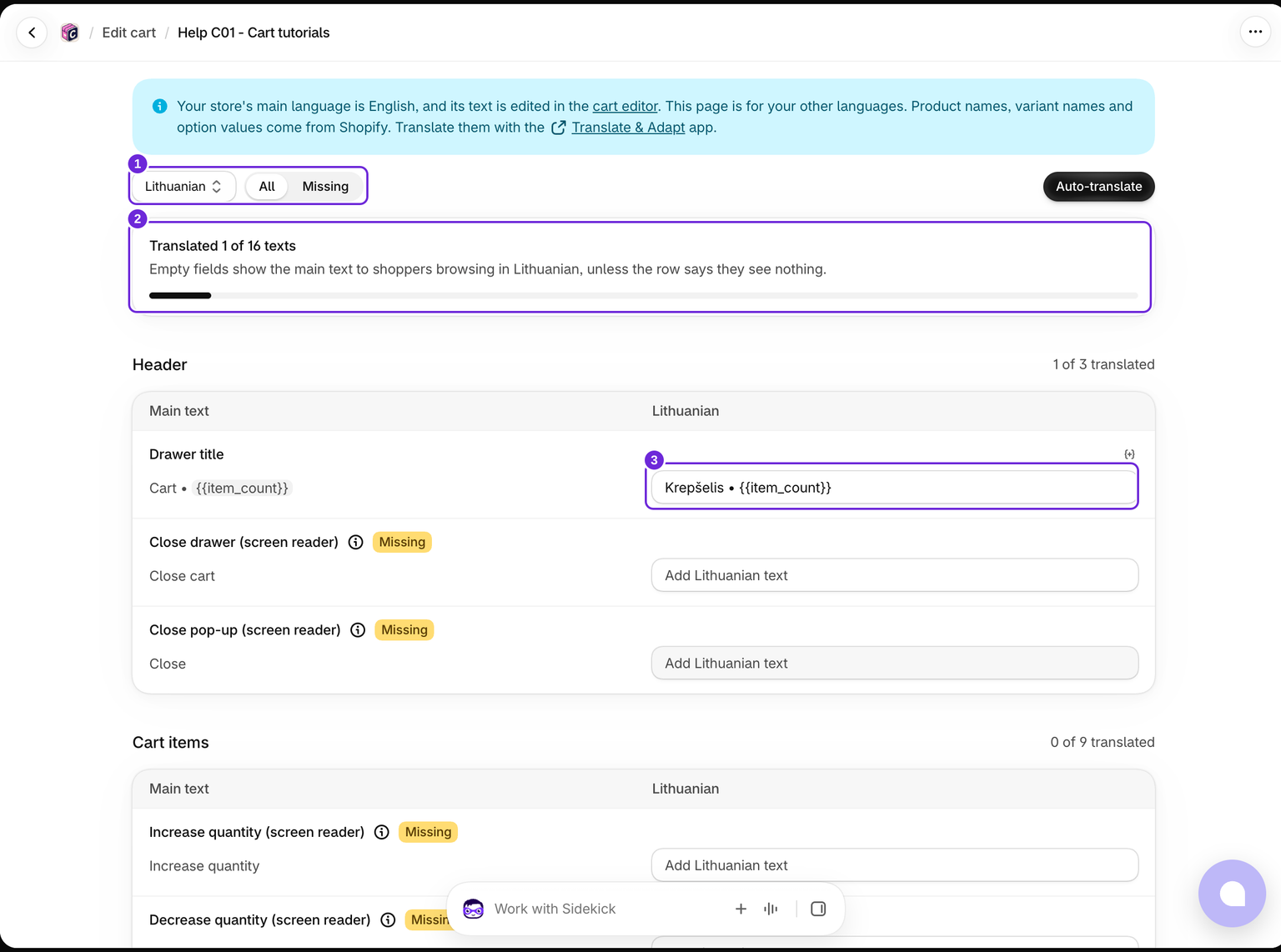
- Click Translations in the editor header, or choose it from the cart's actions in the list.
- Select the language you want to edit.
- The Main text column on the left shows your main language. Enter the translation on the right.
- Save before switching language or leaving the page.
The counter shows Translated X of Y texts. Switch the All / Missing control to Missing to see only the texts that still need a translation. A language you added in Shopify but have not published yet shows a Not published badge, so you can prepare it before it goes live.
The available rows follow the cart's enabled blocks and filled main text. A blank main text has no row to translate. Labels marked for screen readers describe controls to assistive technology; they are not visible drawer copy. On a narrow screen, the main text and translation stack with their own labels.
If there are no other languages, add a language under Shopify Settings > Languages, then reopen the app. The default language is edited in the cart's own feature blocks, and screen reader texts and error messages under Advanced > Messages.
Keep variables intact
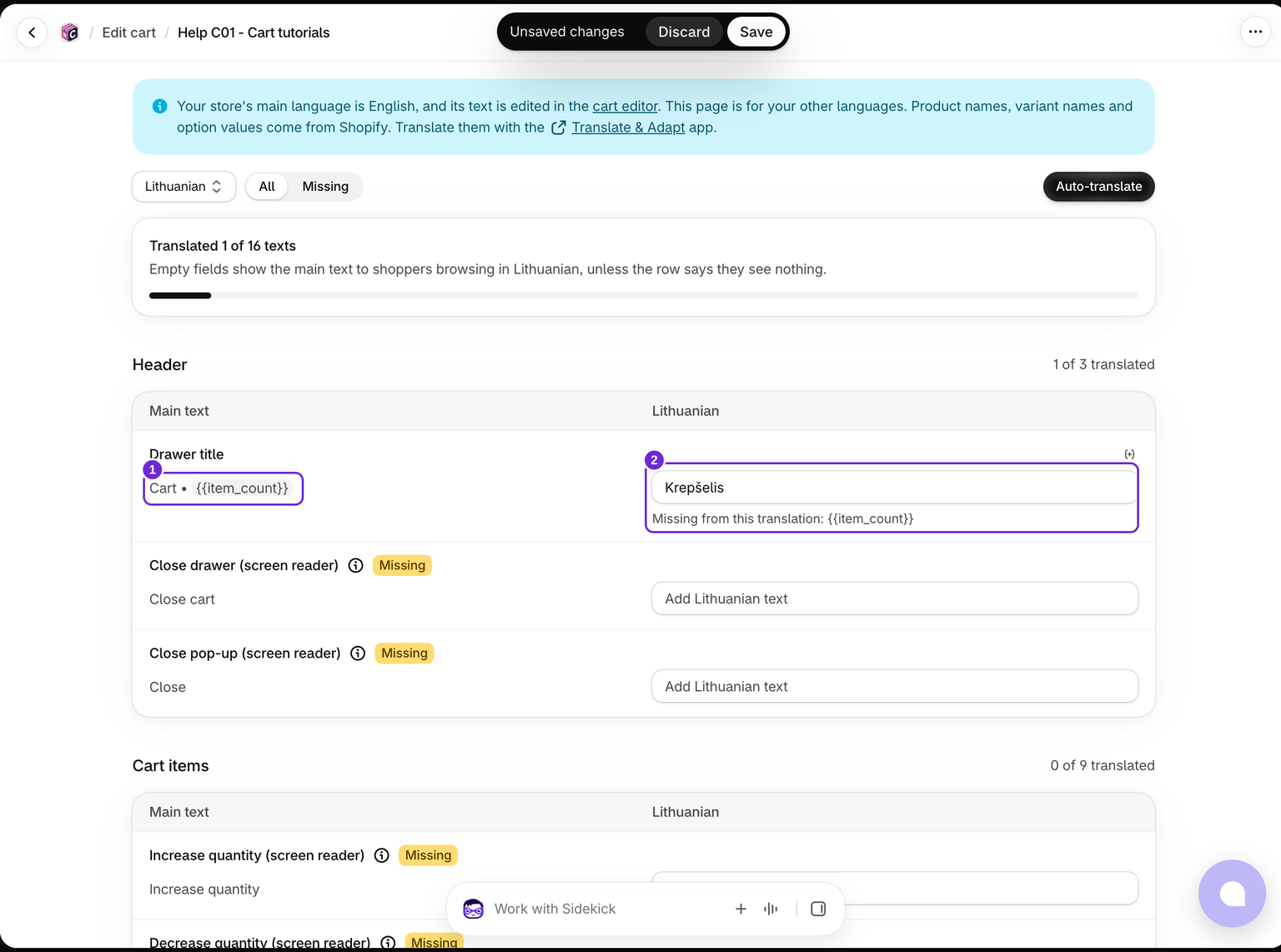
Text can contain variables such as {{item_count}}, {{amount}}, or {{total}}. Translate the surrounding words and preserve the variables. The page warns when a variable from the original text is missing.
For example, translate Cart • {{item_count}} as Krepšelis • {{item_count}}. The warning disappears when the count variable is restored. The warning does not prevent saving, so check it before publishing.
Leaving a translation empty keeps the base text; clearing a field does not hide that text for the language.
Auto-translate
If Auto-translate is available, it fills empty fields without overwriting existing translations. Review the wording and variables, then click Save.
Check on the storefront
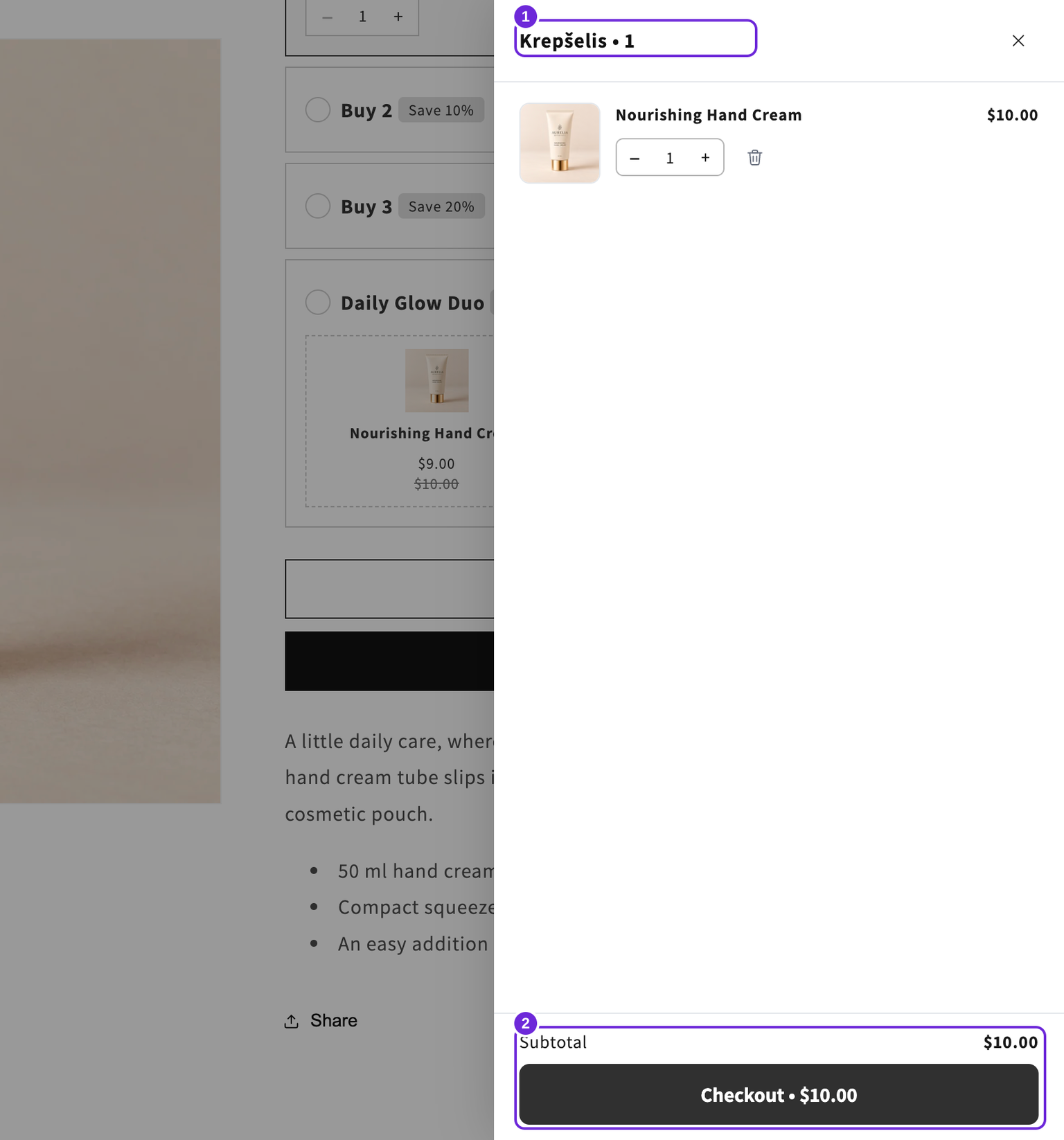
Saving translations for an active cart republishes them. Switch your storefront to the target language to check the result. The cart editor preview shows the primary copy, and the Translations page has no live preview.
In this Lithuanian example, one product produces Krepšelis • 1. Subtotal and Checkout stay in English because those fields were left empty. Clearing the saved title translation restores the main title after the storefront reloads; it does not hide the title.
Product names and links
Upsell recommendations and product links follow the shopper's storefront language. Product translations must already exist in your Shopify catalog; the Cart Translations page does not create them. Test a translated storefront page with a product whose catalog translation you have published.
Reward gift names come from your Shopify catalog, so they follow the shopper's storefront language like other product names.
This translates drawer copy, not your Shopify product catalog or every checkout label. Each reward tier's Reward name has a row on this page for the bar and its messages; checkout keeps the main-language name.
Was this article helpful?
Your feedback helps us improve our docs.