
Customize cart items, variants, and price display
Open Cart > Cart items in your Bundlex Cart editor to control how product lines appear. Cart items always remain part of the drawer.
Turn the quantity selector on or off
- Edit your cart and open Cart > Cart items.
- Turn Show the quantity selector on to show quantity controls, or off to hide them.
- Save the cart and activate the design if needed.
- Add a regular product on your storefront and check the controls in the drawer.
Reward gifts have their own quantity and variant rules; they do not use the regular quantity selector. Shopify can lock quantity controls on individual lines even when this setting is on. Hiding the selector changes the drawer's display; it does not set a purchase limit.
Let shoppers change a variant
Enable Let shoppers change the variant for a dropdown on eligible products.
A variant dropdown only appears when the product has another variant and the line can safely be changed. Subscription lines and Shopify-locked bundle lines do not offer variant swapping. Sold-out alternatives are unavailable for selection. Shopify can also lock quantity or removal controls on individual lines.
Choose the prices and labels to show
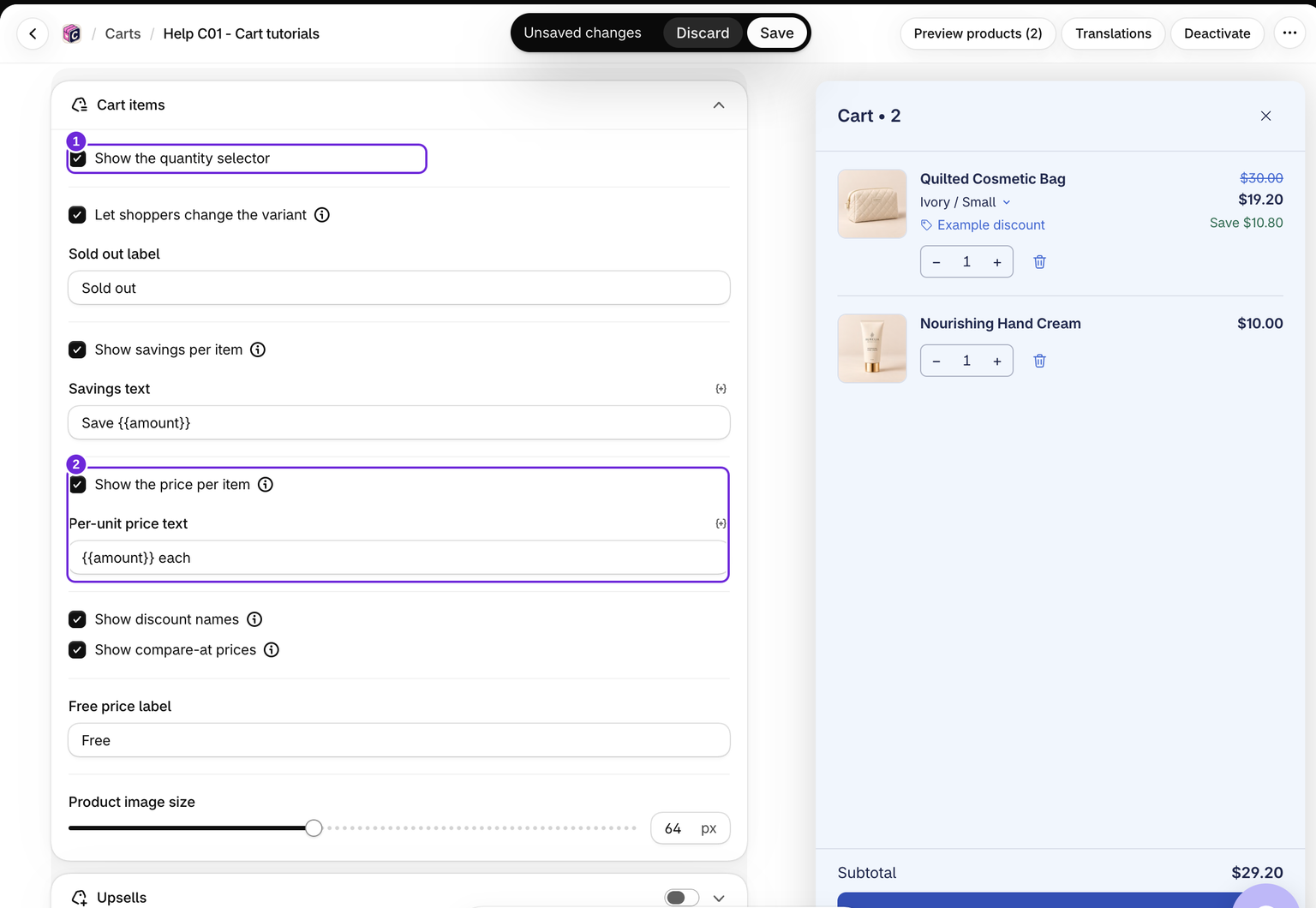
- Show savings per item: displays savings on lines that have a saving.
- Show discount names: displays discount names Shopify reports for the line.
- Show the price per item: adds a per-unit price on lines with a quantity above one.
- Show compare-at prices: displays a crossed-out original price where there is a saving.
- The line thumbnail size is set with Cart item image size in Style > Images. Images are always shown; there is no image on/off switch.
These display controls do not create a discount. A compare-at price on a product and an actual cart discount are different things.
To include catalog markdowns in the footer savings row, enable Count compare-at savings in the Discount code block. It is separate from these item-price controls and is off by default.
Subtotal settings
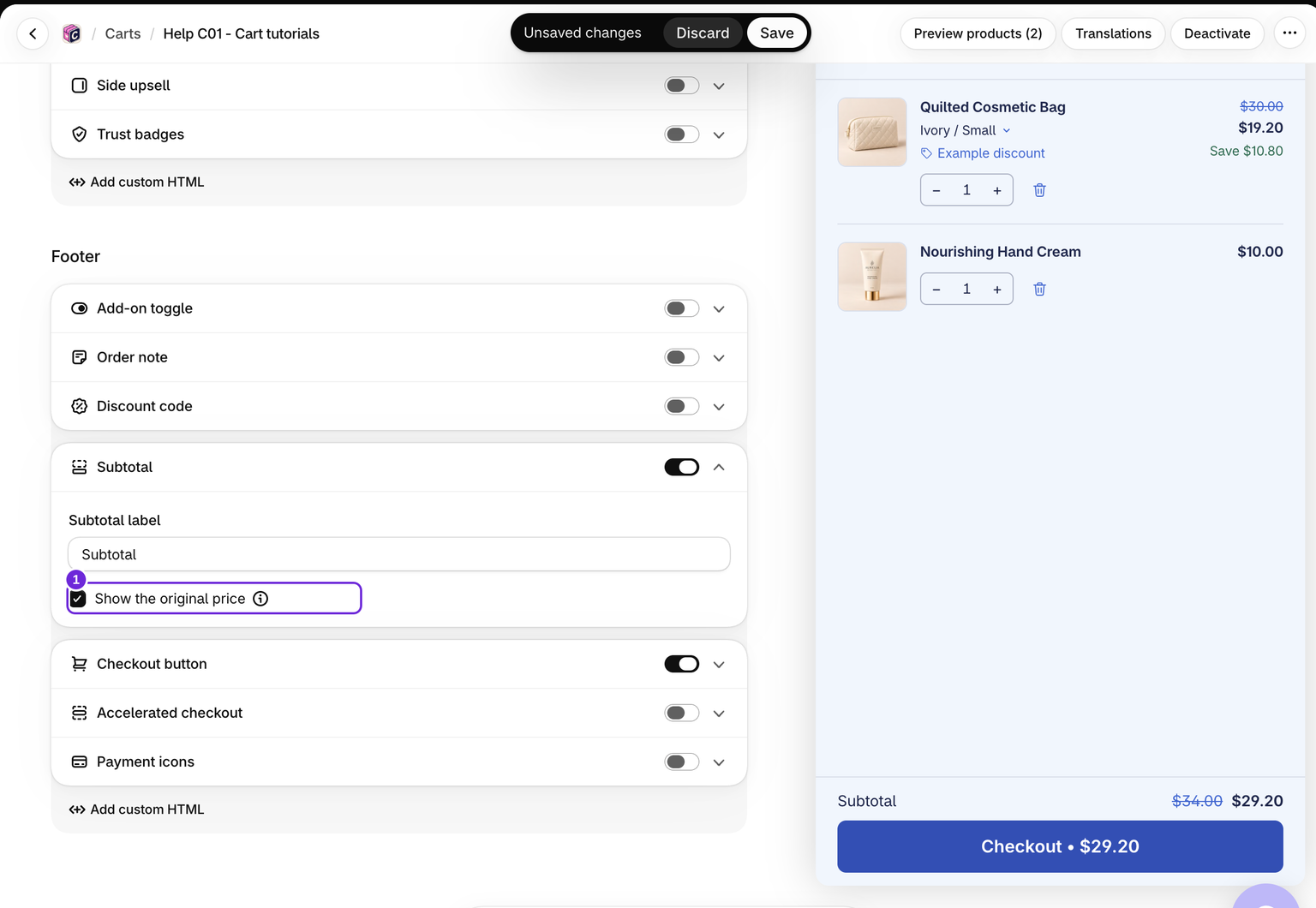
Open Cart > Subtotal to change its label and enable Show the original price. This strikes through the cart's pre-discount total when it exceeds the current subtotal. It does not add up catalog compare-at prices.
Check a discounted example
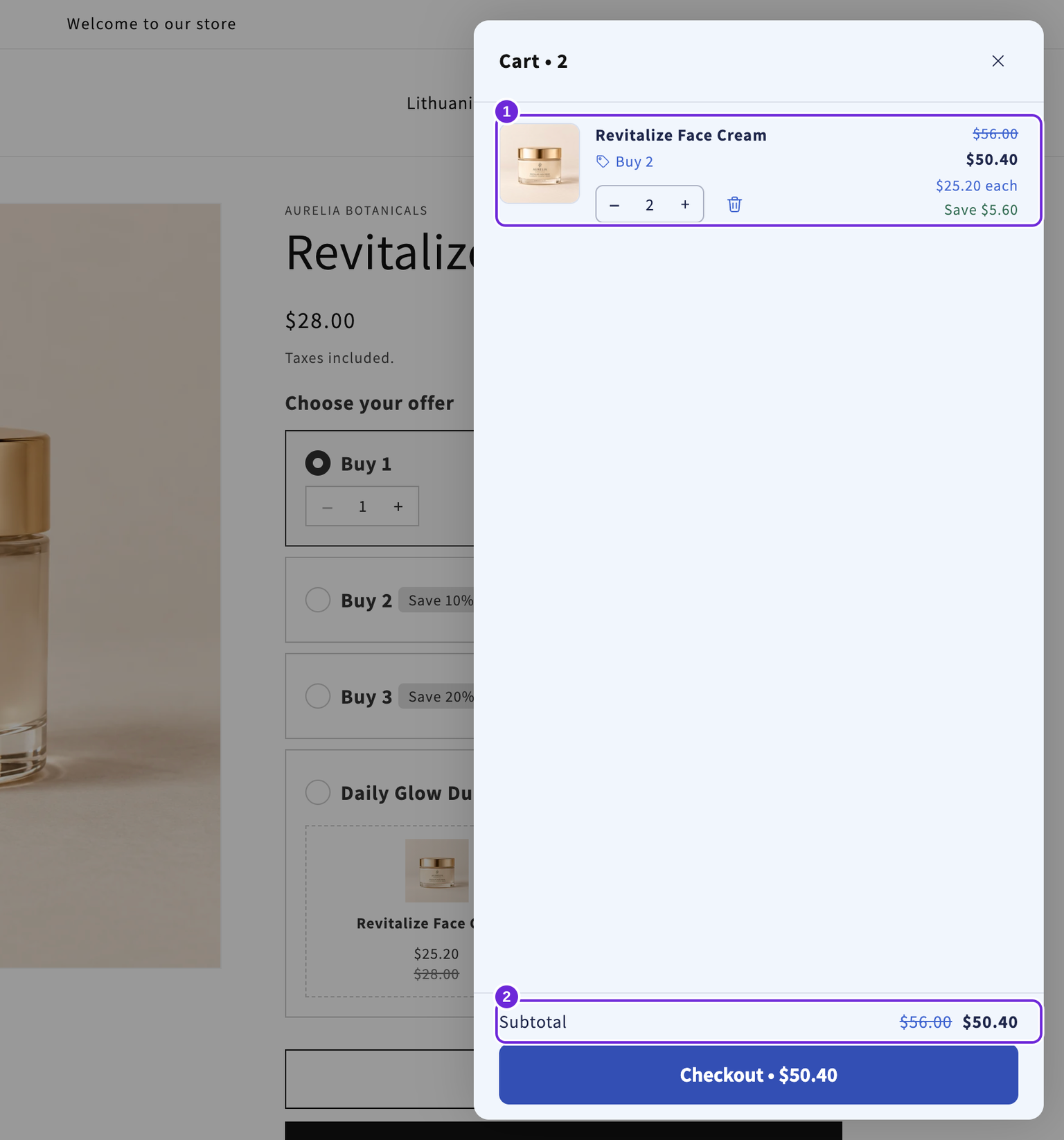
With two $28 creams and a 10% product discount, the line costs $50.40 and the per-unit price is $25.20. The subtotal can show $56 crossed out beside $50.40. These are display choices around an existing discount, not settings that create one.
Save and test with a discounted cart and a product quantity above one. Some labels correctly remain hidden when the cart has no saving to display.
Was this article helpful?
Your feedback helps us improve our docs.