
Configure the cart countdown timer
Open Cart > Countdown bar in Bundlex Cart and enable it to show a timer while the cart has items.
Choose the timer
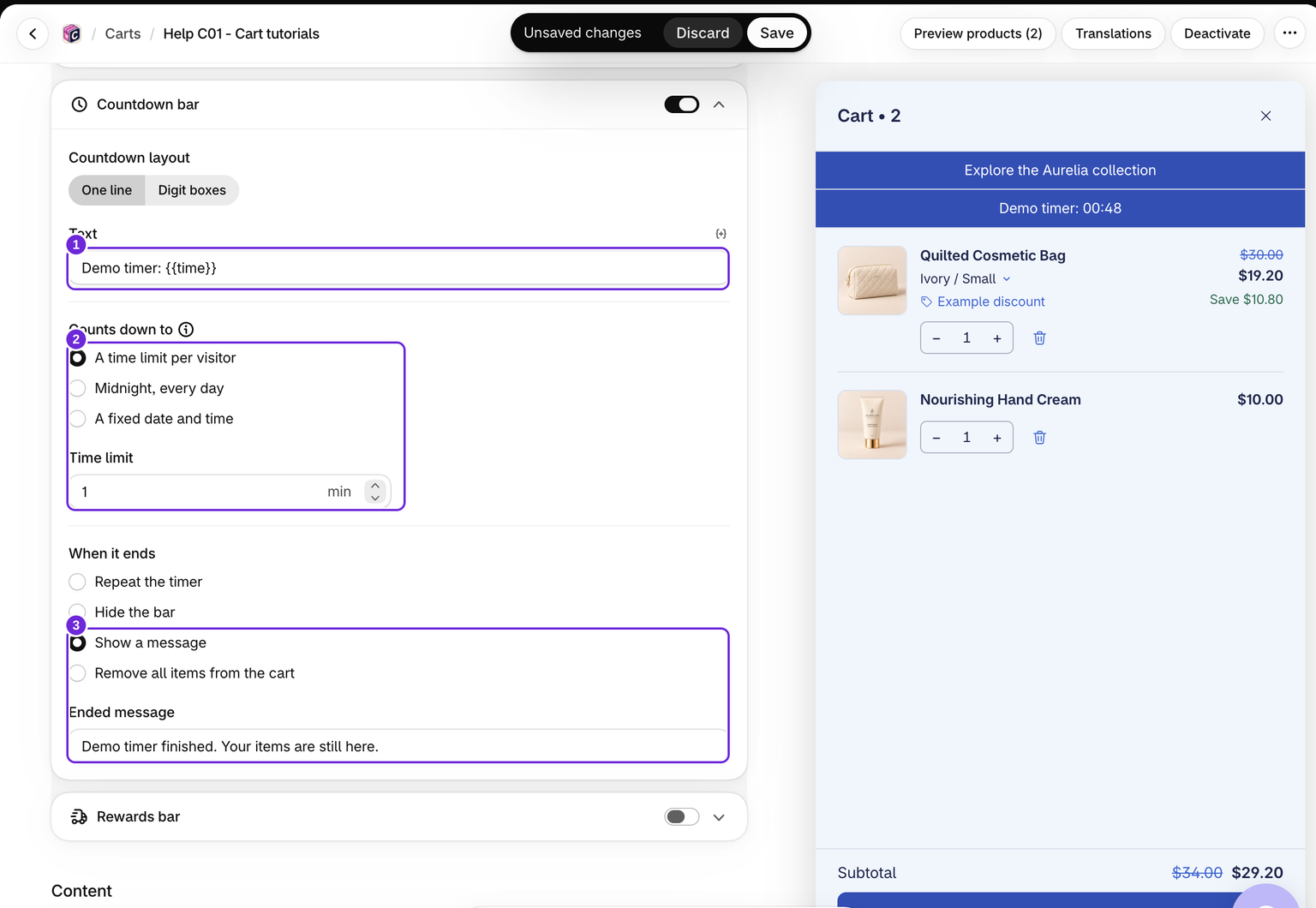
- A time limit per visitor: enter a whole number of minutes, at least 1. Changes to products, quantities or the cart note restart this rolling timer.
- Midnight, every day: counts down to midnight in the shopper's local timezone.
- A fixed date and time: set Ends at. The date is read in each shopper's own timezone, not the merchant's timezone.
Choose One line or Digit boxes for the layout and edit the text. Keep variables such as {{time}} when you want the live remaining time inside a sentence.
Choose what happens at zero
Under When it ends, select Hide the bar, Repeat the timer, Show a message, or Remove all items from the cart.
Remove all items from the cart really empties the shopper's cart. The timer does not reserve stock while it runs. Choose wording that describes the behaviour accurately. The preview never clears a real cart.
Repeat restarts a rolling timer or targets the next midnight. A fixed-date timer has no new deadline to repeat, so it remains at zero. A fixed-date timer without a valid date is hidden.
Test a one-minute example
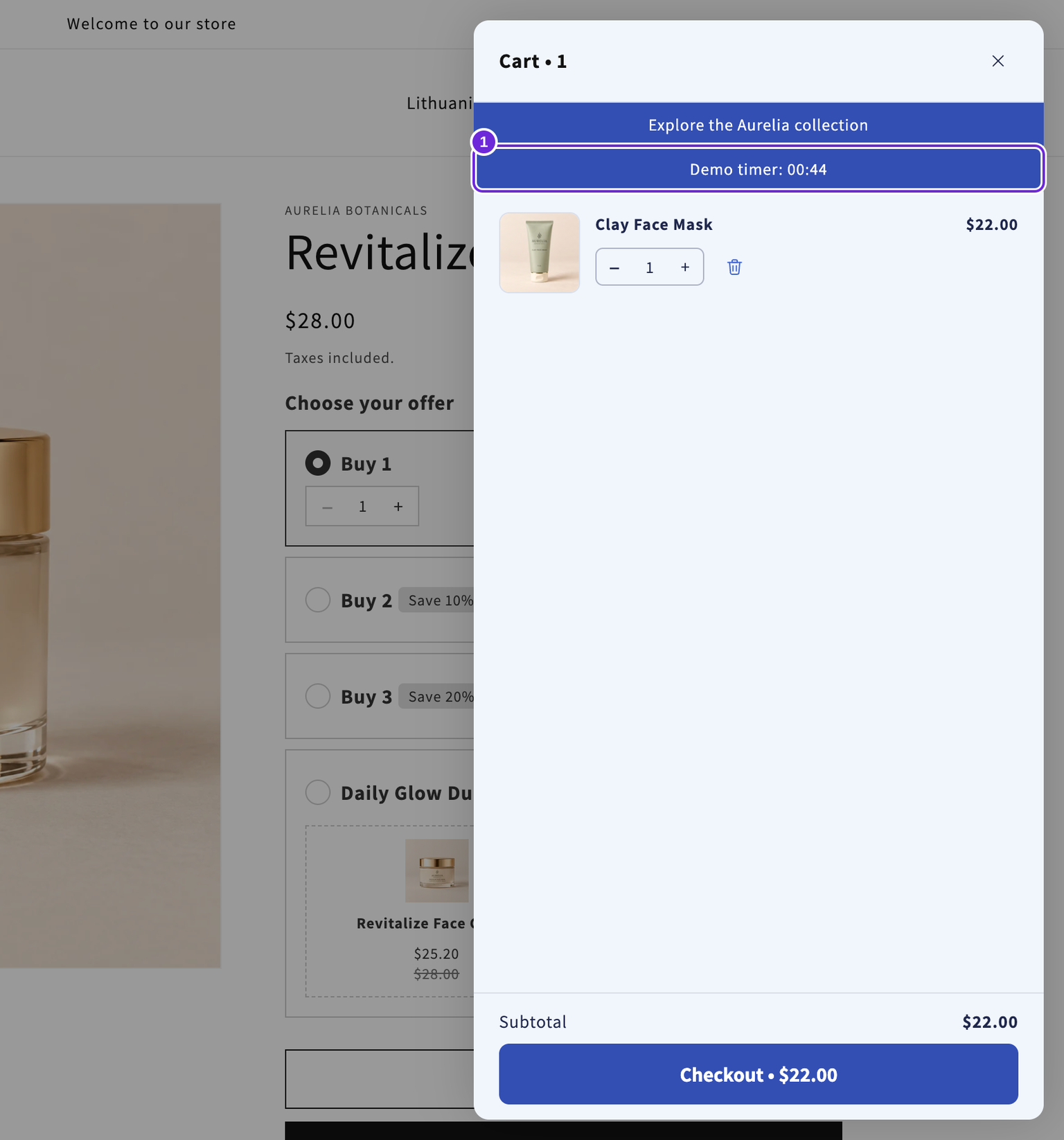
Choose A time limit per visitor, set Time limit to 1, and use “Demo timer: {{time}}”. Select Show a message and enter “Demo timer finished. Your items are still here.” At zero, the message replaces the timer and the products remain. Changing the quantity starts another minute.
Save and test
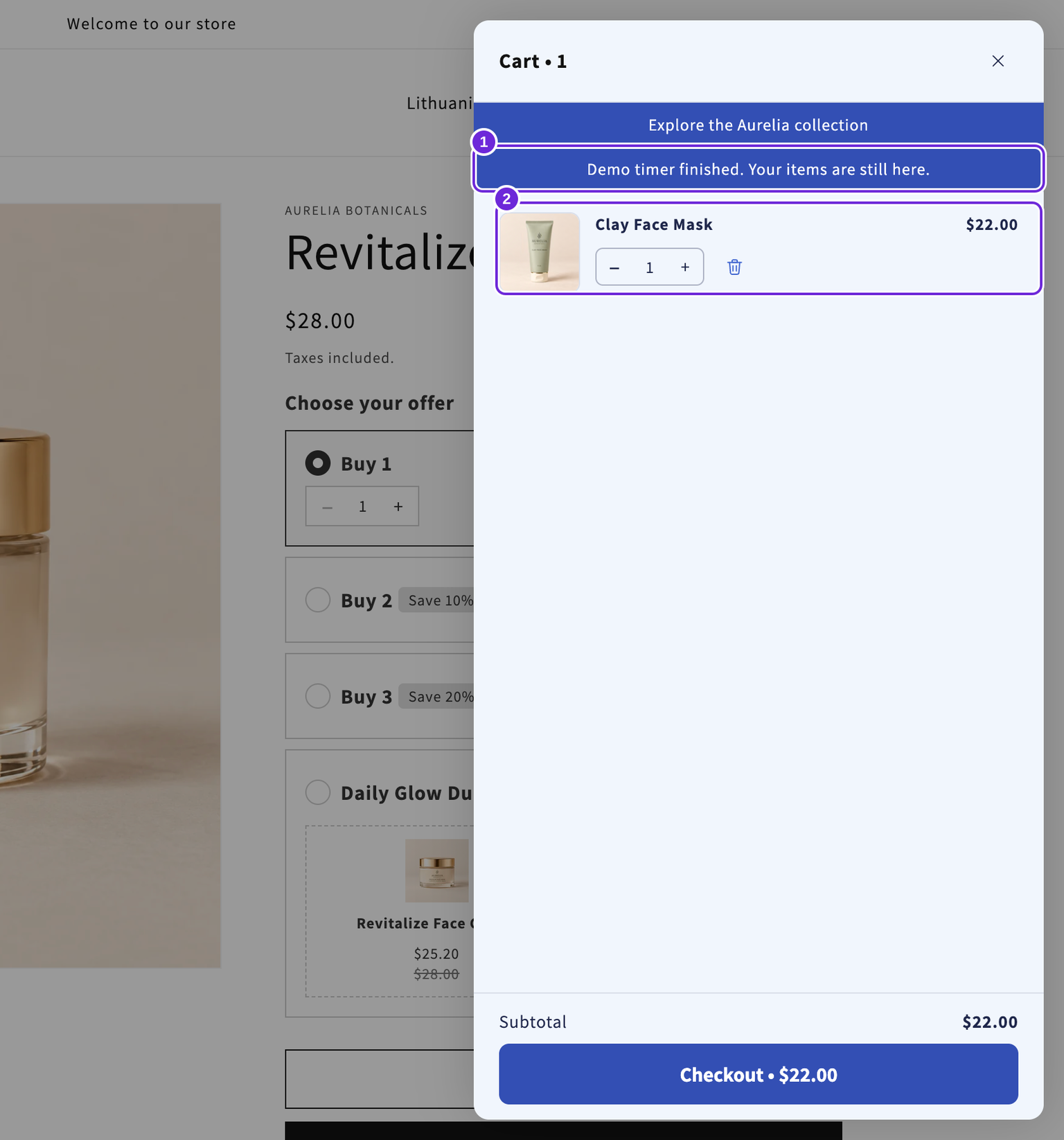
Save the design and test a short timer on your storefront before using it for shoppers. The bar is hidden when the cart is empty. Expiry does not automatically end a discount or promotion; it performs the action selected above.
Was this article helpful?
Your feedback helps us improve our docs.