
Let shoppers enter discount codes in the cart
The Discount code block in Bundlex Cart lets shoppers try a code before reaching checkout and see which discounts are already applied.
Set up the block
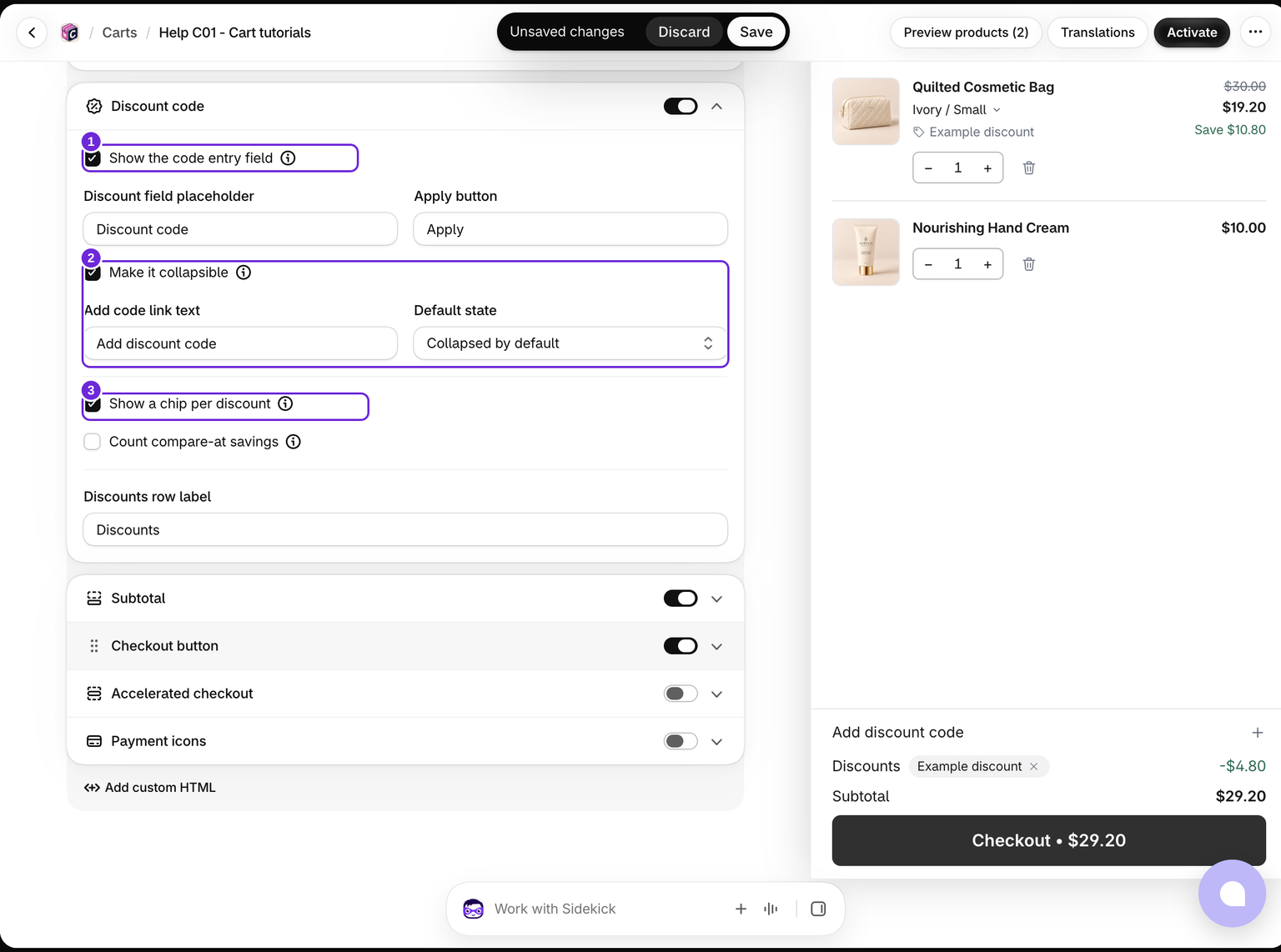
- Edit your cart and turn on Cart > Discount code.
- Keep Show the code entry field on if shoppers should type codes here.
- Enable Show a chip per discount to display individual applied discounts.
- Optionally enable Make it collapsible and choose its default state.
- Edit the labels as needed and save.
For a store using only automatic discounts, you can hide the entry field while keeping applied discounts visible. Collapsing the field does not hide the applied discount chips.
With Collapsed by default, the row opens the code field in a sheet over the cart, so the footer stays the same height. With Expanded by default, the field starts open in the footer and the row folds it in place.
Keep Add code link text filled in so shoppers have a visible row to open. The clear button empties the entry field; it does not remove an already applied code.
Codes and automatic discounts
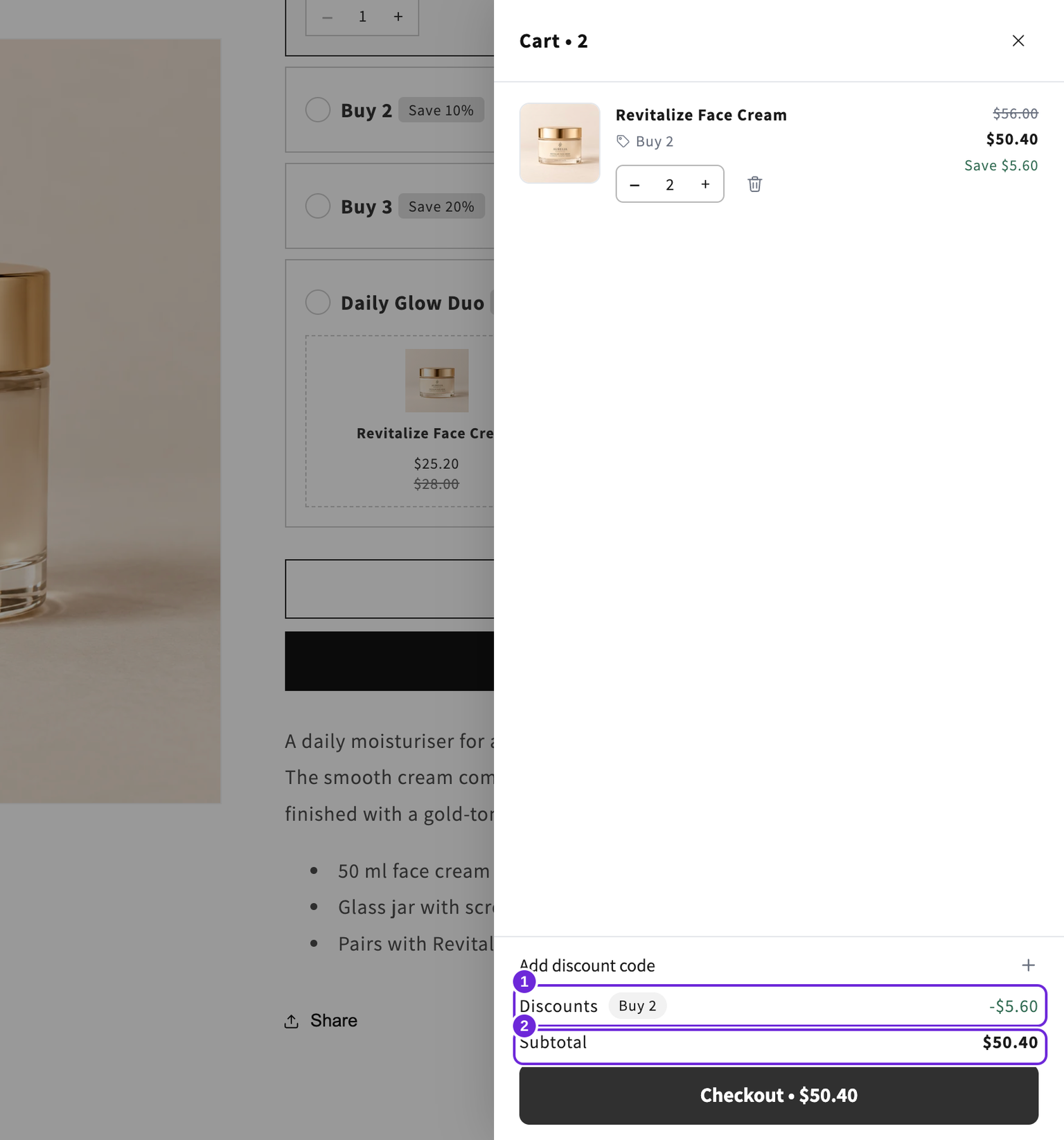
Entering a code asks Shopify to apply an existing discount. This field does not create new codes. Shopify decides whether the code is valid for the products, customer, dates, and other discounts in the cart.
Code chips can be removed by the shopper. Automatic discounts do not get the same removal control because they are applied by the store's discount rules.
Show catalog sale savings
A product compare-at price is a catalog markdown, not a Shopify discount code. To include those savings in this row, enable Cart > Discount code > Count compare-at savings. It is off by default.
The row includes the catalog markdown alongside actual Shopify discounts without counting the same saving twice. With Show a chip per discount enabled, catalog savings appear as a non-removable Sale chip. This changes the display; it does not create another discount. The Subtotal block's original-price display remains separate.
Test on the storefront
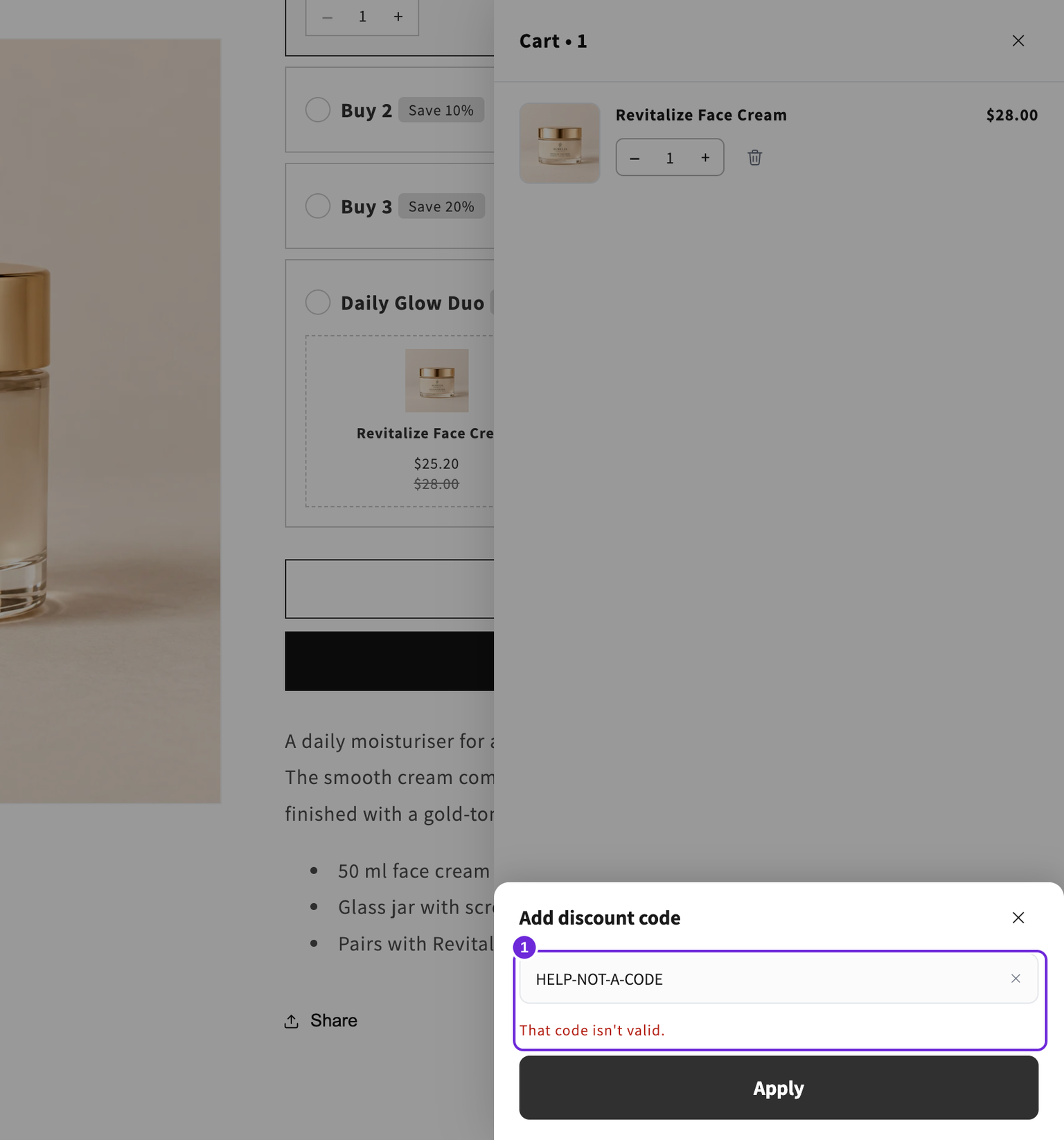
The editor preview does not apply real codes. Save, open your storefront, add a qualifying product, and test a known valid code. Check the total again at checkout.
A rejected code leaves the sheet open with an error. A code that applies closes the sheet and appears in the discounts row. Error wording is under Advanced > Messages.
Check an applied code
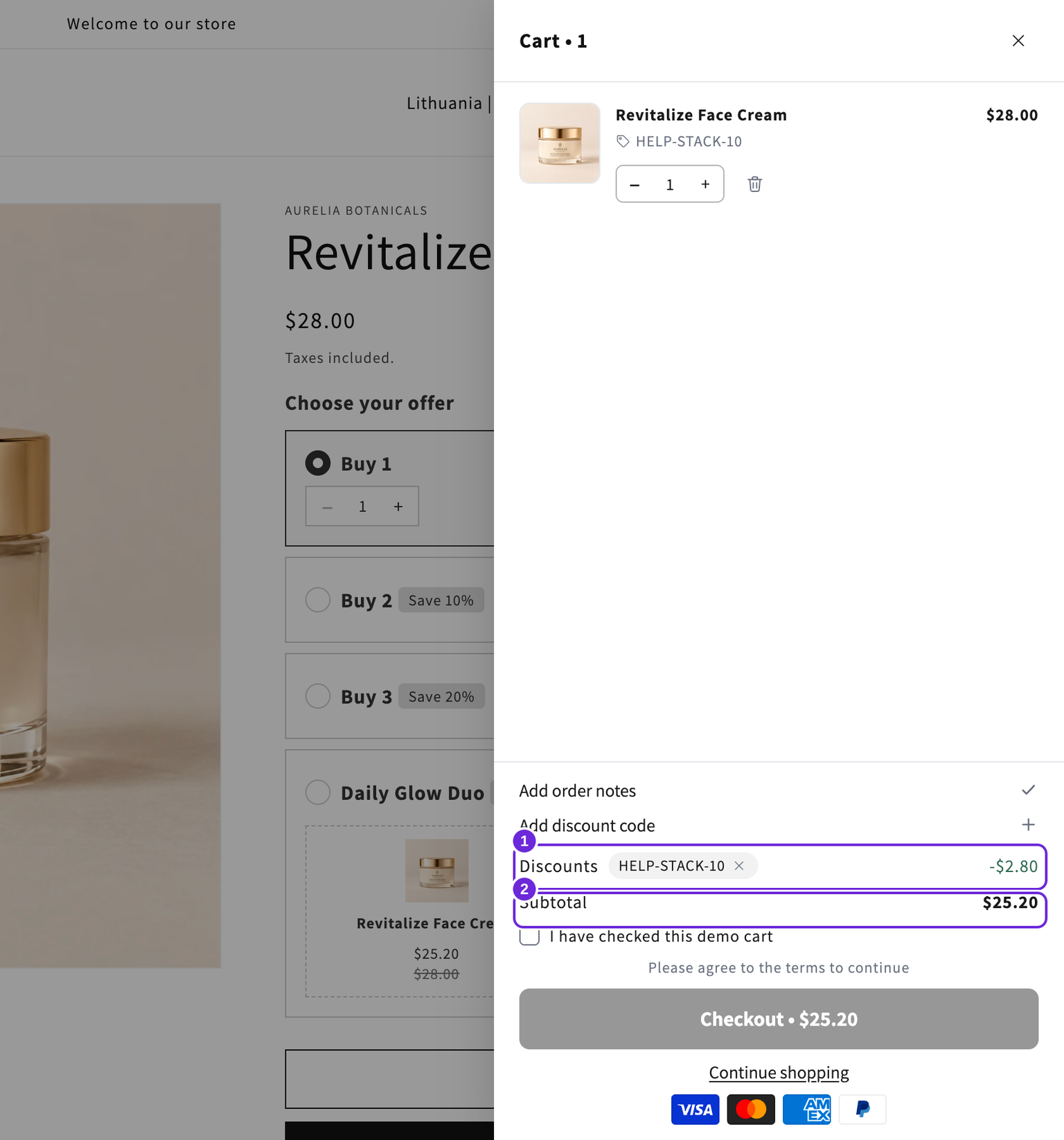
In this example, a 10% order code takes $2.80 off a $28 cream, leaving $25.20 before shipping. Shopify checkout lists the $28 product subtotal and the $2.80 order discount separately. Use the chip's remove button to remove the code, then check the amount again.
If the drawer amount and checkout do not agree, refresh the storefront and retest. Contact support with the products, code and steps if the difference remains or returns.
If a code is rejected, check its requirements and Shopify's discount-combination settings. Bundlex Cart reward discounts are configured separately under Rewards bar.
When your cart also gives a reward, the code must be allowed to combine with it. See which boxes to tick in A reward or free gift is not applying.
Was this article helpful?
Your feedback helps us improve our docs.