
Show upsells beside the cart on desktop
Side upsell in Bundlex Cart shows product cards in a separate panel beside the drawer. It gives desktop shoppers room to browse suggestions without adding them to the main cart column.
Enable it
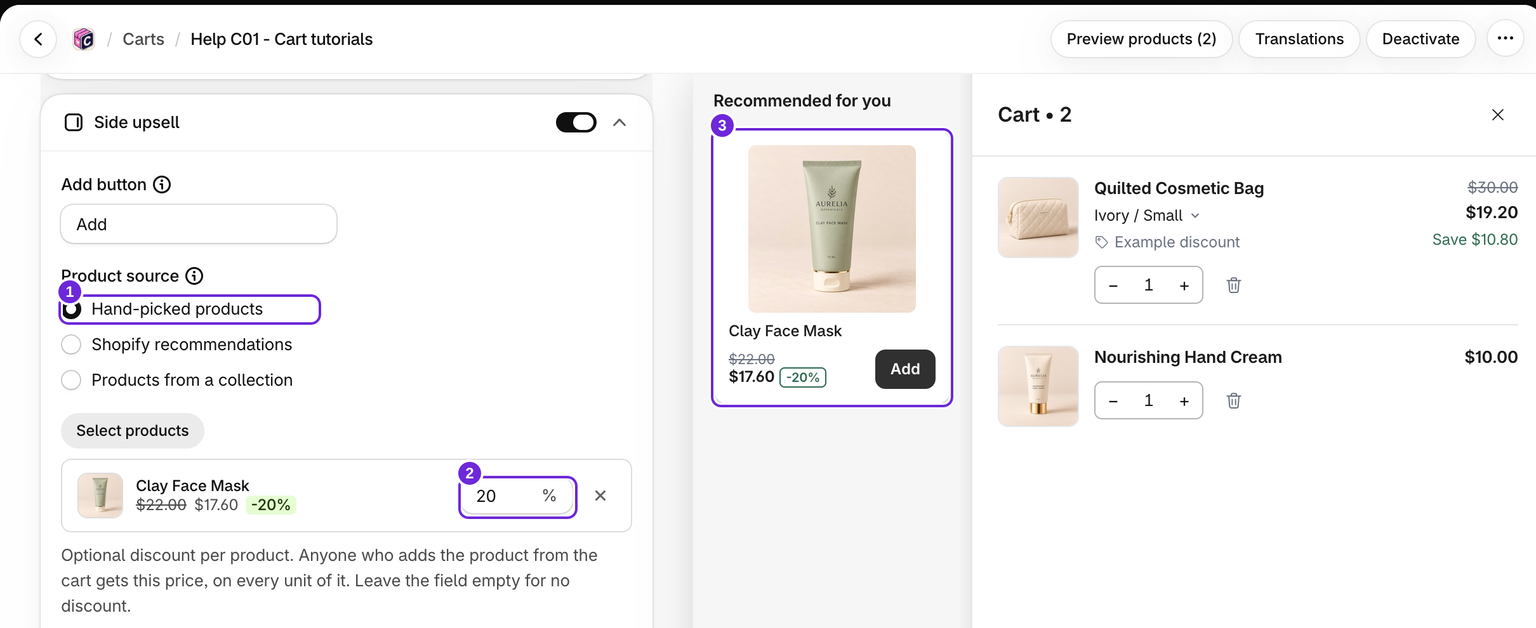
- Edit your cart and open Cart > Side upsell.
- Turn the block on and choose its Product source: hand-picked products, collections, or Shopify recommendations.
- Set its heading, Maximum products, and Side upsell position.
- Save and check the result on a desktop storefront.
Hand-picked products here have the same optional % discount field as the main block; see discount a hand-picked product.
The side panel has its own product choices. Its cards stack vertically; it does not have the main Upsells block's layout selector. Side upsell position chooses the side of the drawer the panel sits on. If that is also the drawer's screen edge, the drawer moves inward to make space.
Why it does not show on a phone
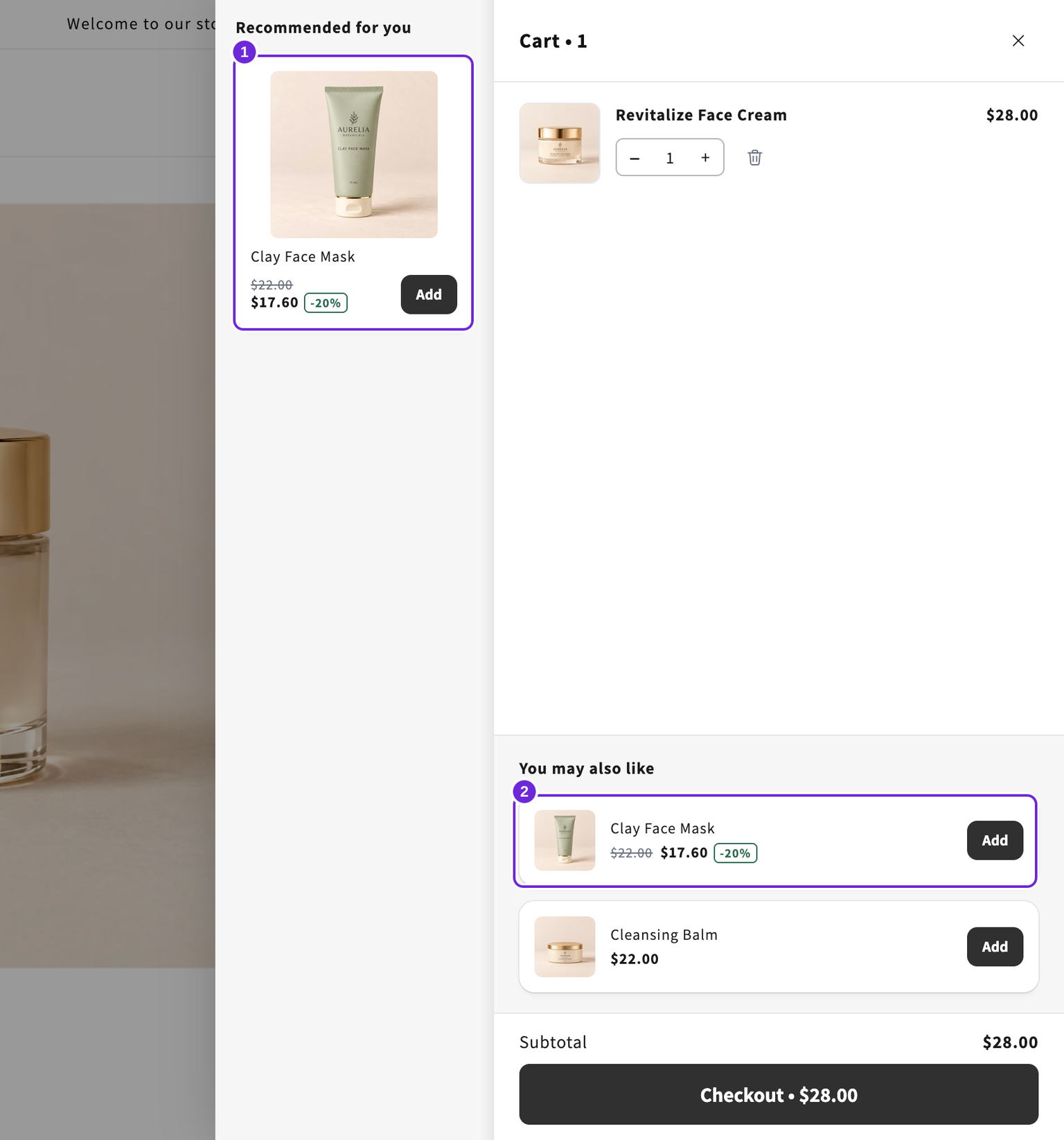
The panel needs a viewport at least 900 pixels wide and 600 pixels high. It is also hidden when the cart is empty or the on-screen keyboard is open. This is expected behaviour.
To offer products on smaller screens, enable the regular Upsells block inside the drawer too. The side panel does not automatically move into that block.
Change the side panel's image size with Carousel and side upsell image size in Style > Images. The same slider also sizes Carousel layout suggestions in the main drawer and the empty cart.
Was this article helpful?
Your feedback helps us improve our docs.